
The Evolution of the Modern Workspace
The traditional horizontal display has been the standard for computing for many decades. However, as digital tasks become more complex, many professionals are rethinking their physical screen orientation.
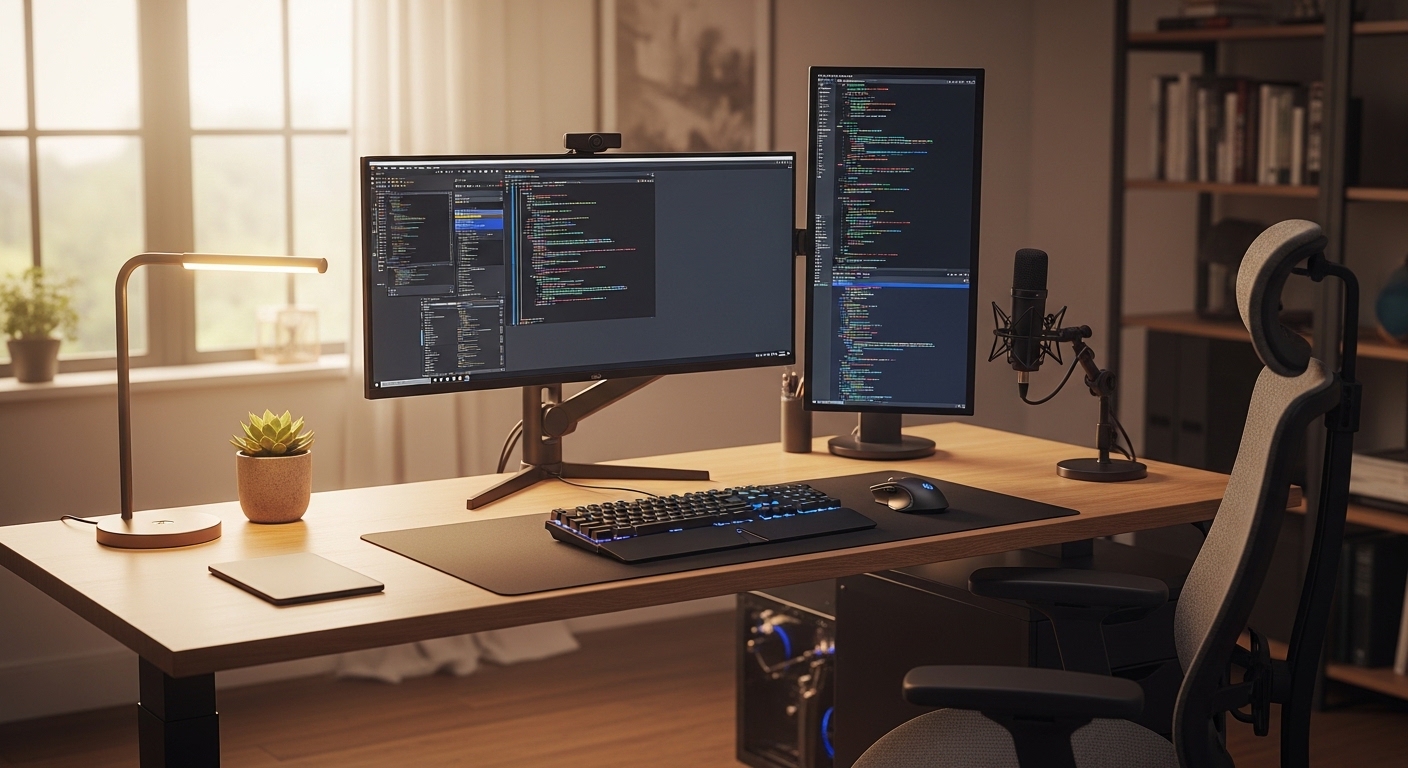
Understanding how to set up vertical monitor for productivity can fundamentally change the way you interact with data. This shift from landscape to portrait mode allows for a unique perspective on vertical content.
Portrait orientation is particularly beneficial for those who spend their day reading long documents or writing extensive lines of code. It mimics the shape of a physical piece of paper, making digital reading feel more natural.
In this guide, we will explore the technical and ergonomic steps required to optimize your workstation. You will learn how to align your hardware and software for a seamless experience.
Why Vertical Orientation Matters
Vertical monitors offer a significant advantage when dealing with tall, narrow datasets. Websites, for example, are designed to be scrolled vertically rather than horizontally.
By rotating your screen, you minimize the need for constant mouse wheel movement. This reduces physical strain on your hand and allows your brain to process larger chunks of information at once.
Coders find this setup indispensable because it allows them to view entire functions without jumping between different sections of a file. It provides a birdseye view of the logical flow in a program.
- Increased visibility for text based applications
- Better utilization of desk space in tight areas
- Improved focus on primary tasks without distractions
- Reduced scrolling for long social media feeds
Choosing the Right Hardware for Your Setup
Before you begin the physical installation, you must ensure your equipment supports rotation. Not every monitor is designed to sit comfortably in a vertical position.
The most important feature to look for is the panel type. In Plane Switching panels are highly recommended for vertical use because of their superior viewing angles.
Cheap panels often suffer from color shifting when viewed from the side or when rotated. This can make the top or bottom of your vertical screen look washed out or distorted.
Check the back of your display for a VESA mounting pattern. This standard interface allows you to attach the screen to a dedicated monitor arm if the original stand does not rotate.
Aspect Ratios and Screen Sizes
A standard 24 inch or 27 inch monitor is usually the perfect candidate for a vertical secondary screen. Large ultrawide displays are often too tall when flipped, leading to significant neck strain.
Screens with a 16 to 10 aspect ratio provide slightly more width in portrait mode compared to the more common 16 to 9 ratio. This extra width is extremely helpful for viewing sidebars or wide code comments.
Think about the resolution of your screen as well. A high density display like 4K ensures that text remains crisp and legible even when positioned close to your eyes.
Blurry text can lead to eye fatigue during long work sessions. Investing in a screen with high pixel density will protect your vision over time.
Physical Installation and Mounting Steps
The first step in the physical process is deciding between a stock stand or an aftermarket arm. Many premium monitors include a stand that supports 90 degree rotation out of the box.
If your current stand is fixed, you will need a gas spring arm to achieve the desired orientation. These arms provide the flexibility to tilt, swivel, and rotate the screen with minimal effort.
Ensure that your desk is sturdy enough to support the weight of a clamped monitor arm. Some glass or thin particle board desks might crack under the concentrated pressure of a heavy mount.
When you rotate the screen, pay close attention to the cable slack. Cables that are too tight can damage the ports on your monitor or your computer.
Managing Your Cables Effectively
Cables often become a mess when you change the orientation of a display. Route your power and video cables through the integrated management channels of your monitor arm.
Leave enough extra cable length to allow for future adjustments or minor rotations. This prevents the connectors from being pulled out accidentally when you move the arm.
Using longer cables than necessary is usually a wise choice for vertical setups. A two meter cable provides the reach needed to navigate the height of a portrait display.
Labeling your cables can also save time during future troubleshooting. Knowing exactly which wire connects to which port simplifies the maintenance of your home office.
- Verify VESA compatibility before purchasing a mount
- Clear the desk surface of fragile items during installation
- Test the rotation range to ensure cables do not pinch
- Tighten the tension screws to prevent the monitor from drooping
Software Configuration for Windows and macOS
Once the monitor is physically positioned, you must tell your operating system to rotate the output. This is a simple process that only takes a few moments in the settings menu.
On a Windows computer, right click the desktop and select Display Settings. Locate the specific monitor in the visual map and change the display orientation to portrait.
You might need to choose Portrait Flipped depending on which way you rotated the screen physically. This depends on whether the bottom bezel is on the left or the right side.
For Mac users, navigate to the System Settings and then to the Displays section. Select the rotated monitor and find the dropdown menu for rotation to choose the 90 degree option.
Fine Tuning the Screen Alignment
It is crucial that the mouse moves logically between your horizontal and vertical screens. In the display settings, drag the virtual monitors so they match their real world positions.
If your vertical monitor is physically higher than your main screen, adjust the virtual map to reflect that height difference. This ensures the cursor transition feels smooth and intuitive.
Sometimes the edges of the screens do not align perfectly due to different bezel thicknesses. Spend a minute moving the virtual displays up or down until the mouse path is perfect.
Test the alignment by moving a window across the gap. If the window jumps up or down, continue adjusting the vertical offset in your settings.
Optimizing Ergonomics for Neck Health
Ergonomics is often overlooked when people learn how to set up vertical monitor for productivity. A poorly positioned portrait screen can lead to significant neck and shoulder pain.
The primary rule of ergonomics is to keep your head in a neutral position. You should not have to tilt your chin up or down to see the top or bottom of the screen.
Position the vertical monitor so that the most used area is at eye level. This usually means the middle of the screen should be aligned with your horizontal sightline.
Avoid placing the vertical monitor too far to the side. Frequent twisting of the neck can cause muscle strain and long term discomfort.
Viewing Distance and Angle
Keep your vertical screen at approximately an arm’s length away from your face. This distance helps prevent eye strain while keeping the text large enough to read easily.
Angle the screen slightly toward your face rather than having it perfectly flat. This slight inward tilt creates a more immersive viewing experience and reduces glare from overhead lights.
Glare is a common issue with vertical screens because they catch light differently than horizontal ones. Use a monitor light bar or adjust your room lighting to minimize reflections on the glass.
In 2026, most professionals are moving toward matte screen coatings to further reduce these distracting reflections. A matte finish is generally better for productivity in bright rooms.
- Adjust the chair height to support a neutral spine
- Place the vertical screen on your non dominant eye side
- Take frequent breaks to stretch your neck muscles
- Use a blue light filter during late night work sessions
Maximizing Productivity with Software Tools
A vertical monitor is only as powerful as the software layout you use on it. You can divide the tall space into multiple zones to handle various tasks simultaneously.
Window management tools are essential for keeping your workspace organized. These utilities allow you to snap windows into specific regions of the vertical screen.
On Windows, the PowerToys utility includes a feature called FancyZones. This allows you to create a custom layout with three or four stacked zones on your portrait monitor.
For Mac users, tools like Rectangle or Magnet provide similar functionality. These apps make it easy to place a music player at the top and a chat app at the bottom.
Specific Use Cases for Vertical Screens
Communication apps like Slack or Microsoft Teams thrive in a vertical environment. You can see many more channels and messages without having to scroll through long lists.
Social media managers use portrait mode to view feeds as they appear on mobile devices. This provides a realistic preview of how content will look to the end user.
Data analysts often use the vertical space to keep long spreadsheets visible. It allows them to compare rows of data at the top with totals at the bottom of the document.
Streamers find vertical monitors perfect for monitoring their live chat. It keeps the conversation visible while they focus on the game or presentation on the main horizontal screen.
Common Pitfalls and How to Avoid Them
One common mistake is choosing a monitor that is too large for vertical use. A 32 inch screen in portrait mode is often too tall, forcing you to look up at an uncomfortable angle.
Another issue is poor color calibration between the two displays. If the white balance is different, your eyes will struggle to adjust every time you switch screens.
Use the internal calibration tools of your operating system to match the colors as closely as possible. This creates a more cohesive and professional looking workspace.
Be mindful of the refresh rate if you are using the monitors for different tasks. A mismatch between a 144Hz and a 60Hz screen can sometimes cause stuttering in the operating system UI.
The Importance of Lighting
Vertical monitors can sometimes create a large wall of light that causes eye fatigue. Lower the brightness of your vertical screen if it is only used for secondary tasks.
Ambient lighting behind the monitor can help reduce the contrast between the bright screen and the dark wall. This bias lighting makes the environment much more comfortable for your eyes.
If you find the vertical screen too distracting, try using a dark mode theme for all your applications. Dark themes are less taxing on the eyes and help the monitor blend into the background.
Consistency is key when it comes to visual comfort. Try to keep the font sizes and contrast levels similar across all active displays in your setup.
Advanced Workflow Strategies
To truly master how to set up vertical monitor for productivity, you should integrate it into your daily habits. Use the vertical space for things that require constant monitoring but low interaction.
System monitoring tools, such as CPU usage and network speeds, are great candidates for a small corner of your portrait screen. This allows you to spot performance issues instantly.
If you are a writer, use the vertical screen for your research notes and outlines. Keep your primary drafting document on the horizontal screen to separate the creative and organizational processes.
This physical separation of tasks helps reduce cognitive load. Your brain begins to associate each screen with a specific type of mental activity.
Creating a Dedicated Utility Hub
Consider using the bottom third of your vertical monitor for your calendar and task list. This keeps your schedule in your peripheral vision throughout the entire workday.
The middle section can be reserved for your primary reference material, such as a PDF or a web browser. The top section is often best for low priority items like a music player.
Experiment with different layouts until you find one that minimizes head movement. The goal is to maximize the information available while minimizing the physical effort to see it.
Over time, you will develop a muscle memory for where specific apps are located. This leads to a faster and more efficient workflow that feels completely natural.
Frequently Asked Questions
Is any monitor compatible with a vertical setup? Most modern monitors with VESA mounts can be used vertically, provided you have a stand or arm that supports rotation.
Does a vertical monitor cause more neck pain? It can if it is placed too high or too far to the side, but proper ergonomic alignment prevents this issue entirely.
Can I use a laptop as a vertical screen? While difficult to do physically, some specialized portable monitors are designed to stand vertically next to a laptop.
Will rotating my monitor affect the image quality? If you use an IPS panel, the quality remains excellent, but TN panels may show distorted colors when rotated.
Conclusion
Learning how to set up vertical monitor for productivity is a rewarding project for any professional. It optimizes your digital workspace for the way modern content is consumed and created.
By following the right ergonomic principles and using window management software, you can create a highly efficient environment. This setup reduces physical strain and keeps your focus sharp during long tasks.
Whether you are a software developer, a writer, or a data analyst, the portrait orientation offers a fresh perspective. Take the time to align your screens and manage your cables for a truly professional home office.
Ultimately, the best setup is the one that feels most comfortable for your specific needs. Start with a simple rotation and refine your layout as you discover what works best for your daily routine.