

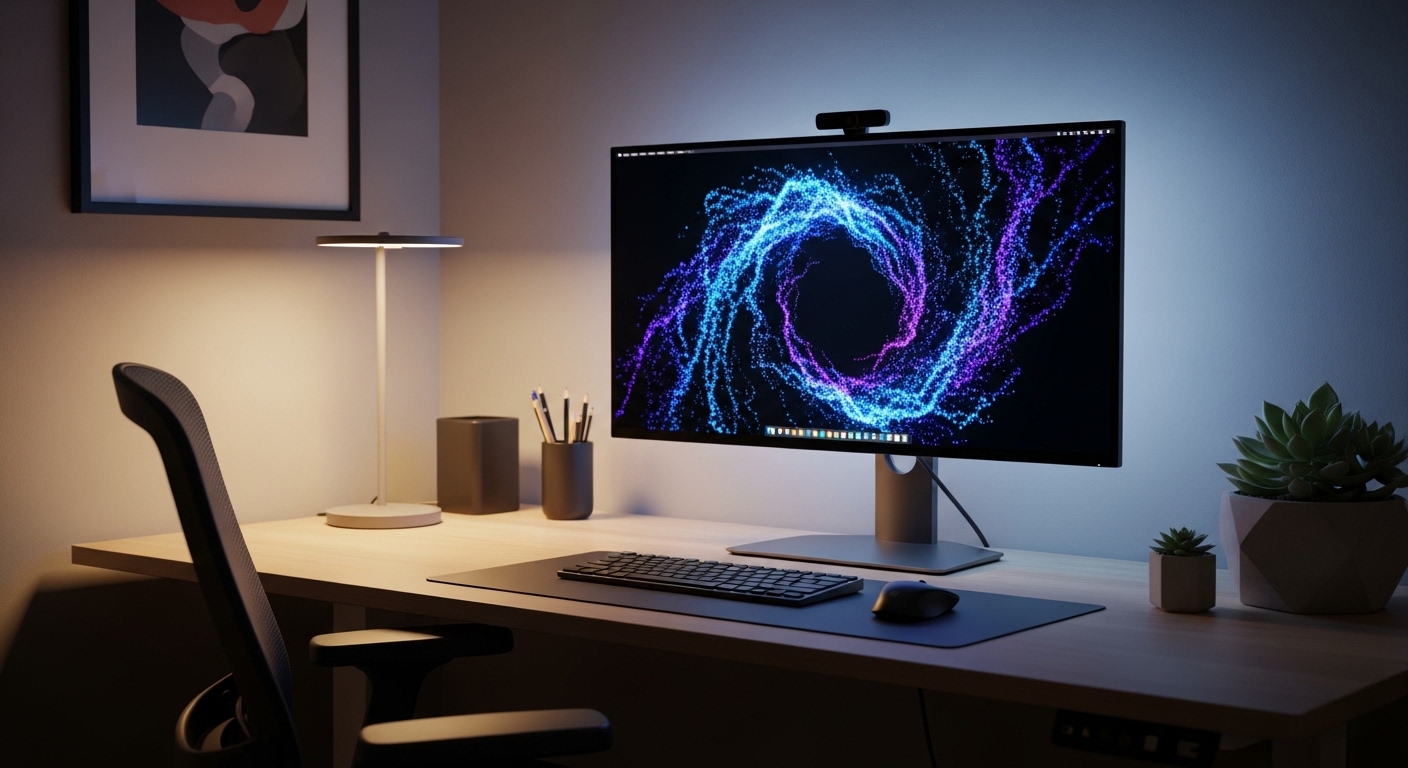
Organic Light Emitting Diode technology has revolutionized the way we experience visual media in our home offices. These panels provide deep blacks and infinite contrast that traditional liquid crystal displays simply cannot match.
At The Home Office Lab, we understand that a high quality monitor is a significant investment for any professional. Protecting that investment requires a deep understanding of how to prevent oled monitor screen burn in effectively.
Understanding the Science of OLED Pixel Degradation
To master the art of screen preservation, you must first understand what is happening at a subatomic level. OLED screens use organic compounds that glow when they receive an electric current.
These organic materials have a finite lifespan and gradually lose their brightness over thousands of hours of use. When certain pixels are used more intensely than others, they wear out unevenly compared to their neighbors.
Burn in is actually the visible manifestation of this uneven pixel wear. It usually appearing as a ghostly ghost image of a taskbar or a static logo.
Modern manufacturing has improved these materials significantly in recent years. However, the risk remains a fundamental characteristic of the self emissive technology used in these panels.
The Difference Between Retention and Permanent Burn In
Many users panic when they see a faint image persisting after closing a window. This is often just temporary image retention, which is a short term phenomenon.
Temporary retention usually disappears after a few minutes of varied content playback. Permanent burn in is a cumulative hardware issue that cannot be reversed by software alone.
- Temporary retention occurs due to residual voltage in the pixel circuit
- Permanent burn in involves the physical degradation of the organic layers
- Heat accelerates the chemical breakdown of the light emitting compounds
- Blue subpixels typically wear out faster than red or green ones
Optimizing Operating System Settings for Longevity
The operating system is the primary source of static elements that cause damage. Windows and macOS both feature persistent interface items like taskbars and menu bars.
Your first step in learning how to prevent oled monitor screen burn in is to hide these elements. In Windows, you should enable the option to automatically hide the taskbar in desktop mode.
This simple change ensures that the bright icons and the clock do not stay in the same position for hours. For Mac users, the Dock can be set to hide and show only upon mouse hover.
By removing these static anchors, you distribute the workload across all pixels more evenly. This practice is essential for anyone using their monitor for productivity work.
The Power of Dark Mode and Black Wallpapers
Since OLED pixels turn off completely when displaying black, using a dark theme saves energy and reduces wear. You should enable dark mode across your entire operating system and all compatible applications.
A pure black wallpaper is the ultimate defense against background wear. When the background is black, the pixels are completely at rest and not aging at all.
If you prefer visual flair, consider using a folder of high quality images that rotate every few minutes. Frequent changes prevent any single pattern from etching into the display permanently.
Avoid wallpapers with high contrast edges or bright white logos in the center. Soft and moving transitions are much safer for the health of your organic panel.
Mastering Monitor Built In Safety Features
Most modern OLED monitors come equipped with a suite of protective technologies. These features are designed to run in the background without interrupting your workflow.
Pixel shifting is one of the most common and effective tools available. This feature subtly moves the entire image by a few pixels in different directions periodically.
The shift is so small that it is usually invisible to the human eye. However, it ensures that static edges are spread across multiple pixels rather than stressing just one.
You should always keep this feature enabled in your monitor settings menu. Disabling it for the sake of perfect alignment is a risky choice for long term health.
The Role of Pixel Refresh and Compensation Cycles
Another vital feature is the pixel refresh cycle, sometimes called a compensation cycle. This process measures the electrical resistance of each pixel and balances the voltage across the panel.
Most monitors will prompt you to run a short cycle after every four hours of cumulative use. You should allow the monitor to complete this process while it is in standby mode.
There are also deep cleaning cycles meant to be run much less frequently. Only trigger a deep refresh if you notice actual visible streaks or persistent retention issues.
Running deep cycles too often can actually reduce the overall brightness of the panel prematurely. Stick to the automatic schedule recommended by your specific manufacturer.
- Always leave your monitor plugged in to allow standby maintenance
- Never interrupt a pixel refresh cycle once it has started
- Check the settings menu for a feature called logo dimming
- Logo dimming identifies static icons and reduces their local brightness
Managing Brightness and Environmental Heat
Heat is the primary catalyst for organic material degradation in electronics. High brightness levels require more power, which in turn generates more internal heat within the panel.
Running your monitor at one hundred percent brightness at all times is a recipe for disaster. You should aim for a brightness level that is comfortable for your room lighting.
In a controlled home office environment, a brightness setting between thirty and fifty percent is usually sufficient. This significantly extends the lifespan of the organic compounds.
High Dynamic Range or HDR content is particularly demanding because it pushes pixels to their peak luminance. Use HDR only when necessary, such as during gaming or movie playback.
Improving Airflow Around Your Workstation
Ensure that your monitor has plenty of space for air to circulate around its vents. Do not push the back of the monitor flush against a wall or a thick curtain.
Heat buildup behind the panel can increase the operating temperature of the pixels. Excessive heat causes the organic layers to break down faster over time.
If your home office is particularly warm, consider using a small fan to improve room circulation. Keeping the ambient temperature low helps the monitor dissipate heat more effectively.
Avoid placing your OLED screen in direct sunlight coming from a window. Solar heat and UV rays can damage the delicate layers of the screen surface.
Safe Habits for Productive Work and Browsing
Productivity software often features static ribbons, scroll bars, and toolboxes. These are dangerous for OLED panels if left on the screen for an entire work day.
When using a web browser, try to use full screen mode to hide the address bar and bookmarks. You can also use multiple browser windows and move them around frequently.
Avoid snapping windows to the exact same corners of the screen every single day. Shifting your layout by a few inches prevents hard borders from forming on the display.
If you use professional suites like Adobe or CAD software, try to hide the interface panels when they are not in use. This practice keeps the pixel wear uniform across the entire surface.
The Importance of Screensavers and Sleep Timers
The classic screensaver is no longer just for aesthetics, it is a functional necessity for OLED users. Set your screensaver to activate after two minutes of inactivity.
Choose a screensaver that features constant motion and a variety of colors. Avoid screensavers that have static text or logos moving across a black background.
Even better than a screensaver is the display sleep timer. Setting your monitor to turn off after five minutes of idle time is the most effective protection method.
This ensures that the pixels are not being used at all when you step away for a break. Every minute the screen is off adds to the longevity of the hardware.
- Use a black background for your web browser home page
- Disable desktop icons to keep the screen area clean
- Transparency effects in the OS can help soften static edges
- Rotate your primary monitor role if you use a multi screen setup
Protecting Your Screen During Gaming Sessions
Gaming is one of the best ways to enjoy an OLED, but it presents unique challenges. Many games feature a Head Up Display or HUD that stays on screen for hours at a time.
Look for settings within your favorite games to make the HUD elements transparent. Some games allow you to completely hide the interface when you are not in combat.
If a game has a very bright and static mini map, consider changing its position if the software allows it. Varying the games you play also distributes the wear across different colors and patterns.
Spending hundreds of hours on a single game with a bright white UI will eventually lead to visible retention. Mixing in different genres refreshes the pixel state effectively.
Understanding the Impact of Static Overlays
Third party overlays for chat or performance monitoring are particularly hazardous. These small windows are often very bright and never move their position.
If you must use them, try to make them as dim and transparent as possible. It is better to check performance metrics on a secondary non OLED screen if one is available.
Twitch streamers should be careful with their static frames and alert boxes. Moving these elements periodically can save the monitor from localized degradation.
In the world of technology in 2026, many games now include specific OLED friendly modes. Check the graphics settings of modern titles for any burn in reduction toggles.
Content Variety as a Maintenance Strategy
The best way to maintain an OLED is to keep the pixels busy with changing colors. Watching a movie in full screen is actually a form of maintenance for the panel.
Movies utilize the full spectrum of colors and keep every subpixel active in a dynamic way. This helps to even out any minor wear differences that occurred during productivity work.
If you have spent all day writing code or working on spreadsheets, watch a high quality video for thirty minutes. This varied movement massages the pixels and helps prevent static patterns from settling.
Think of your OLED like a high performance engine that needs to be run at different speeds. Constant low intensity static use is actually harder on the hardware than dynamic high intensity use.
Dealing with Letterboxing and Aspect Ratios
Wide screen movies often have black bars at the top and bottom of the display. While this is safe for the black pixels, it causes uneven wear across the panel over time.
The center of the screen will age while the top and bottom remain pristine. This can eventually lead to a visible difference in brightness when viewing full screen content.
Try to use the zoom feature occasionally to fill the entire screen if the aspect ratio allows it. This ensures that the entire surface area of the monitor ages at the same rate.
Uniform wear is always preferable to localized wear because it is much less noticeable to the eye. A slightly dimmer but uniform screen looks better than a bright screen with ghosting.
- Alternate between windowed and full screen modes
- Move frequently used apps to different areas of the screen
- Check for firmware updates that might improve pixel handling
- Avoid high contrast split screen layouts for extended periods
FAQ: Common Concerns About OLED Health
Many users wonder if they should avoid OLED entirely for office work. While there is a risk, the visual benefits often outweigh the maintenance requirements for many professionals.
Is burn in covered by manufacturer warranties? This varies by brand, but several top tier manufacturers now include specific burn in coverage for three years.
Does lowering the refresh rate help prevent burn in? Not directly, as burn in is related to brightness and static time rather than the frequency of updates.
Can I fix burn in once it happens? True permanent burn in cannot be fixed, but many software tools can help mask the issue by wearing down the surrounding pixels.
Will my OLED screen definitely get burn in?
It is not an absolute certainty for every user. With proper care and modern safety features, many panels last five years or more without any visible defects.
The key is preventative action taken early in the life of the display. Following the steps in this guide will maximize the odds of your screen remaining perfect for a long time.
Final Thoughts on OLED Preservation
Understanding how to prevent oled monitor screen burn in is about developing healthy habits. It is a small price to pay for the best image quality currently available on the market.
By hiding taskbars, managing brightness, and allowing for maintenance cycles, you protect your professional tools. Your eyes will thank you for the clarity and comfort that an OLED provides.
Keep your workspace cool and your content moving. With these simple strategies, your OLED monitor will remain a stunning centerpiece of your home office for years to come.