

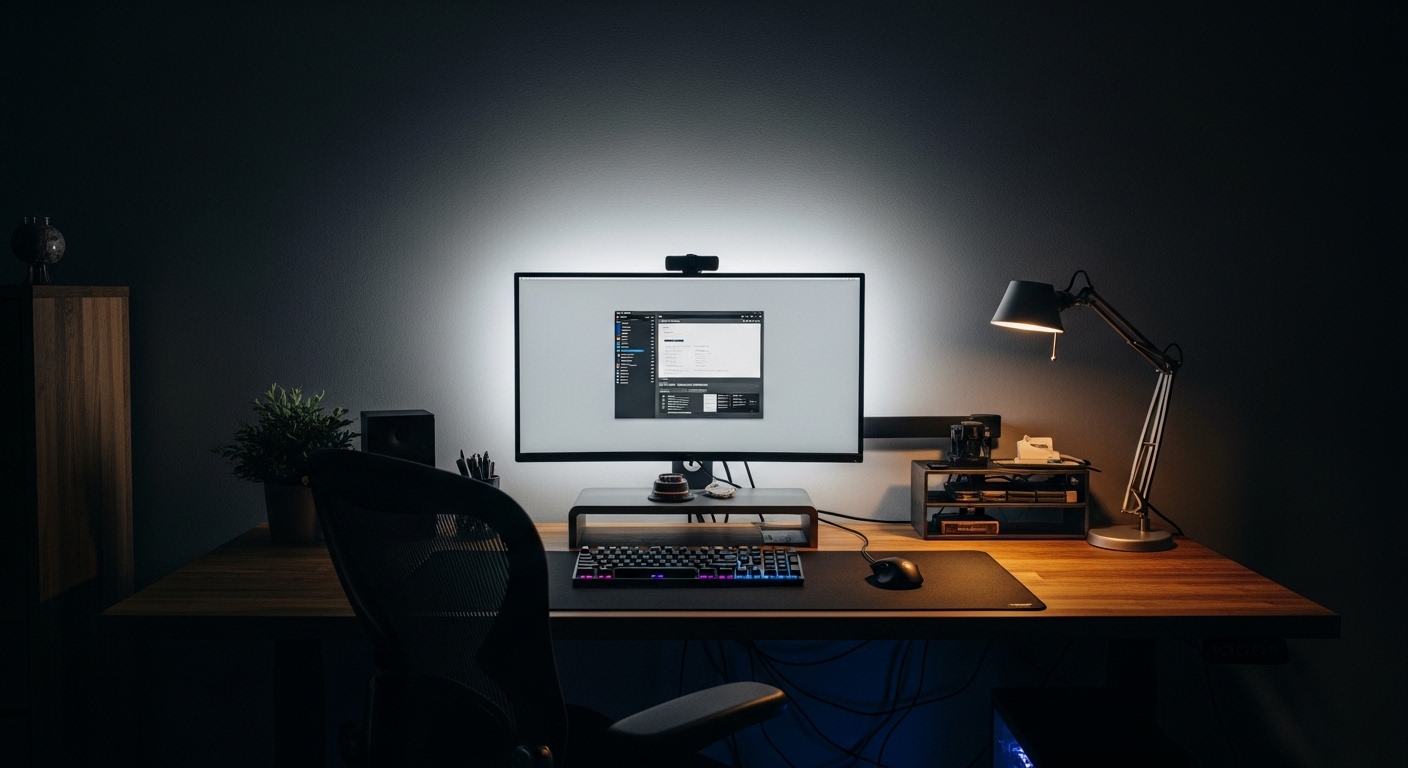
Understanding the Visual Impact of Bias Lighting
Maintaining a comfortable workspace requires more than just a good chair or a fast computer. Lighting plays a critical role in how your brain processes visual information during extended work sessions.
Many professionals suffer from eye fatigue without realizing the cause is often poor ambient lighting. Bias lighting serves as a crucial ergonomic upgrade for any modern office.
It involves placing a light source behind your display to illuminate the wall directly behind it. This creates a soft glow that expands your peripheral field of vision.
By reducing the sharp contrast between a bright screen and a dark room, you allow your eyes to relax. This article explores how to set up monitor bias lighting correctly for maximum benefit.
Proper illumination prevents the constant contraction and expansion of your pupils as you look around the room. This reduction in visual workload is the primary goal of any bias light installation.
The Science of Contrast and Eye Strain
The human eye is an incredibly complex organ that adjusts to the brightest light source in its view. When you sit in a dark room with a bright monitor, your eyes face a conflicting signal.
Your pupils want to constrict because of the bright screen, but they also want to dilate because of the dark surroundings. This constant struggle leads to significant muscle fatigue over several hours.
When you introduce bias lighting, you create a baseline luminance for the entire environment. This stabilizes the pupillary response and makes the viewing experience much more comfortable.
Furthermore, bias lighting improves the perceived quality of your display. It enhances the perceived black levels by providing a reference point for your brain.
Because of the way our vision works, blacks appear deeper when there is a light source nearby. This effect is known as simultaneous contrast and is a well documented visual phenomenon.
The Role of Peripheral Vision
Our eyes are designed to perceive motion and light in the periphery to keep us aware of our surroundings. A dark wall behind a screen creates a void of information that can feel unsettling over time.
Adding light to that space provides the brain with the spatial context it needs. This leads to a more immersive and less stressful computing environment.
Selecting the Right Color Temperature
Not all lights are suitable for use behind a monitor. The most important factor in choosing a light is its color temperature, measured in Kelvin.
For professional work and accurate color representation, the industry standard is 6500 Kelvin. This specific temperature is often referred to as D65 or daylight white.
Using a light that is too warm will make your screen appear overly blue. Conversely, a light that is too cool will make your screen look distractingly yellow or green.
Maintaining a neutral white background ensures that your color perception remains accurate throughout the day. This is especially vital for photographers, video editors, and graphic designers.
While many strips offer millions of colors, static white is the best choice for productivity. Avoid using vibrant reds or blues for serious work tasks.
In 2026, many professionals are realizing that simple white light outperforms flashy RGB setups. Consistency is the key to focus in a busy home office.
The Importance of Color Rendering Index
Color Rendering Index, or CRI, measures how accurately a light source reveals the true colors of objects. For bias lighting, you should look for a high CRI value of at least 90.
Low quality LEDs often have a low CRI, which results in a sickly or muddy light. A high CRI light provides a clean and crisp illumination that looks natural.
The spectrum of light should be as full as possible to prevent visual gaps. This ensures that the light reflecting off your wall is truly neutral and balanced.
When the light is balanced, the brain does not have to work as hard to interpret colors. This further reduces the mental fatigue associated with digital work.
Always prioritize the spectral quality of the light over the number of features or remote control options. A simple, high quality white light is always superior.
Step by Step: How to Set Up Monitor Bias Lighting Correctly
Begin by measuring the back of your monitor to determine the length of light strips needed. You generally want the light to cover all four sides for a uniform glow.
If you have a very large ultra wide screen, you might only need strips on the top and sides. Ensure you leave enough space from the edges so the LEDs are not visible.
Clean the back of your monitor thoroughly with a microfiber cloth and a bit of isopropyl alcohol. Removing dust and oils is essential for the adhesive to bond properly.
Peel the backing from the light strip and apply it firmly to the plastic chassis. Avoid covering any ventilation holes or ports that are necessary for the monitor to function.
Press down along the entire length of the strip to ensure there are no air bubbles. A secure bond prevents the light from sagging or falling off over time.
Once attached, connect the power source to a USB port or a wall outlet. Many monitors have built in USB ports that can power the lights conveniently.
Test the connection to ensure all LEDs are functioning before you push the monitor back into place. Proper cable management will keep the setup looking professional and tidy.
- Measure the perimeter of the screen accurately.
- Clean the surface to ensure long lasting adhesion.
- Keep strips at least two inches from the screen edge.
- Ensure the power cable has enough slack for movement.
- Use cable clips to secure any dangling wires.
Optimizing the Distance from the Wall
The quality of the glow depends heavily on how far your monitor sits from the wall. If the screen is too close, the light will look harsh and concentrated.
Ideally, you want a distance of about four to six inches from the rear of the monitor to the wall. This allows the light to spread out and create a soft, even halo.
If your desk is pressed against the wall, consider pulling it forward slightly. A wider spread of light is easier on the eyes than a bright, narrow hotspot.
Fine Tuning Brightness for Best Results
One of the most common mistakes is setting the bias light to be too bright. The light should not overpower the screen or become a distraction itself.
A good rule of thumb is that the illuminated wall should be about ten percent of the peak brightness of your monitor. You want a subtle glow, not a floodlight effect.
If your light strip includes a dimmer, use it to match the intensity to your environment. In a brighter room, you may need slightly more output to see the effect.
In a dark room, the brightness should be dialed back significantly. The goal is to create a seamless transition between the display and the surrounding space.
You can test the brightness by opening a completely white window on your screen. The wall behind the screen should look noticeably dimmer than the white on your monitor.
Consistency in brightness helps maintain a steady focal point for your eyes. This is the secret to a professional and ergonomic workstation setup.
The Impact of Wall Color and Texture
The color of the wall behind your monitor significantly influences the final result. For the most accurate color experience, a neutral grey or white wall is ideal.
If your wall is painted a vibrant color like red or green, the reflected light will take on that hue. This can distort your perception of the colors on your screen.
If you cannot change the wall color, you might consider mounting a neutral board behind the display. This provides a clean canvas for the bias light to reflect upon.
Texture also plays a role in how light is diffused across the surface. A smooth, matte finish provides the best diffusion for a soft and even glow.
Glossy surfaces can cause unwanted reflections and glare that interfere with your vision. Avoid placing lights behind a monitor if the wall has a high gloss finish.
Dealing with Shared Workspaces
If your desk is in a shared room, consider how the light might affect others. A well directed bias light stays behind the screen and does not spill into the room.
This makes it an excellent choice for night workers who do not want to disturb housemates. It provides enough light to work without requiring overhead fixtures.
Powering and Controlling Your Lights
Most modern bias lighting kits use USB power for convenience and efficiency. Plugging the lights into the monitor USB port allows them to turn on and off with the screen.
However, some monitors do not provide enough power through their internal ports. If you notice the lights flickering, you should use a dedicated wall adapter.
External power ensures a consistent voltage and prevents any strain on your monitor electronics. It also allows for independent control of the lighting system.
Smart plugs can be used to integrate the bias lighting into your existing home automation. This allows you to schedule the lights to turn on at sunset automatically.
Physical controllers are also available for those who prefer manual adjustments. Having a physical dimmer near your keyboard makes it easy to adjust for changing daylight.
Common Pitfalls to Avoid
Many users mistakenly use RGB strips set to changing colors while they work. Dynamic lighting can be extremely distracting and can actually increase eye strain.
Avoid placing the light strips too close to the edge of the monitor. This can cause the LED beads to be visible from the side, which ruins the effect.
Another mistake is using lights that are too warm, such as standard home light bulbs. These create a yellow cast that makes modern displays look poorly calibrated.
Do not ignore the importance of cleaning the surface before installation. Strips that peel off after a week are a common frustration for many users.
Finally, avoid using a light source that is too weak for your monitor size. A single small strip behind a thirty two inch screen will not provide sufficient coverage.
- Avoid using colorful, cycling light modes during work.
- Do not block monitor vents with adhesive strips.
- Ensure the light temperature is consistent at 6500K.
- Never use a gloss paint behind the monitor setup.
- Avoid powering too many strips from a single low power port.
Maintaining Your Lighting Setup
Once your lighting is installed, it requires very little maintenance over the years. Occasionally, you should dust the strips to ensure the light remains bright and clear.
Check the adhesive every few months to ensure it is still holding strong. Heat from the monitor can sometimes weaken the glue over a long period of time.
If a strip starts to sag, use a small piece of heat resistant tape to secure it. Keeping the strips flat ensures the light pattern remains consistent on the wall.
Monitor your eye comfort levels and adjust the brightness as needed throughout the seasons. You may find you need more light during the dark winter months.
A well maintained bias lighting system can last for many years of daily use. It is one of the most durable upgrades you can make to your home office.
Frequently Asked Questions
Is bias lighting better than a desk lamp?
Yes, because it provides indirect light that does not cause screen glare. Desk lamps often create unwanted reflections on the glass surface of your monitor.
Can I use bias lighting with a curved monitor?
Absolutely, though you must be more careful when applying the strips. Flexible LED strips are designed to bend easily around the curves of modern displays.
Does bias lighting help with OLED burn in?
While it does not prevent burn in, it allows you to lower your monitor brightness. Running an OLED at a lower intensity is a proven way to extend its lifespan.
Should I use bias lighting during the day?
It is most effective at night, but it can still help during the day. If your room has unbalanced natural light, bias lighting can help normalize the workspace.
What is the best wall color for bias lighting?
A neutral Munsell N7 grey is often considered the gold standard. However, any flat white or light grey wall will work well for most users.
Conclusion
Learning how to set up monitor bias lighting correctly is a simple process with significant rewards. By following the 6500K standard and ensuring proper placement, you can transform your workspace.
The reduction in eye strain and the improvement in perceived contrast make it a worthy investment for any tech enthusiast. A balanced visual environment is the foundation of long term productivity.
Take the time to calibrate your brightness and choose high CRI LEDs for the best results. Your eyes will thank you after those long hours spent at the desk.