

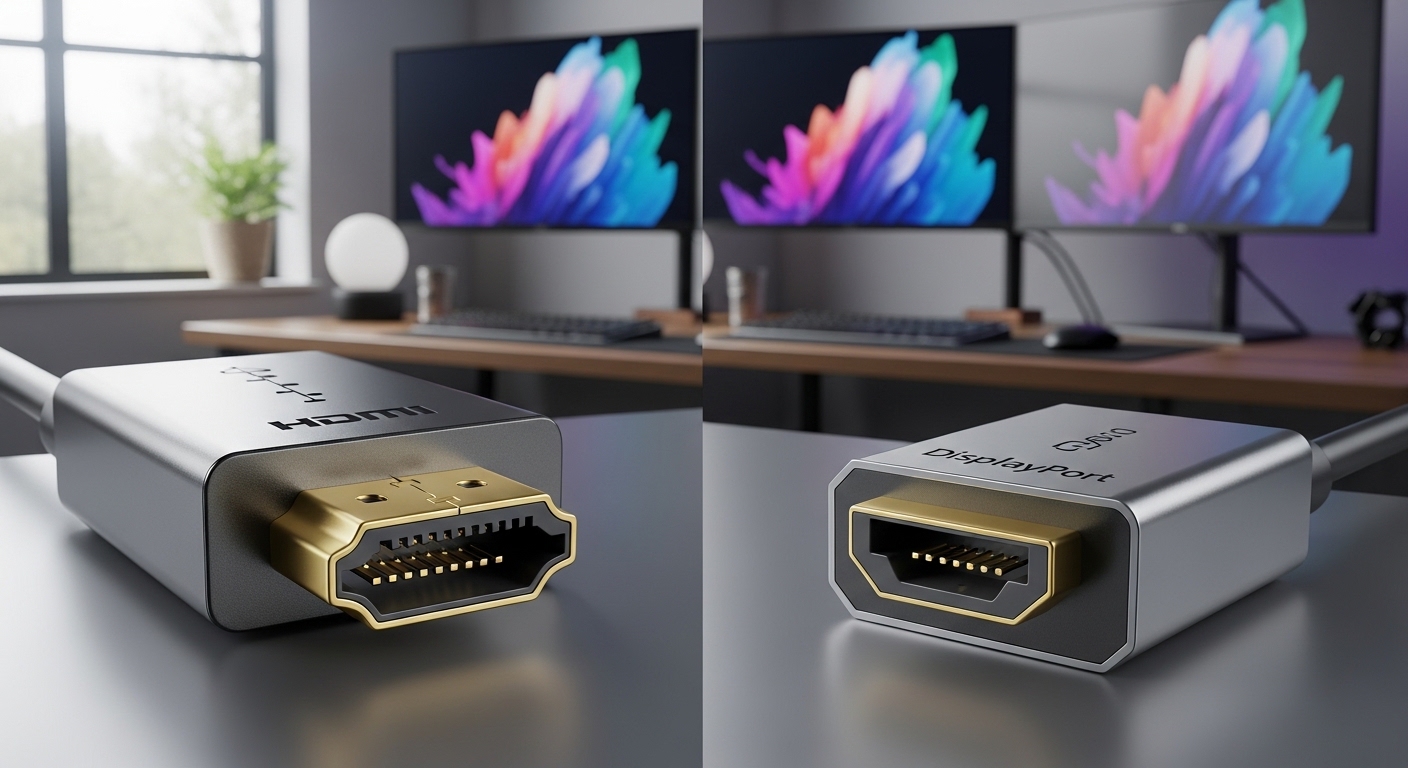
The Importance of Video Connections in the Home Office
Choosing the right video cable is one of the most important decisions for a high performance home office. It directly affects how sharp your text looks and how smooth your screen feels during long work hours.
Many professionals simply use the cable that came in the box without a second thought. However, understanding how to choose displayport or hdmi for productivity can significantly improve your daily workflow and visual comfort.
HDMI and DisplayPort might look similar to the untrained eye, but they serve different purposes. Each standard has unique strengths that cater to specific types of office tasks and hardware configurations.
A poor choice can lead to flickering screens, limited resolution, or even physical eye strain. This guide will help you navigate the technical specifications to make an informed decision for your desk.
Understanding the Basics of HDMI Technology
High Definition Multimedia Interface, commonly known as HDMI, is the most widespread video standard in the world. It was originally designed for home entertainment systems like televisions and blue ray players.
Because of its origins, HDMI is found on almost every consumer device including laptops and projectors. This makes it an incredibly convenient connection option for people who frequently move between different workspaces.
The standard has evolved through several versions such as HDMI 1.4, 2.0, and the latest 2.1. Each version increases the amount of data the cable can carry at once.
HDMI 2.0 is the current baseline for professional work because it supports 4K resolution at 60Hz. If you use a lower version, your screen might feel sluggish or laggy while moving windows.
The Technical Advantages of DisplayPort
DisplayPort was developed by a group of PC manufacturers specifically for computer monitors. It was built from the ground up to handle the high data demands of professional desktop computing environments.
Unlike HDMI, which sends data in a continuous stream, DisplayPort uses a packet based system similar to ethernet. This allows it to be more flexible and carry multiple signals across a single connection.
The most common versions are DisplayPort 1.2 and 1.4, which offer massive bandwidth for high resolution displays. These versions are standard on high end graphics cards and docking stations.
DisplayPort often features a locking mechanism on the connector to prevent accidental unplugging. This is a small but valuable feature for a stable and permanent office setup.
Bandwidth and Why It Matters for Sharp Text
Bandwidth determines how much information can travel from your computer to your monitor every second. For productivity, high bandwidth is essential for maintaining crisp text and vibrant colors on large screens.
If your cable lacks sufficient bandwidth, your computer might reduce the color quality to compensate. This often results in blurry text that is difficult to read during long spreadsheet sessions.
HDMI 2.1 offers impressive bandwidth that rivals the fastest DisplayPort versions available today. However, many older office laptops are still limited to HDMI 1.4 or 2.0 protocols.
DisplayPort 1.4 uses a technology called Display Stream Compression to squeeze even more data through the wire. This allows for uncompressed visual quality even on ultra wide or dual monitor configurations.
Maximizing Refresh Rates for Eye Comfort
Refresh rate refers to how many times the image on your screen updates every second. A higher refresh rate, like 120Hz or 144Hz, makes cursor movement and scrolling look incredibly fluid.
While many people think high refresh rates are only for gaming, they are excellent for productivity. They reduce the perceived flicker of the screen and can minimize eye fatigue after eight hours of work.
DisplayPort has traditionally been the leader in supporting high refresh rates at high resolutions. It is usually the best choice if you own a monitor that goes beyond the standard 60Hz limit.
HDMI 2.1 has caught up recently, but your computer and monitor must both support the specific version. Always check your hardware manual to ensure you are not creating a performance bottleneck.
The Power of Daisy Chaining with DisplayPort
One of the biggest productivity hacks is a feature called Multi Stream Transport, which is exclusive to DisplayPort. This allows you to connect multiple monitors to a single port on your computer.
You simply run one cable from the PC to the first monitor, and then another cable from the first monitor to the second. This reduces cable clutter significantly and simplifies your desktop management.
HDMI does not support this feature natively, meaning each monitor needs its own dedicated port on your laptop or dock. This can be a major limitation if you have a slim laptop with few ports.
For users who want a clean, minimalist desk, the ability to daisy chain is a game changer. It makes setting up a triple monitor array much more manageable and aesthetically pleasing.
Compatibility and the Rise of USB C
In recent years, the lines between these standards have blurred due to the rise of USB C. Many modern laptops use USB C ports that carry a DisplayPort signal internally.
This is often referred to as DisplayPort Alt Mode, and it allows for video, data, and power over one cable. It is the gold standard for modern docking stations used in professional home offices.
HDMI can also be adapted to USB C, but it is less common and often requires active adapters. These adapters can sometimes introduce lag or compatibility issues with certain monitor brands.
If your laptop only has USB C ports, choosing DisplayPort based peripherals is usually the safest bet. It ensures the most reliable connection and supports the widest range of advanced display features.
Comparing Connector Durability and Design
The physical design of the plugs can actually impact your long term productivity. HDMI connectors are simple friction fit plugs that are easy to insert and remove quickly.
While this is convenient for presentations, the cables can sometimes wiggle loose if you move your monitor. A loose connection causes the screen to black out momentarily, which is disruptive during meetings.
DisplayPort connectors often include small latches that lock the cable securely into the port. You must press a button to release the cable, which ensures the connection never drops unexpectedly.
However, you must be careful not to pull the cable without pressing the button. Doing so can damage the port on your expensive monitor or your graphics card permanently.
Chroma Subsampling and Text Legibility
Text legibility is the most critical factor for writers, coders, and data analysts. A technical concept called chroma subsampling can make or break your reading experience on a 4K screen.
Some connections might use 4:2:2 or 4:2:0 subsampling to save bandwidth, which makes colored text look blocky. For productivity, you always want a full RGB signal or 4:4:4 chroma for perfect clarity.
DisplayPort almost always defaults to the highest quality signal because it has the headroom to do so. HDMI might drop to a lower quality if the cable is too long or the version is outdated.
If you notice that red or blue text looks blurry on your screen, your connection might be the culprit. Switching to a certified high speed cable can often solve this annoying visual problem.
Choosing the Right Cable for Creative Professionals
Graphic designers and video editors have higher requirements for color depth and accuracy. They often need 10 bit or even 12 bit color to avoid banding in gradients and shadows.
DisplayPort 1.4 and 2.1 are designed to handle these deep color profiles without breaking a sweat. They provide the reliable color reproduction needed for professional grade visual work.
HDMI 2.1 also supports deep color and is frequently used by those editing HDR video content. It is the preferred choice for those who use high end OLED displays as their primary monitors.
When working in 2026, the demand for high dynamic range content will likely be the standard in all offices. Ensuring your connection can handle HDR metadata signals is vital for future proofing your career.
Length Limitations and Signal Integrity
The distance between your computer and your monitor can dictate which cable you should choose. HDMI cables generally maintain signal integrity over longer distances than standard DisplayPort cables.
If your PC is tucked away in a server closet or under a large desk, a long HDMI cable is safer. Passive DisplayPort cables often struggle to maintain a stable signal beyond three meters in length.
For longer runs with DisplayPort, you would need to invest in expensive active cables or optical versions. These cables use electronics to boost the signal so it can reach your monitor without data loss.
Always measure your desk layout before buying a cable to avoid signal dropouts. A cable that is too short can put unnecessary physical stress on your hardware ports over time.
Audio Capabilities for Video Conferencing
Both standards carry high quality digital audio, which is perfect for using built in monitor speakers. This simplifies your setup by removing the need for extra auxiliary cables for your sound.
HDMI has a unique feature called Audio Return Channel, which is mostly used for soundbars and receivers. While less critical for office work, it is a versatile feature for mixed use setups.
DisplayPort handles audio just as well for standard speakers and headphone jacks located on the monitor. It allows your computer to treat the monitor as a dedicated sound device in your settings.
If you use a professional microphone and external speakers, the audio capability of the cable might not matter much. However, having a backup audio path through the display cable is always a smart idea.
Hardware Specific Considerations for PCs and Macs
The computer you use plays a massive role in how to choose displayport or hdmi for productivity every day. Windows PCs almost always offer both ports on dedicated graphics cards from NVIDIA or AMD.
In the PC world, DisplayPort is generally favored because it offers better support for adaptive sync technologies. This prevents screen tearing when you are moving complex 3D models or high resolution assets.
Apple computers, specifically MacBooks, have moved almost entirely toward Thunderbolt and USB C ports. These ports natively output DisplayPort signals, making it the native choice for Mac users.
While you can use an HDMI adapter on a Mac, it can sometimes limit your refresh rate to 30Hz on older adapters. To get the best experience on a Mac, use a USB C to DisplayPort cable.
Adapters and Conversion Challenges
Sometimes you might be forced to use an adapter because your monitor and computer have different ports. Converting a DisplayPort output to an HDMI input is usually a very simple process.
However, converting an HDMI output to a DisplayPort input is much more difficult and requires an active converter. These converters are bulky and require a separate power source to function correctly.
It is always better to use a native cable that matches the ports on both ends of your system. This minimizes the risk of signal failure and ensures that all advanced software features remain functional.
If you must use an adapter, always look for ones that are rated for 4K at 60Hz. Cheaper adapters will often limit your resolution and ruin your productivity by making the screen blurry.
Setting Up a Productivity Focused Workspace
Once you have chosen your cable, proper cable management is the next step for a productive environment. High quality cables are often thick and stiff, which can make them hard to route through monitor arms.
Ensure there is enough slack in the cable so that you can adjust your monitor height and tilt freely. A cable that is too tight can damage the internal wiring or the port itself.
Using cable ties or sleeves can help keep your HDMI and DisplayPort lines organized and out of sight. A clean workspace reduces mental distractions and allows you to focus on deep work tasks.
Labeling your cables can also be helpful if you frequently switch between different laptops or desktop computers. This saves time during troubleshooting and makes your home office feel more professional.
Practical Tips for Choosing Your Connection
- Check the version of the ports on your laptop and monitor before buying any new cables.
- Use DisplayPort if you want to connect two or more monitors using a single output port.
- Choose HDMI if you are connecting your computer to a television or a very old projector.
- Always buy cables that are officially certified by the HDMI or VESA organizations for safety.
- Select DisplayPort for the highest possible refresh rates to help reduce your eye strain.
- Opt for HDMI if you need a cable longer than ten feet for a specialized desk layout.
FAQ: Common Questions About Video Standards
Is HDMI better than DisplayPort for office work? Neither is strictly better, but DisplayPort is often more flexible for multiple monitor setups used by professionals.
Can I use a DisplayPort cable with a 4K monitor? Yes, any DisplayPort 1.2 or 1.4 cable will easily support a sharp 4K image at 60Hz or higher.
Does the quality of the cable matter? Yes, cheap uncertified cables can cause flickering, static, or even permanent damage to your expensive computer hardware components.
Can HDMI support multiple monitors? HDMI requires a separate cable and port for each monitor, unlike DisplayPort which can chain monitors together easily.
Conclusion: Making the Final Choice for Your Desk
Deciding how to choose displayport or hdmi for productivity comes down to your specific hardware and your daily workflow needs. For most desktop PC users, DisplayPort is the superior choice due to its robustness and multi monitor support.
If you are a laptop user who prioritizes portability and compatibility with various displays, HDMI is a reliable and universal standard. Both options are capable of delivering a high quality experience when you use the correct cable version.
Take the time to inspect your ports today and ensure you are not using an outdated connection. A small upgrade to your cable can lead to a significant boost in your visual clarity and overall work efficiency.