

Introduction to Professional Display Accuracy
Achieving a perfect visual setup in your workspace requires more than just high end hardware. Most professionals overlook the essential step of adjusting their screens for true color representation.
Learning how to calibrate monitor colors for home office environments ensures that what you see on the glass matches real world standards. This process eliminates the guesswork when you are editing documents, photos, or digital designs.
A poorly tuned screen can lead to significant issues with productivity and output quality. You might find that images looking vibrant on your desk appear dull or distorted on other devices.
Proper calibration bridges the gap between different hardware types and lighting conditions. It transforms a standard display into a reliable professional tool for daily tasks.
By following a systematic approach, you can unlock the full potential of your current monitor. This guide will walk you through every technical detail needed to master your visual environment.
The Importance of Visual Precision
Consistency is the primary reason to invest time in display tuning. When your monitor shows colors accurately, you can trust your visual decision making process completely.
Inaccurate displays often shift toward blue or yellow hues without the user noticing. These subtle shifts can cause you to make incorrect adjustments to your work files.
Beyond professional output, calibration plays a vital role in protecting your physical health. Correct brightness and contrast levels minimize eye fatigue during long hours of digital labor.
A screen that is too bright causes the pupils to constrict constantly, leading to headaches. Conversely, a screen with low contrast forces your brain to work harder to distinguish text from backgrounds.
Modern displays are often shipped with aggressive settings designed to look impressive in a retail store. These vivid factory presets are rarely suitable for a focused home office environment.
Understanding Color Temperature
Color temperature refers to the warmth or coolness of the white light emitted by your screen. It is measured in Kelvins and significantly impacts how you perceive digital information.
Most offices aim for a standard of 6500K, which mimics natural daylight. This setting provides a neutral baseline that prevents your eyes from seeing a heavy tint.
Preparing Your Environment for Success
Before you begin the calibration process, you must control the surrounding light in your room. Ambient light is the biggest enemy of color accuracy when working from home.
Avoid placing your monitor directly in front of a window where sunlight changes throughout the day. Reflections on the screen surface will distort your perception of dark tones and shadows.
The ideal environment features dim, indirect lighting that remains constant. This allows your eyes to adapt to the screen without competing with external glare.
You should also consider the color of the walls in your workspace. Neutral gray or white walls are preferred because vibrant wall colors can reflect onto your screen.
Always allow your monitor to warm up for at least thirty minutes before starting any adjustments. The internal components need time to reach a stable operating temperature for consistent output.
Positioning Your Display
The angle at which you view your screen changes the way colors appear. This is especially true for monitors using older panel technologies like TN or VA.
Ensure that your eyes are level with the top third of the display area. This positioning helps maintain uniformity across the panel surface from top to bottom.
Software Based Calibration Tools
Every modern operating system includes basic tools to help you start your journey. These utilities are completely free to use and provide a great starting point for beginners.
On a Windows machine, you can search for the display color calibration tool in the system settings. This wizard guides you through gamma and brightness adjustments using visual patterns.
For those using Apple hardware, the Display Calibrator Assistant is found within the system settings. It offers a step by step interface for creating a custom color profile.
While software tools are helpful, they rely entirely on your own eyes to make judgments. Human vision is highly subjective and can be influenced by tiredness or mood.
These tools are excellent for general office work where extreme precision is not mandatory. They will significantly improve your daily visual experience compared to factory defaults.
The Limits of Visual Tuning
Relying on your eyes alone means you might still have slight variances in accuracy. Ambient light often tricks the brain into seeing white as neutral even when it is slightly blue.
If your work involves professional photography or video editing, software tools may not be enough. In those cases, dedicated measurement hardware becomes a necessary investment for your lab.
Hardware Calibration with Colorimeters
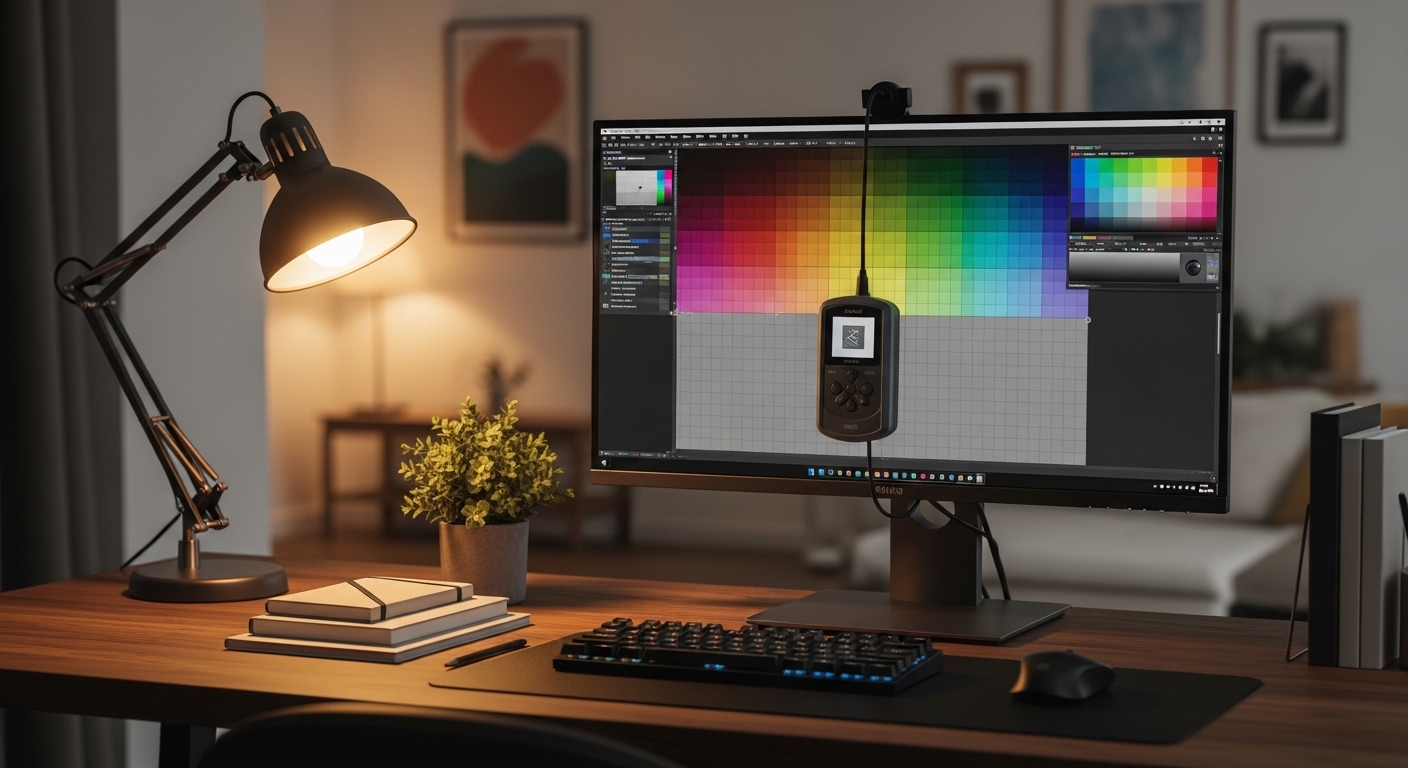
A colorimeter is a small device that hangs on the front of your screen to measure light. It provides an objective data set that software simply cannot match.
These devices use sensors to detect the exact wavelengths of light being emitted. The software then creates a highly precise profile for your specific hardware.
Using a colorimeter removes the human element from the equation. It ensures that your monitor meets industry standards for color reproduction and luminance.
Hardware calibration is the most effective way to learn how to calibrate monitor colors for home office setups. It results in a profile that is tailored to your exact panel and lighting.
Most professional colorimeters also monitor the ambient light in your room in real time. They can suggest automatic brightness adjustments if the sun starts to go down during your shift.
Choosing Between Devices
There are different levels of hardware tools available for various budgets. Some are designed for casual creative hobbyists, while others target high level cinematic professionals.
Consider how much your income depends on color critical tasks. For most home office users, an entry level colorimeter provides more than enough accuracy for years to come.
Step by Step Manual Adjustments
If you prefer to make manual changes, you must focus on four main pillars of display quality. These include brightness, contrast, gamma, and the white point.
Start by resetting your monitor to its factory settings through the on screen display menu. This provides a clean slate for your manual calibration efforts.
Adjust the brightness so that white areas on the screen look natural rather than glowing. For a typical office, a luminance of 120 nits is often the sweet spot for comfort.
Next, focus on the contrast settings to ensure you can see detail in the brightest highlights. You should be able to distinguish subtle shades of white without them bleeding together.
Gamma control is the next critical step for a professional look. Gamma affects the transition from black to white and impacts the overall depth of the image.
Fine Tuning the White Balance
White balance adjustments allow you to remove any unwanted tints from your screen. You will usually find individual sliders for red, green, and blue values.
Adjusting these sliders helps you achieve a neutral gray scale throughout the entire range of the display. This is the hardest part of manual calibration but the most rewarding for visual clarity.
Understanding Color Spaces and Gamut
Color space defines the range of colors that your monitor is capable of displaying. The most common standard for general web content is known as sRGB.
If you work in print or high end design, you might require a wider gamut like Adobe RGB. These spaces allow for more saturated greens and blues that are common in physical media.
Calibration software allows you to choose which color space you want to target. For a standard home office, sticking with sRGB is usually the safest and most compatible choice.
Newer monitors often cover the DCI P3 gamut, which is used in the film industry. This provides a cinematic visual experience that makes colors pop during video calls or media consumption.
Knowing your hardware limitations is vital when setting these targets. Do not try to force a display into a gamut it was not designed to handle.
Managing ICC Profiles Correctly
The result of the calibration process is a small file called an ICC profile. This file tells your operating system how to translate color data for your specific screen.
It is important to ensure that your system is actually using the new profile you created. Sometimes automatic driver updates can revert your settings back to the default manufacturer profile.
Check your color management settings regularly to confirm the active profile. This ensures that your hard work in calibrating the screen is not being ignored by the computer.
You can also share these profiles between identical monitors if you have a dual screen setup. This helps in matching both displays so they look identical when sitting side by side.
Always back up your custom profiles to a cloud drive or external storage. In the event of a system crash, you can quickly restore your visual settings without recalibrating.
Profile Versioning
As monitors age, their light output and color accuracy will slowly drift. It is a good practice to rename your profiles with the date they were created.
In 2026, display technology will continue to advance, making these digital files even more critical for workflow. Keeping an organized library of profiles saves time during future hardware transitions.
Recalibration Frequency and Maintenance
Calibration is not a one time task that lasts forever. The organic or LED components inside your monitor degrade slightly over thousands of hours of use.
Professional designers often recalibrate their screens once every month to maintain peak performance. For a standard home office, performing this task every three to six months is sufficient.
You should also recalibrate if you change the physical location of your desk. A new lighting environment will completely change how the colors on your screen appear to your eyes.
Keep the screen surface clean by using a soft microfiber cloth and appropriate cleaning solution. Dust and fingerprints can refract light and interfere with the sensors during the measurement process.
Turn off your monitor when it is not in use to extend the life of the backlight. A well maintained display will hold its calibration for much longer than one that is left on indefinitely.
Monitoring for Drift
Keep an eye out for subtle shifts in the way your screen looks over time. If you notice a slight pink or green tint on white pages, it is time for a refresh.
Regular maintenance ensures that your visual investment continues to provide the best possible return for your professional needs.
Common Calibration Pitfalls to Avoid
One frequent mistake is calibrating in a room that is too dark. This often leads to setting the brightness way too low for comfortable daytime use.
Another error is forgetting to disable any blue light filters or night modes. These software features intentionally distort colors and will ruin your calibration results immediately.
Many users also fail to check if their monitor has an ECO mode enabled. These modes dynamically change brightness based on the content of the screen, which prevents stable calibration.
Ensure that your graphics card settings are set to full range output rather than limited range. Limited range is meant for older televisions and will crush your black levels and highlights.
Finally, avoid using cheap third party cables that might not support the full bit depth of your monitor. High quality connections are essential for transmitting accurate color data without interference.
The Role of Bit Depth in Color
Bit depth refers to how much information each pixel can display. Most standard office monitors use 8 bit panels, which offer about 16.7 million colors.
Higher end professional displays utilize 10 bit technology for over a billion colors. This increased depth eliminates banding in gradients and provides much smoother transitions in shadows.
If you have a 10 bit monitor, make sure your operating system is configured to output that data. Calibration tools will maximize the benefits of this extra color information for a more realistic image.
Even for simple document editing, a higher bit depth reduces visual artifacts that can distract you. It creates a cleaner and more professional look for every application you use.
Hardware vs Software LUT
Some premium monitors include an internal Look Up Table or LUT. This allows the calibration data to be stored directly on the monitor hardware itself.
Hardware LUT calibration is superior because it does not rely on the graphics card to adjust the signal. This results in better color gradations and more consistent results across different connected computers.
Frequently Asked Questions
Do I need to buy expensive equipment to calibrate my monitor? No, you can start with built in software tools to see a noticeable improvement in your workspace quality.
How long does a hardware calibration session take? Most modern measurement devices can complete a full profile in less than ten minutes from start to finish.
Will calibration make my monitor look less vibrant? It might, because factory settings are often artificially boosted to look better on a store shelf.
Does calibration affect the gaming performance of my monitor? Calibration focuses on visual accuracy and does not impact your refresh rate or response time at all.
Can I use the same profile for multiple monitors? It is best to calibrate each screen individually, as no two panels are identical even if they are the same model.
Conclusion
Investing time into understanding how to calibrate monitor colors for home office usage is a hallmark of a true professional. It shows a commitment to quality and a respect for your own physical health.
A calibrated screen provides a stable visual foundation that allows you to work with confidence every single day. You will no longer worry about how your projects appear to clients or colleagues.
Whether you choose to use free software or professional grade hardware, the benefits are immediate. You will enjoy sharper details, more natural tones, and a significant reduction in eye strain.
Take the first step today by checking your current display settings and cleaning your screen surface. Your home office lab deserves a display that reflects the high quality of the work you produce.
Consistent recalibration will ensure that your setup remains a top tier environment for years to come. Enjoy the clarity and precision that only a perfectly tuned monitor can provide.