

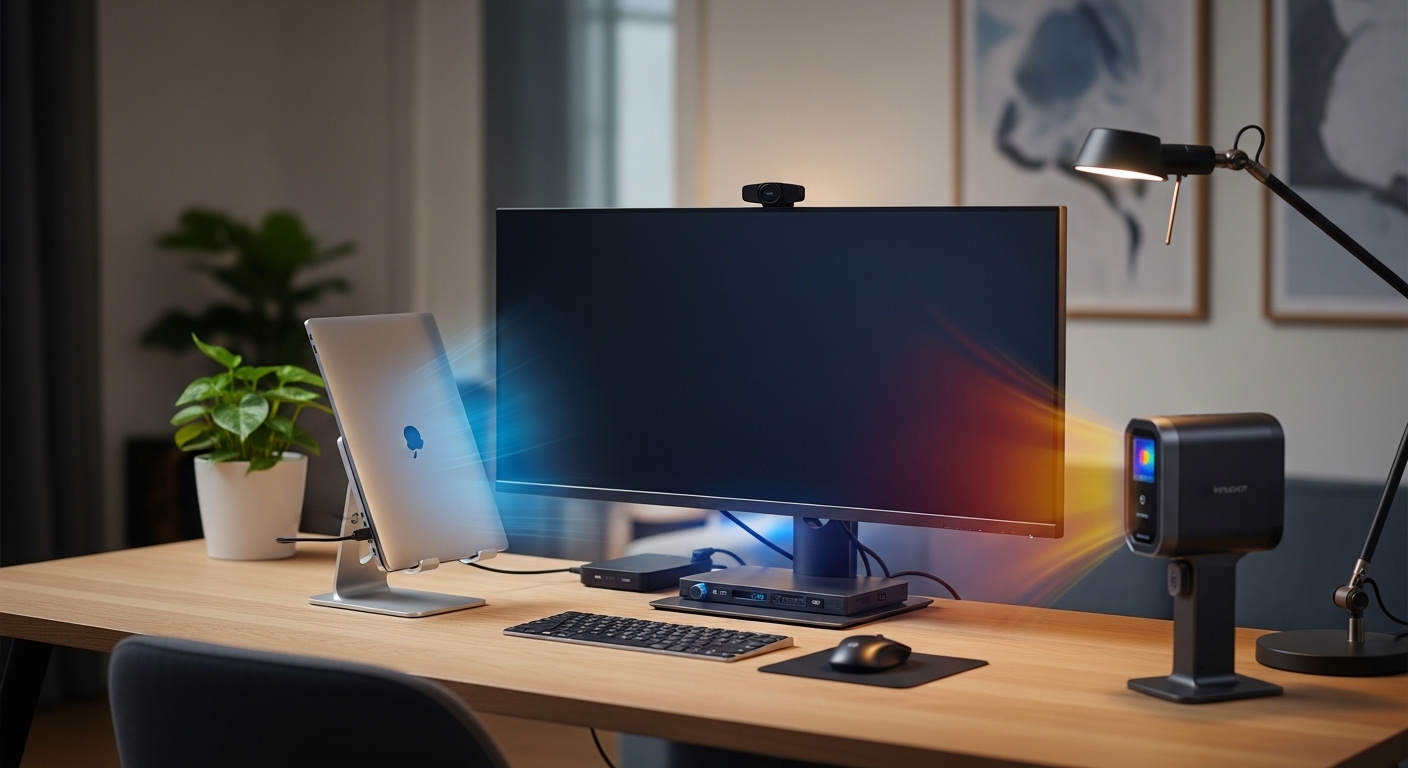
The Challenge of Thermal Management in Modern Workstations
Modern laptops are marvels of engineering that pack immense processing power into slim frames. While this portability is a massive benefit for mobile workers, it presents significant thermal challenges during docked use.
When you transition your machine to a desk setup, it often works harder than it does on the go. This increased workload leads to a common question for many professionals regarding thermal throttling and hardware safety.
Learning how to prevent laptop overheating when docked is essential for maintaining peak performance. Excessive heat can lead to system crashes, reduced battery lifespan, and permanent hardware damage.
This comprehensive guide will explore the physics of heat within your device. We will provide actionable strategies to keep your workstation running cool and efficient throughout the day.
Understanding the Physics of Laptop Heat
Laptops generate heat primarily through the central processing unit and the graphics chip. These components convert electrical energy into thermal energy while performing complex calculations.
Internal fans and copper heat pipes work together to move this heat away from the silicon. The efficiency of this process depends heavily on air displacement and pressure.
In a docked environment, the laptop often sits in a static position for hours. This lack of movement can lead to the accumulation of warm air pockets around the chassis.
Furthermore, many docking stations provide power delivery through a single cable. This charging process generates additional heat within the internal battery and charging circuitry.
The Impact of Clamshell Mode on Cooling
Many users prefer to keep their laptop lid closed while connected to external monitors. This setup, often called clamshell mode, creates a clean and minimalist aesthetic on the desk.
However, closing the lid can significantly obstruct the natural path of heat escape. Many laptops are designed to dissipate a portion of their heat through the keyboard deck.
When the screen is closed, it acts as an insulator that traps heat against the delicate display panel. This can lead to screen discoloration or even structural warping over long periods.
If you notice your fans spinning faster in clamshell mode, the device is likely struggling. Keeping the lid partially open can improve airflow by a significant margin.
Optimizing Airflow Pathways
Airflow is the most critical factor in keeping any computer cool. Laptops typically pull cool air from the bottom or sides and exhaust hot air through the rear.
Ensure that there is at least several inches of clearance around all vents. Blocking these paths with books, papers, or office decor will cause rapid temperature spikes immediately.
If your laptop exhausts air toward the hinge, ensure the path to the back of the desk is clear. Trapped hot air near the exhaust will eventually be recirculated back into the intake.
Using a stand that elevates the rear of the device is one of the easiest fixes. This simple change increases the volume of air available to the intake fans.
The Importance of Surface Materials
The material your laptop sits on has a profound impact on its thermal health. Soft surfaces like mouse pads, tablecloths, or blankets are terrible insulators for electronics.
These materials conform to the shape of the laptop and block the small feet that provide clearance. Always place your docked laptop on a hard, flat surface like wood or glass.
Metal surfaces are even better because they act as a passive heat sink. Aluminum stands can help wick away heat from the bottom casing of the device.
If you use a desk mat, try to keep the laptop itself on a dedicated riser. This ensures the fabric fibers do not migrate into the cooling fans over time.
Choosing the Right Docking Station Placement
Docking stations themselves generate heat, especially when driving multiple high resolution displays. Avoid stacking the laptop directly on top of the docking hardware itself.
This configuration creates a heat sandwich that prevents either device from cooling properly. Position the dock to the side of the laptop to allow for independent cooling zones.
Ensure the dock is in a well ventilated area rather than tucked into a cramped cubby. Electronic components in the dock can transfer heat through the connecting cables.
A cool dock means a more stable data connection and faster charging speeds. Proper spacing is a fundamental rule for any professional home office lab setup.
Vertical Stands and Orientation
Vertical stands are excellent for saving desk space in a docked configuration. However, the orientation of the laptop within the stand is vitally important for cooling.
Check where your exhaust vents are located before placing the device in the stand. You should never point the exhaust vents downward, as heat naturally rises.
Pointing the exhaust upward allows the hot air to escape freely into the room. This takes advantage of natural convection to assist the internal fans of the machine.
Ensure the stand does not clamp too tightly over the intake vents. A stand that restricts airflow will cause the internal temperatures to rise despite the saved space.
Software Optimization for Thermal Control
Software plays a massive role in how much heat your laptop produces. High performance power plans often push the clock speeds higher than necessary for basic tasks.
Consider using a balanced power profile when you are not performing intensive work. This allows the processor to downclock during idle periods and remain much cooler.
Check your background processes for apps that consume high amounts of resources. Often, a rogue application can keep the CPU active even when you are not using it.
Update your firmware and BIOS regularly to ensure the latest thermal algorithms are active. Manufacturers often release updates that optimize fan curves for better noise and heat management.
Managing Peripheral Power Loads
Every device you plug into your laptop or dock adds to the thermal load. External hard drives, webcams, and keyboards all draw milliamps of current through the ports.
This electrical activity generates small amounts of heat that can accumulate. If you have many peripherals, consider using a powered USB hub for non essential items.
This offloads the power delivery stress from the laptop motherboards internal bus. Keeping the power distribution external can help lower the overall chassis temperature.
Disconnect devices that you are not actively using during your work session. Reducing the active connections simplifies the thermal profile of your entire mobile workstation.
The Benefits of Active Cooling Pads
Active cooling pads are platforms with built in fans that sit beneath your laptop. They provide a constant stream of cool air directly to the intake vents.
This is particularly effective for laptops with plastic shells that do not dissipate heat well. The extra airflow can lower core temperatures by several degrees during heavy loads.
Look for pads that allow you to adjust the fan speed and position. Placing the fans directly under the hottest spots of the chassis yields the best results.
While they add some noise, the trade off in performance stability is usually worth it. Active cooling is a proactive measure for users in warmer climates.
Internal Maintenance and Dust Prevention
Dust is the primary enemy of laptop cooling systems over long periods. Fine particles accumulate on the fan blades and within the copper heat sink fins.
This buildup acts as an insulator and restricts the volume of air that can pass through. Use a can of compressed air to clean the vents every few months.
Always hold the fan blades in place with a thin tool when using compressed air. Allowing them to spin at excessive speeds from the air blast can damage the bearings.
If your laptop is several years old, the thermal paste may have dried out. Replacing this paste can restore factory levels of cooling efficiency to your processor.
Ambient Room Temperature Factors
The temperature of your room is the baseline for your laptop cooling system. Fans can only cool a device to a level above the ambient air temperature.
If your office is eighty degrees, your laptop will struggle to stay below ninety degrees. Use a small desk fan to circulate air around your entire workstation area.
Positioning your desk away from direct sunlight will also prevent radiant heat gain. Sunlight hitting a dark metal chassis can quickly raise internal temperatures without you noticing.
Keeping your environment consistently cool is the most effective way to help your hardware. A stable climate ensures that your thermal management strategies remain effective year round.
Advanced Techniques: Undervolting
Undervolting is the process of reducing the voltage sent to the CPU. This reduces power consumption and heat output without significantly impacting the clock speeds.
Many modern processors are shipped with more voltage than they strictly need for stability. Using software tools to fine tune this can lead to dramatic temperature drops.
This process requires patience and testing to ensure the system remains stable. However, many enthusiasts consider it the gold standard for laptop thermal optimization.
Please note that some manufacturers have locked these features in recent years. Always check your system compatibility before attempting to modify electrical parameters.
External GPU Offloading
One major source of heat in a docked laptop is the integrated or dedicated GPU. Running multiple monitors or creative software pushes these chips to their thermal limits.
An external GPU box allows you to move the graphical processing outside of the laptop. This means the hottest component is cooled by its own dedicated power supply and fans.
The laptop internal fans only have to worry about the CPU during this time. This separation of concerns is a highly effective way to keep a thin laptop cool.
While this is a more expensive investment, it transforms a laptop into a desktop. It provides the thermal headroom needed for professional video editing or complex 3D rendering.
Establishing a Monitoring Routine
You cannot effectively manage what you do not measure regularly. Install a lightweight system monitor that displays temperatures in your taskbar or menu bar.
Observe how your temperatures change during different tasks throughout the workday. Identifying thermal spikes early allows you to adjust your setup before the system throttles.
Normal idle temperatures should generally fall between forty and fifty degrees Celsius. Under heavy load, most laptops should stay below ninety degrees to avoid long term damage.
If you see temperatures consistently hitting the triple digits, immediate action is required. This is a clear sign that your current docking setup is insufficient for your needs.
Long Term Hardware Health
Heat is a primary contributor to the chemical degradation of lithium ion batteries. Keeping your laptop cool while docked will preserve battery capacity over several years.
Components like capacitors and solder joints also suffer when exposed to constant high heat. A cool running machine is much more likely to last through the year 2026 and beyond.
Think of thermal management as a form of preventative maintenance for your career. A reliable computer ensures that you never miss a deadline due to unexpected hardware failure.
Investing time into your setup today pays dividends in the future. Proper thermal care is the hallmark of a true technology professional.
Frequently Asked Questions
Is it safe to run a laptop with the lid closed all day? It is generally safe if the ventilation path is not blocked, but monitor your temperatures to be certain.
Do docking stations cause overheating? Docking stations themselves do not cause it, but the increased load and charging process certainly contribute to higher heat levels.
Should I use a cooling pad or a simple riser? A simple riser is often enough for most users, but a cooling pad is better for heavy workloads or warm rooms.
How often should I clean my laptop vents? You should aim to use compressed air on your vents at least once every three to six months.
Can high heat slow down my internet? Indirectly, yes, because thermal throttling can affect the processing of network packets and cause latency in your applications.
Conclusion
Mastering how to prevent laptop overheating when docked is a vital skill for any modern professional. By prioritizing airflow and placement, you can significantly extend the life of your device.
Whether you choose to keep the lid open or invest in an active cooling stand, the goal remains the same. Keeping your internal components within safe temperature ranges ensures a smooth and productive workflow.
Remember that every laptop model has a unique thermal design that requires specific attention. Experiment with these proven strategies to find the perfect balance for your specific home office lab environment.
A cool laptop is a fast laptop, and a fast laptop is the key to your daily success. Stay proactive with your thermal maintenance and enjoy the benefits of a powerful, docked workstation.