
The Evolution of the Modern Desktop
Managing multiple computer systems on a single desk can quickly turn your clean workspace into a chaotic environment filled with tangled cables. When you work with two high resolution monitors, the simple task of swapping display inputs becomes a massive daily chore.
A dedicated hardware solution can solve this problem by streamlining your physical desk and digital workspace instantly. Let us explore how to choose kvm switch options for dual monitors to elevate your daily productivity to new heights.
Why Your Workspace Needs a KVM Switch
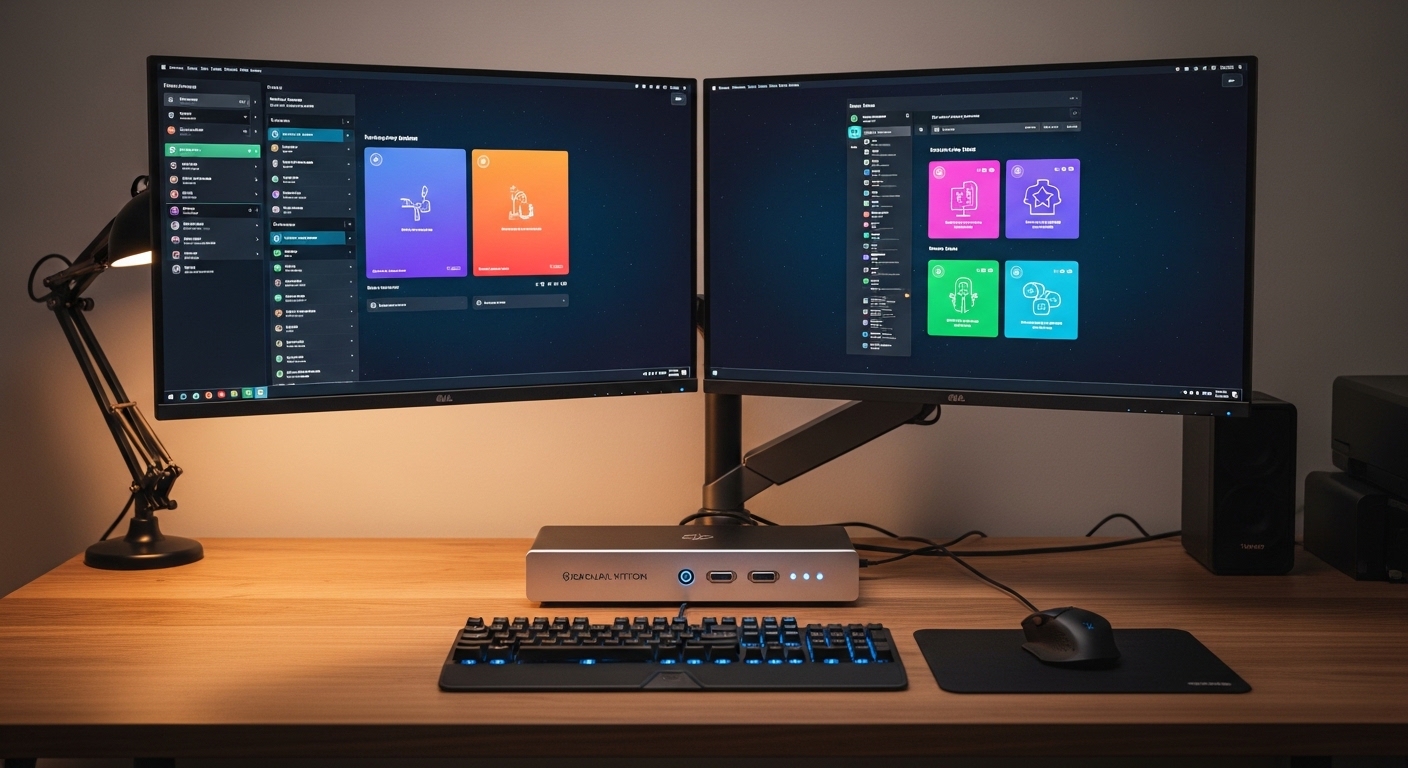
A keyboard, video, and mouse switch allows you to control two separate computers using a single set of peripherals. For dual monitor users, this means keeping both screens active regardless of which computer you are currently controlling.
You can transition from a corporate laptop to a personal desktop with a single button press. This seamless transition saves valuable desk space and reduces cable clutter significantly.
What Exactly is a Dual Monitor KVM Switch
Unlike standard switches that only handle a single screen, a dual monitor version supports two independent video channels simultaneously. This requires the device to process two separate video feeds from each connected computer.
To make this work, each computer must send two video signals directly into the switch inputs. This means your computers must have multiple video output ports available to function correctly.
Understanding the Signal Path
The switch acts as a traffic controller for your digital signals, routing video and USB data to the correct destinations. When you toggle the switch, it redirects your keyboard, mouse, and both displays to the target machine.
High quality internal architecture is required to prevent latency or signal degradation during this routing process. Choosing a premium hardware unit ensures your screens display crystal clear images without any lag.
Understanding Video Port Standards
The first step in your selection process involves looking closely at the video outputs on your machines. Modern graphic cards and laptops utilize several different ports to send video signals to displays.
You will commonly encounter HDMI ports alongside DisplayPort connections on most desktop computers. Laptops often rely on USB C or Thunderbolt ports to handle video output.
HDMI Versus DisplayPort Connections
HDMI is incredibly common and works well with most consumer grade monitors and television screens. However, DisplayPort often provides better refresh rates support for gaming and professional design tasks.
You must match the ports on your switch to the native connections of your monitors. Using adapters can sometimes introduce signal degradation or completely break display compatibility.
The Rise of USB C and Thunderbolt
Many modern laptops use a single cable to transfer data, video signals, and power simultaneously. If you plan to connect laptops, look for a KVM switch that offers native USB C inputs.
This feature allows you to charge your laptop while sending dual video signals to your screens. It eliminates the need for separate power adapters cluttering your workspace.
Resolution and Refresh Rate Demands
A common mistake when buying a switch is ignoring the maximum supported resolution of the hardware. If you own high resolution screens, your switch must have the bandwidth to support them.
Running dual 4K monitors requires a massive amount of data to travel through the switch every second. A cheap unit might limit your resolution to standard high definition, ruining your visual experience.
The Importance of Refresh Rates
Gamers and video editors often prefer fast refresh rates like 120 Hertz or 144 Hertz for smooth motion. Standard office switches usually top out at a modest 60 Hertz which can feel sluggish.
Ensure the specifications of your chosen hardware support fluid refresh rates at your target resolution. This guarantee ensures a responsive visual experience across both of your high end screens.
Bandwidth and Cable Quality
High performance switches require high quality cables to function correctly over long periods of use. Cheap or damaged cables often cause screen flickering or temporary signal loss during intensive tasks.
Always use the cables that come with your premium switch whenever possible. If you need longer cables, select certified high bandwidth alternatives to maintain signal integrity.
USB Protocol and Peripheral Support
A KVM switch does more than route video signals to your dual monitors. It must also handle your keyboard, mouse, and other essential USB accessories seamlessly.
Older switches utilize USB 2.0 ports which work fine for basic input devices. Modern setups require faster ports to handle data transfers and modern accessories efficiently.
Why USB 3.0 Ports Are Essential
If you connect external hard drives or webcams, you need USB 3.0 or USB 3.2 ports. These ports offer significantly faster transfer speeds than older USB generations.
Sharing a high definition webcam between two computers requires substantial USB bandwidth to avoid dropped frames. A modern switch with fast ports prevents lag during critical business video calls.
Dedicated Keyboard and Mouse Ports
Many switches feature dedicated ports specifically designed for your keyboard and mouse. These ports often support hotkey switching which lets you change computers using keyboard shortcuts.
However, these specialized ports can sometimes conflict with complex gaming keyboards or programmable mice. Look for a switch that offers true USB emulation to avoid these compatibility issues.
Power Delivery Features
Laptops require steady power to run efficiently without draining their internal batteries. A premium KVM switch can act as a charger for your connected portable computers.
This functionality is often referred to as Power Delivery over USB C. It allows you to keep your workspace clean with fewer power cables trailing across your desk.
Determining Power Requirements
Check the wattage rating of your laptop charger before purchasing a switch. Most professional laptops require at least 65 Watts of power to charge while running intensive applications.
Larger workstations or gaming laptops might need 90 Watts or even more. Select a switch that provides adequate power to keep your laptops fully charged throughout the workday.
Switching Mechanisms Explained
How you switch between your computers affects your daily workflow and overall convenience. Manufacturers offer several different methods to trigger the transition between machines.
Understanding these methods will help you choose the best fit for your specific desk layout.
Physical Buttons and Desktop Remotes
The most basic method is a physical button located directly on the chassis of the switch. While reliable, this requires the switch to sit within arm reach on your desk.
Some manufacturers include a wired desktop remote with their units. This allows you to hide the main switch box and keep your desk tidy.
Keyboard Hotkeys and Software Control
Hotkey switching allows you to change active computers by pressing a specific sequence of keys. This method is incredibly fast and keeps your hands on your keyboard.
Some advanced units also offer software utility control for seamless switching. Choose the switching method that aligns with your habits and workflow preferences.
Pros and Cons of HDMI Dual Monitor KVMs
HDMI switches are widely available and highly compatible with various consumer devices. They represent a very common choice for home office setups.
However, they have specific limitations that you should consider before making a purchase.
The Advantages of HDMI Switches
HDMI cables are highly affordable and available in many different lengths. These switches easily connect to game consoles, streaming devices, and standard office computers.
They are generally more budget friendly than DisplayPort alternatives. This makes them excellent for standard productivity setups that do not require specialized specifications.
The Drawbacks of HDMI Switches
HDMI does not always support adaptive sync technologies like G Sync or FreeSync. This can be a major disadvantage for users who game on their dual screens.
Additionally, older HDMI versions have strict bandwidth limits that restrict high resolutions. You must verify the exact HDMI version supported by the switch before buying.
Pros and Cons of DisplayPort Dual Monitor KVMs
DisplayPort is the preferred connection standard for many computer enthusiasts and creative professionals. These switches offer immense bandwidth for demanding setups.
Let us analyze whether this type of switch fits your dual monitor desk.
The Advantages of DisplayPort Switches
DisplayPort natively supports high refresh rates and advanced display technologies. It is the perfect choice for powering dual 4K monitors at 120 Hertz.
These switches also handle daisy chaining of monitors much better than HDMI. This feature can simplify your overall cable routing significantly.
The Drawbacks of DisplayPort Switches
DisplayPort switches are typically more expensive due to complex internal components. They also require high quality cables to avoid annoying screen dropouts.
Laptops rarely have native DisplayPort outputs, meaning you will need active adapters or cables. This adds to the overall cost of your setup.
Pros and Cons of USB C Dual Monitor KVMs
USB C switches represent the modern frontier of workspace connectivity. They are designed specifically for the latest generation of laptops and ultraportables.
This type of switch can transform your laptop docking experience.
The Advantages of USB C Switches
A USB C switch offers a single cable connection for video, data, and power. This creates an incredibly clean aesthetic with very few visible wires on your desk.
They often include integrated docking station features for ultimate convenience and expandability. You can connect your laptop with a single plug.
The Drawbacks of USB C Switches
These switches are generally the most expensive options on the market. They might also have limited compatibility with older desktop computers that lack USB C ports.
The maximum cable length for USB C is quite short compared to HDMI. This can limit where you place your computers relative to the switch.
EDID Emulation and Why It Matters
Extended Display Identification Data is a critical feature that many buyers overlook. It is the signal that tells your computer what kind of monitor is connected.
Without this feature, switching computers can cause a massive headache.
Preventing Window Reorganization
When you switch away from a computer without EDID emulation, the machine thinks the monitors are disconnected. This causes all your open windows to gather onto a single screen.
When you switch back, you must spend time dragging windows back to their original spots. A switch with integrated EDID emulation prevents this frustrating issue entirely.
Ensuring Instant Screen Wake
Emulation keeps the display connection active in the background at all times. This means your screens wake up instantly when you switch back to a computer.
There is no awkward waiting period while the operating system redetects the monitors. This feature is essential for professional productivity and fluid multitasking.
Budget Tiers and What to Expect
KVM switches for dual monitors span a wide price range. Knowing what each tier offers will help you set realistic expectations.
Let us break down the market into three primary budget categories.
Entry Level Dual Monitor Switches
Entry level switches focus on basic connectivity and HDMI standards. They usually support standard 1080p or 4K resolutions at a modest 30 or 60 Hertz.
These units lack advanced features like EDID emulation or USB C power delivery. They are best suited for simple office tasks on a budget.
Mid Range Workhorse Units
Mid range options offer a great balance of performance and price. They often feature DisplayPort connections, USB 3.0 ports, and reliable hotkey switching.
You can expect solid build quality and reliable performance at this level. These units are ideal for remote workers who share monitors between work and personal PCs.
High End Enterprise Grade Switches
Premium switches offer maximum performance, high wattage power delivery, and advanced EDID emulation. They can handle dual 4K screens at 144 Hertz without any latency.
These units are constructed with durable metal chassis and premium internal circuitry. They represent a worthwhile long term investment for serious professionals.
Common Setup Mistakes to Avoid
Setting up a dual monitor switch can be complex due to the number of cables involved. Avoiding common pitfalls will save you hours of troubleshooting.
Let us look at what to watch out for during installation.
Using Cheap Adapters
Converting signals from DisplayPort to HDMI using cheap adapters often fails. These passive adapters usually lack the power to convert high resolution signals.
Always purchase active signal converters if you must mix different port types. This ensures your video signal remains strong and stable.
Ignoring Total Cable Length
High resolution signals degrade quickly over long cable runs. If your cables are too long, you will experience flickering or black screens.
Keep your video cables under two meters in length whenever possible. This simple rule prevents signal loss and ensures reliable performance.
The Final Buying Checklist
Before making your final choice, run through this quick checklist to ensure compatibility. This step will guarantee that your new switch works perfectly out of the box.
- Confirm the exact video output ports on both of your computers.
- Verify the native resolutions and refresh rates of your dual monitors.
- Check if you need USB C power delivery to charge your laptop.
- Ensure the switch features EDID emulation to keep your windows organized.
- Determine if you require fast USB 3.0 ports for external accessories.
Conclusion
As we look ahead to 2026, modern work dynamics demand more flexible and powerful workspace configurations. Choosing the perfect hardware for your desk requires careful planning and attention to detail.
By understanding your specific ports, resolutions, and peripheral needs, you can find the ideal match. Investing in a high quality unit will transform your daily workflow and clear desk clutter.