

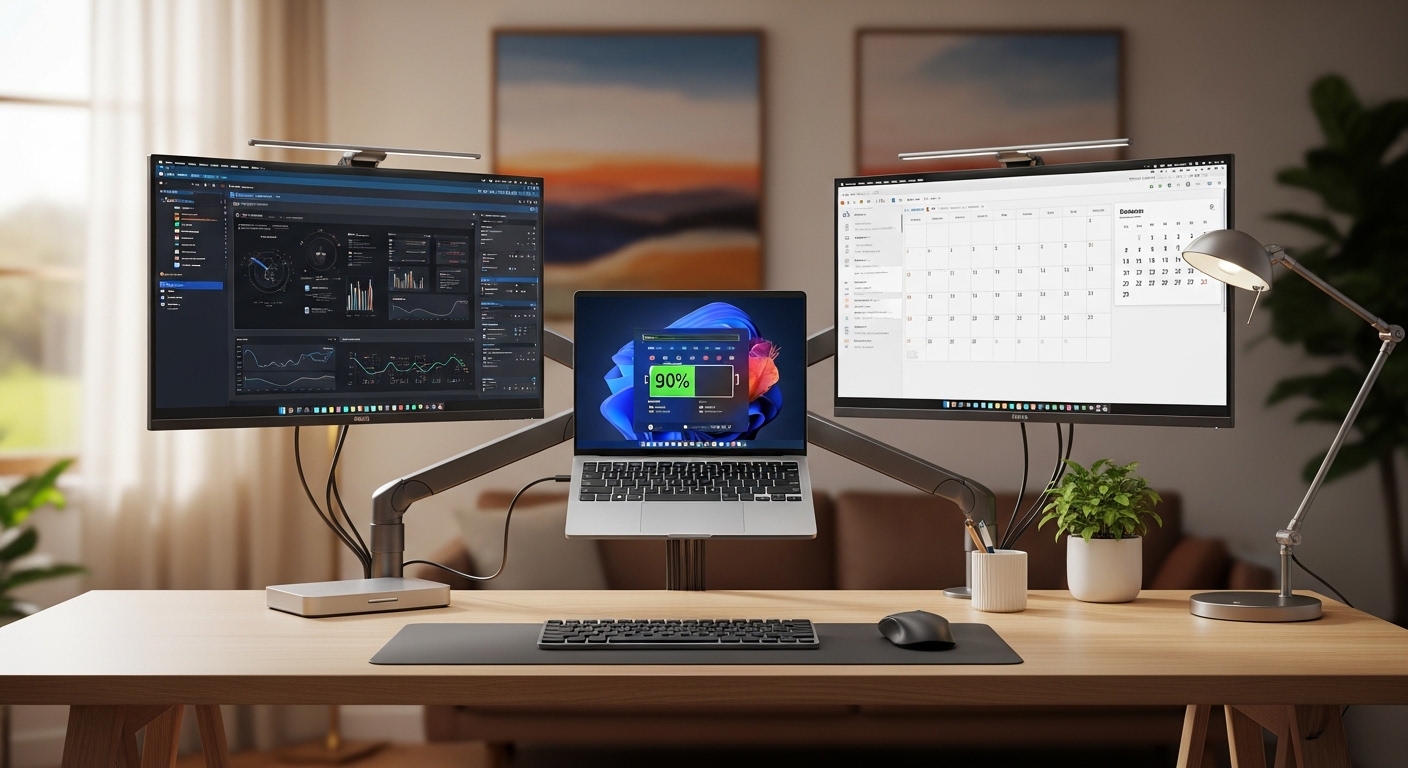
Introduction to Modern Power Management
The rise of the professional home office has changed the way we interact with our portable computers. Most users now treat their high performance laptops as desktop replacements by connecting them to powerful docking stations.
This setup provides incredible convenience but it also introduces unique challenges for power storage components. Understanding how to maintain laptop battery health while docked is essential for anyone wanting to maximize their hardware longevity.
When a device stays connected to a power source for days or weeks at a time, the internal chemistry undergoes specific types of stress. Unlike older technologies, modern lithium based batteries require active management to prevent premature degradation.
In this comprehensive guide, we will explore the science behind battery wear and provide actionable strategies to keep your cells healthy. We will look at software tools, environmental factors, and usage habits that protect your investment.
Whether you use a workstation for creative tasks or a slim ultrabook for administrative work, these principles remain the same. Let us dive into the mechanics of battery preservation in a docked environment.
The Science of Lithium Ion Battery Aging
To understand maintenance, we must first look at how lithium ion cells actually function during their lifecycle. These batteries store energy through the movement of ions between a cathode and an anode.
Every time you charge or discharge the device, these ions travel through an electrolyte medium. Over time, this process causes physical and chemical changes that reduce the total capacity of the battery.
One major factor in aging is the number of full charge cycles the battery has completed. A cycle is generally defined as using one hundred percent of the total capacity, even if spread over multiple days.
However, for docked users, the traditional cycle count is often less important than the state of charge. Keeping a battery at a maximum voltage for extended periods creates a different kind of pressure on the internal components.
As of 2026, the chemistry inside our devices is more robust than ever, but it still follows the laws of thermodynamics. Stress from heat and voltage remains the primary enemy of long term battery health.
Understanding High Voltage Stress
When a battery is charged to one hundred percent, it sits at its maximum voltage threshold. This state is energetically demanding and causes the internal materials to expand and contract slightly.
Maintaining this maximum level permanently is similar to keeping a rubber band stretched to its absolute limit. Eventually, the material loses its elasticity and the ability to hold a charge diminishes.
By learning how to maintain laptop battery health while docked, you can avoid this constant state of tension. Most experts recommend keeping the charge level between fifty and eighty percent for long term storage.
The Impact of Heat in Docked Environments
Heat is arguably the most significant factor in accelerated battery degradation. Docking stations often demand high performance from the laptop, which generates internal thermal energy.
When a laptop is docked, it often operates with the lid closed or in a cramped space on the desk. This can restrict airflow and lead to higher internal temperatures than during normal mobile use.
High temperatures speed up the chemical reactions that lead to capacity loss. If a battery is both fully charged and hot, the rate of wear increases exponentially compared to a cool battery at half charge.
Effective thermal management is a cornerstone of maintaining a healthy power system. You should ensure that your docking area has plenty of ventilation to allow heat to dissipate naturally.
Using a stand that lifts the laptop off the desk surface can significantly improve the cooling capacity. This simple physical adjustment helps maintain the integrity of the battery cells over several years.
Ventilation Strategies for Docked Laptops
- Position the laptop in an open area rather than inside a drawer or cabinet.
- Use a stand that exposes the bottom intake vents of the machine.
- Keep the laptop lid open if the model exhausts heat through the keyboard deck.
- Avoid placing external hard drives or docks directly against the laptop chassis.
Software Tools for Battery Conservation
Many modern manufacturers provide battery conservation utilities designed specifically for docked users. These tools allow you to set a maximum charge limit to prevent the battery from reaching one hundred percent.
For example, some applications allow you to cap the charge at sixty or eighty percent. This effectively removes the high voltage stress mentioned earlier and significantly extends the usable life of the hardware.
If you primarily use your laptop while connected to a dock, enabling this feature is the single most effective step you can take. It allows the laptop to run on external power while the battery rests at a healthy level.
Most major brands like Dell, Lenovo, and HP include these settings in their system management suites. You can usually find them under power settings or battery health tabs in the official software.
If your manufacturer does not provide a dedicated app, you may find similar options within the system BIOS or UEFI settings. Accessing these menus during startup allows you to set permanent charging thresholds at the hardware level.
Configuring Dell Power Manager
Dell users can utilize the Power Manager utility to select a Primarily AC Use mode. This setting optimizes the charging behavior for devices that are rarely unplugged from their docking stations.
It prevents the battery from constantly topping off, which reduces the chemical wear on the cells. Users can also create custom schedules to determine when the battery should reach full capacity.
Lenovo Vantage and Conservation Mode
Lenovo laptops often feature a Conservation Mode within the Vantage software suite. This mode limits the charge to between fifty five and sixty percent of the total capacity.
When enabled, the laptop will not charge beyond this point even if it stays plugged in for months. This is widely considered the gold standard for maintaining battery health in a permanent desk setup.
Operating System Level Optimizations
Both Windows and macOS have introduced intelligent charging features to help users maintain their hardware. These systems learn your daily routine and adjust the charging speed accordingly.
In Windows 11, the Smart Charging feature can automatically limit the charge to eighty percent if it detects the device is always plugged in. This happens without user intervention based on AI analysis of power patterns.
Apple devices running macOS include an Optimized Battery Charging setting. This feature delays charging past eighty percent until you actually need to use the battery on the go.
While these automated systems are helpful, manual controls are usually more reliable for dedicated home office setups. You should verify that these features are active in your system settings menu.
Learning how to maintain laptop battery health while docked involves regular checks of these software configurations. Updates to the operating system can sometimes reset these preferences to the default values.
The Role of Regular Power Cycles
Even if a laptop is mostly docked, it is beneficial to exercise the battery occasionally. Allowing the ions to move periodically prevents the chemistry from becoming stagnant.
A monthly discharge to approximately twenty percent followed by a full charge can help recalibrate the internal sensors. This ensures that the percentage reported by the operating system remains accurate over time.
However, you should avoid deep discharges where the battery reaches zero percent. Frequent deep discharges are much more harmful than leaving the device plugged in at a full charge.
Try to find a balance by using the laptop on battery power for a few hours once or twice a month. This small amount of activity keeps the battery electrolytes in good condition without causing excessive wear.
Calibrating the Battery Meter
- Unplug the laptop from the dock once every thirty days.
- Use the device normally until the battery reaches roughly fifteen percent.
- Reconnect the power and allow it to charge back to your set limit.
- This process helps the firmware track the actual health of the cells.
Choosing the Right Power Supply
The quality of the power delivered to your laptop matters significantly for electronic health. Always use the original power adapter or a high quality docking station that meets the wattage requirements.
Insufficient power from a third party dock can cause the laptop to toggle between battery and AC power. This creates micro cycles that can quickly wear out the battery without the user noticing.
Ensure that your docking station provides enough Power Delivery to support the laptop under full load. If the laptop draws more power than the dock provides, it will drain the battery to make up the difference.
This situation is common with high end gaming or workstation laptops connected to generic USB C docks. Checking the wattage specifications of both your laptop and your dock is a vital maintenance step.
Why Wattage Matters
A laptop that requires one hundred watts but only receives sixty watts will experience power throttling. This can lead to increased heat and erratic battery behavior which degrades the cells.
Always verify that your docking station is rated for the specific power requirements of your computer model. Using an underrated power source is a common mistake that affects long term reliability.
Managing Environmental Factors
The physical environment surrounding your desk affects how your hardware handles thermal stress. Direct sunlight hitting a docked laptop can raise the battery temperature by several degrees.
Try to position your desk away from radiators or other heat sources that might increase the ambient temperature. A cool environment is the most supportive setting for any electronic power storage system.
Humidity can also play a minor role in the oxidation of internal connectors over many years. Keeping your home office in a climate controlled state benefits all your sensitive hardware components.
Dust accumulation inside the laptop can block the cooling fans and trap heat near the battery. Use compressed air to clean the vents every few months to ensure the cooling system operates at peak efficiency.
Monitoring Battery Health Status
You cannot manage what you do not measure, so checking your battery health report is essential. Windows users can generate a detailed report using the powercfg command in the terminal.
This report shows the original design capacity compared to the current full charge capacity. It also provides a history of battery usage and charge cycles over the last several months.
On macOS, you can find battery health information in the System Settings under the Battery tab. It will display a simple percentage representing the overall condition of the power cells.
Monitoring these numbers allows you to see the real world impact of your maintenance habits. If you notice a sharp decline, it might be time to adjust your charging thresholds or improve your cooling setup.
How to Generate a Windows Battery Report
Open the Command Prompt or PowerShell and type powercfg /batteryreport to generate a file. This file is saved as an HTML document that you can open in any web browser.
Look at the Capacity Ratio to see how much of the original health remains in your battery. This data is invaluable for understanding how to maintain laptop battery health while docked successfully.
Advanced Tips for Power Users
If you are technically inclined, you can explore third party utilities that offer more granular control over power states. Some open source tools allow you to bypass the manufacturer limits entirely.
However, you should exercise caution when using unofficial software to manage hardware power levels. Incorrect settings could potentially lead to system instability or even physical damage to the cells.
Another advanced tip is to undervolt the laptop CPU if the hardware supports it. Lowering the voltage used by the processor reduces the overall heat production of the system.
Since the battery sits near the internal components, a cooler CPU directly leads to a cooler battery. This creates a virtuous cycle of efficiency and longevity for your entire mobile workstation.
The Importance of Firmware Updates
Manufacturers frequently release BIOS and firmware updates that improve power management algorithms. These updates can fix bugs that cause unnecessary battery drain or overheating.
Regularly checking for system updates through the official support site ensures you have the latest protections. Many battery health features are improved through these software patches long after the laptop is released.
Frequently Asked Questions
Is it bad to leave my laptop plugged in all the time?
Leaving it plugged in is not inherently bad, but keeping it at one hundred percent charge constantly causes wear. Using a charge limiting tool to stay at sixty or eighty percent solves this problem effectively.
Does docking a laptop make the battery hotter?
Yes, docking often increases heat because the laptop is powering external displays and peripherals. Proper airflow and ventilation are necessary to prevent this heat from damaging the battery cells.
Should I remove the battery when using a dock?
Most modern laptops have internal batteries that are not designed to be removed. Removing a battery can also cause performance issues, as many systems use the battery to handle peak power demands.
How often should I calibrate my docked laptop battery?
A calibration cycle every one to two months is sufficient for most users. This involves a partial discharge to keep the chemical components active and the sensors accurate.
Conclusion
Maintaining the power storage of your mobile workstation does not have to be a complex task. By understanding how to maintain laptop battery health while docked, you can ensure your device remains reliable for many years.
The key takeaways involve managing the state of charge and controlling the thermal environment. Use software limiters to keep your battery between fifty and eighty percent whenever possible.
Provide your laptop with adequate ventilation and use high quality power adapters to avoid electrical stress. These simple habits will protect the chemistry of your battery and prevent expensive replacements down the road.
As we rely more on our portable devices for professional work, taking care of the hardware becomes a vital skill. Implement these strategies today to enjoy a high performance home office setup without sacrificing your laptop longevity.