

Enhancing Your Visual Workspace for Peak Performance
Achieving the best monitor settings for home office productivity is a journey into fine tuning your daily environment. Many professionals pull a display out of the box and never touch the configuration buttons.
This oversight can lead to significant eye fatigue and reduced focus throughout the day. A properly calibrated screen ensures that text is crisp and colors are soothing to the eyes.
By the end of this guide, you will understand how to manipulate every aspect of your display. We will cover technical details from luminance levels to advanced color spaces.
The goal is to create a visual experience that supports long hours of deep work. Let us begin by examining the foundation of any good display setup which is brightness.
The Power of Proper Brightness and Luminance
Finding the right brightness level is the most immediate way to improve your comfort. Most monitors ship from the factory with brightness set to one hundred percent.
This is often far too bright for a standard indoor office environment. High brightness can cause a physical sensation of glare that leads to headaches.
You should aim to match your monitor brightness with the ambient light in your room. If your screen looks like a glowing lamp, it is likely too bright.
Conversely, if the screen looks dull or gray, you might need to increase the intensity. A good rule of thumb is to set brightness between thirty and fifty percent for most rooms.
In a very sunny office, you might need to push this higher to combat sunlight. During evening hours, lowering the brightness helps your circadian rhythm stay on track.
Some modern displays include sensors that adjust brightness automatically based on the room. If your hardware lacks this, manual adjustment is a vital daily habit.
Understanding Nits and Light Measurement
The technical term for brightness is luminance, which is measured in nits or candelas per square meter. Most office work thrives at a luminance level of one hundred twenty nits.
Higher levels are typically reserved for HDR content or outdoor use cases. Using a light meter app on your phone can help you measure the light hitting your desk.
You want the white background of a document to feel like a piece of paper under a lamp. It should not feel like looking directly into a flashlight.
Consistency in visual intensity allows your pupils to remain at a stable size. Constant shifting between bright screens and dark rooms causes the eye muscles to work harder than necessary.
Adjusting these settings is the first step toward achieving the best monitor settings for home office productivity. We shall now look at how contrast supports this balance.
Contrast Ratios and Text Legibility
Contrast is the difference between the darkest blacks and the brightest whites on your screen. In a productivity context, contrast is mainly about making text easy to read.
If contrast is too low, text appears washed out and blurry. If it is too high, you might lose fine details in shadows or highlight areas.
Most experts recommend a contrast setting of around fifty to seventy percent. You want the black characters of a font to pop against the white background.
Overly high contrast can create a blooming effect around letters. This makes reading long reports much more difficult for your brain to process quickly.
You should test your settings by looking at a page with many lines of text. Adjust the slider until the characters look sharp without any glowing edges.
Deep blacks are less important for spreadsheets than they are for watching movies at night. Prioritize clarity and definition over dramatic visual depth when working.
The Role of Gamma in Productivity
Gamma correction deals with the mid tones of your display images. It determines how smoothly transitions occur from black to white.
Standard gamma for Windows and most office tasks is two point two. If the gamma is too high, the screen looks very dark and heavy.
If the gamma is too low, the image looks faded and flat. Most monitors have a specific gamma setting in the hardware menu.
Ensure your gamma is set to the standard value to maintain accurate document representation. This ensures that the grey lines in your spreadsheet are actually visible.
Properly tuned gamma works alongside contrast and brightness to form a clear image. This triad is essential for any high performance home office setup.
Mastering Color Temperature for Eye Comfort
Color temperature refers to the warmth or coolness of the white light emitted by your screen. It is measured in Kelvin units.
A high Kelvin value like 9300K results in a bluish tint that feels cold. A lower value like 5000K results in a warmer, yellowish tint.
For most office environments, the standard target is 6500K. This is often called D65 and mimics natural daylight at noon.
Blue light has been shown to suppress melatonin production which can interfere with sleep. Reducing blue light is a key part of the best monitor settings for home office productivity.
Warmer temperatures are generally easier on eyes during long writing or coding sessions. Many professionals prefer a slightly warmer setting for general administrative tasks.
You can adjust this through the monitor OSD or via software filters. If you do color sensitive work, you must stay at 6500K for accuracy.
Blue Light Filters and Night Modes
Many modern operating systems include a night light feature. This software level adjustment shifts the color profile toward the warmer end of the spectrum.
You can schedule these changes to occur as the sun sets in your location. This helps your body prepare for rest even if you are finishing a late project.
Some monitors feature low blue light modes built directly into the hardware. These are often more effective than software solutions because they reduce light at the source.
Using a warm color profile can significantly reduce the feeling of dry eyes. It makes the white background of websites feel much less aggressive.
Experiment with different temperatures to find the sweet spot for your specific vision needs. Comfort is subjective and requires some personal trial and error.
Resolution and Scaling for Maximum Real Estate
Resolution determines how many pixels are available on your screen. High resolution displays like 4K offer incredible sharpness and space.
However, running a 4K monitor at native scaling can make text microscopic. This leads to leaning forward and ruining your posture.
The solution is display scaling which increases the size of text and icons. You should find a balance where text is large enough to read easily from an arm length away.
For a 27 inch 4K monitor, a scaling factor of one hundred fifty percent is common. This provides the clarity of high resolution with the size of a lower resolution.
On a 1440p monitor, many users find one hundred percent or one hundred twenty five percent to be ideal. The goal is to maximize your workspace without straining to see details.
Proper scaling keeps your user interface consistent across different applications. It prevents the need to constantly zoom in on web pages or documents.
Choosing the Right Refresh Rate
Refresh rate is how many times per second your monitor updates the image. While usually discussed in gaming, it matters for productivity too.
A higher refresh rate like 144Hz makes cursor movements and scrolling feel incredibly smooth. This reduces the subtle jitter that can cause eye strain over time.
Standard office monitors often run at sixty hertz. If your monitor supports higher, ensure it is enabled in your display settings.
Even simple tasks like dragging windows feel more responsive at higher rates. This fluidity contributes to a more modern and premium computing experience.
Check your display cable to ensure it supports the resolution and refresh rate you desire. Some older cables may limit your performance to lower standards.
Operating System Level Enhancements
Your monitor hardware is only half of the visual equation. Operating systems like Windows and macOS have built in tools to improve text rendering.
Windows users should always run the ClearType Tuner. This utility walks you through several screens to find the crispest text for your specific eyes.
It adjusts how sub pixels are used to smooth out the edges of fonts. This makes a massive difference in how readable long emails and articles appear.
On macOS, the system handles font smoothing automatically but you can still adjust scaling. Ensure your resolution is set to the default for display for the best results.
Disable any unnecessary animations if you find them distracting. A static and predictable interface often aids in maintaining deep focus.
You can also explore dark mode settings for your operating system. Many people find that light text on a dark background is easier for long hours of reading.
Color Profiles and ICC Files
An ICC profile is a file that tells your operating system how to display colors accurately on your specific monitor. Manufacturers often provide these on their websites.
Installing the correct profile can fix issues like color casts or crushed blacks. It ensures that what you see is what the content creator intended.
For professional work, using the sRGB color space is the standard for web based tasks. This prevents colors from looking overly saturated or neon.
Calibration software can help you create a custom profile for your exact room conditions. This level of detail is the gold standard for the best monitor settings for home office productivity.
Once you have a stable profile, do not change it frequently. Consistency helps your brain calibrate to the visual environment you have created.
Managing Ambient Light and Reflections
The light in your room is the biggest enemy of a good monitor setup. Glare from windows can wash out the screen and cause significant squinting.
Position your desk so that windows are to the side of your screen. Never have a window directly behind you or directly behind the monitor.
If you have overhead lights, ensure they do not reflect off the glass. Using a matte screen protector can help if your monitor has a glossy finish.
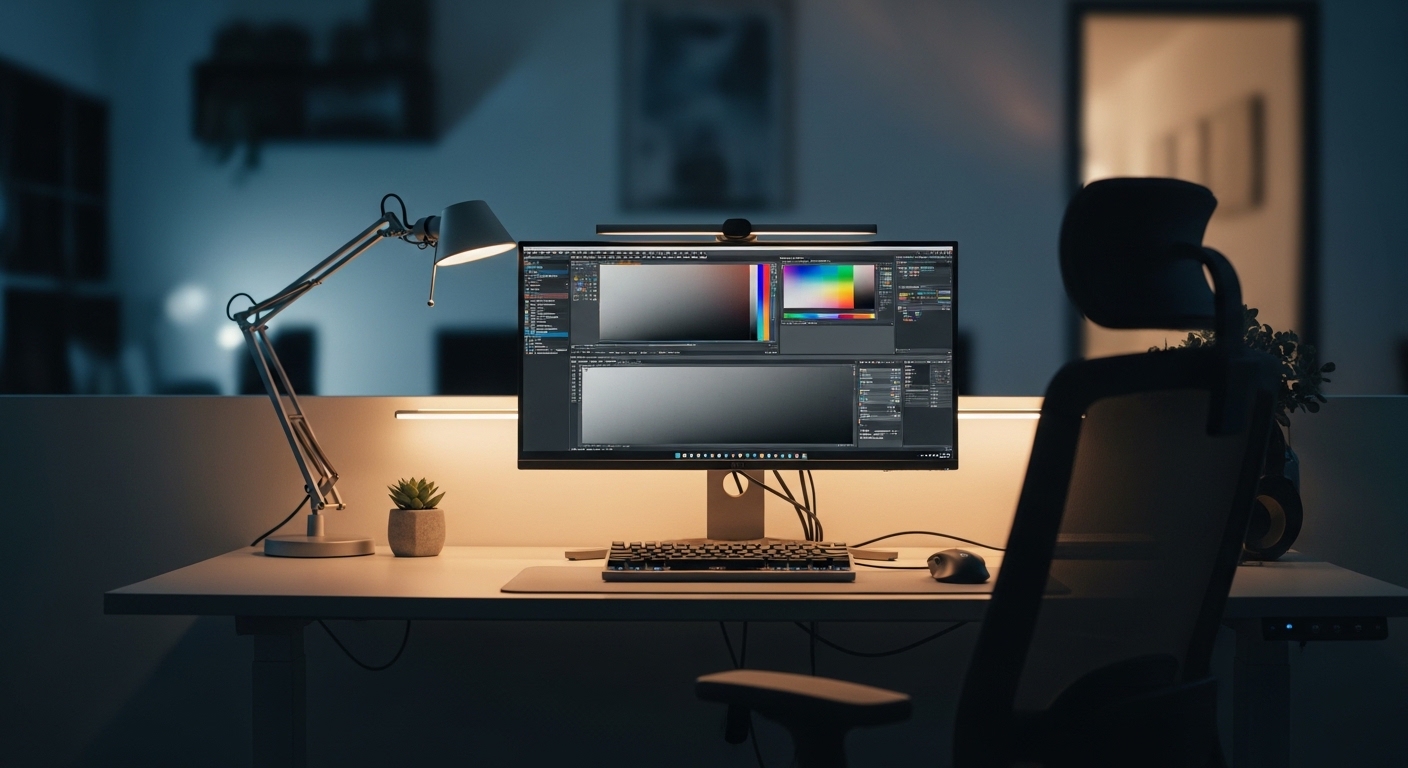
Consider using bias lighting behind the monitor. This is a soft light source that illuminates the wall behind your screen.
Bias lighting reduces the perceived contrast between the bright screen and the dark wall. This minimizes the work your eyes must do to adjust to light changes.
A simple LED strip set to a neutral white can transform your evening work sessions. It creates a much more comfortable viewing experience for the year 2026 and beyond.
Flicker Free Technology for Eye Safety
Many older or cheaper monitors use Pulse Width Modulation to control brightness. This causes the backlight to flicker very rapidly at lower brightness levels.
While often invisible to the naked eye, this flicker can cause severe eye strain and fatigue. Modern productivity monitors often use flicker free technology.
This uses direct current to dim the LEDs without any rapid flashing. When selecting the best monitor settings for home office productivity, ensure your hardware supports this.
You can test for flicker by moving your hand rapidly in front of the screen. If you see a strobe effect, your monitor might be flickering.
Using higher brightness levels can sometimes stop flicker on PWM monitors. However, this may lead back to the issue of glare and intensity.
Consistent Settings for Multi Monitor Use
If you use two or more monitors, consistency is vital. Having one screen bright and cool while the other is dim and warm is disorienting.
Your eyes must constantly readjust every time you move your gaze between displays. This leads to a faster onset of digital eye strain.
Try to use the same model of monitor for all screens in your setup. If you use different brands, you must spend time matching them manually.
Open the same white window on both screens and compare them side by side. Adjust the RGB gain settings in the monitor menu to match the white point.
It is difficult to get a perfect match without professional hardware. However, getting them close will significantly improve your daily comfort and focus.
Use the built in menu of the monitors rather than software to do these base adjustments. This ensures the change happens at the hardware level for all inputs.
The Advantage of High Dynamic Range
HDR is often thought of for gaming or cinema. However, it can also play a role in professional workflows involving video or photography.
Using HDR in a standard office setting can be tricky. It often forces the brightness to maximum which we have already identified as a problem.
Only enable HDR mode when you are working on content that specifically requires it. For spreadsheets and emails, SDR is usually much more comfortable.
Windows has improved HDR management recently. You can now adjust the brightness of SDR content while HDR is still active.
This allows you to keep the benefits of HDR for your media while keeping your documents at a safe luminance. Proper management of these modes is key to a versatile setup.
Practical Tips for Daily Monitor Maintenance
- Clean your screen every week using a microfiber cloth to remove dust and fingerprints.
- Check your cable connections once a month to ensure they are secure and not damaged.
- Update your graphics drivers regularly to ensure the best compatibility with your operating system.
- Reset your monitor settings to factory defaults if you feel you have made a mistake in calibration.
- Take frequent visual breaks by looking at an object twenty feet away for twenty seconds.
Software Calibration Tools to Consider
If you do not want to buy a hardware colorimeter, software tools can help. Both Windows and macOS include visual calibration wizards.
These tools show you patterns and images. You adjust your monitor settings until the patterns look a specific way.
While not as accurate as a dedicated sensor, they are much better than nothing. They help you set the correct black levels and white points.
Calibration should be done after the monitor has been on for thirty minutes. This allows the backlight to reach a stable temperature and color state.
Make sure to turn off any room lights that might cast a colored glow on the screen. A neutral environment is best for making these fine adjustments.
FAQ About Monitor Settings for Productivity
What is the single most important setting for eye strain?
Display brightness is usually the most important factor for reducing daily eye fatigue. Matching the screen to your room light prevents your eyes from working too hard.
Should I use a blue light filter during the day?
Many users find a slight warm tint helpful all day long. However, if you work with colors, you should only use filters in the evening.
Is 4K resolution better than 1440p for office work?
A higher resolution provides more screen space and sharper text. As long as you use proper scaling, 4K is generally superior for productivity.
How often should I calibrate my monitor?
For general office work, calibrating once is usually enough. If you do professional creative work, you should recalibrate every few months.
Does refresh rate really matter for spreadsheets?
Yes, a higher refresh rate makes scrolling through large documents feel much smoother. This can reduce the subtle strain caused by choppy motion.
Conclusion
Optimizing your visual environment is a vital part of professional success. The best monitor settings for home office productivity are those that balance clarity with comfort.
Start with brightness and contrast to build a solid foundation. Move on to color temperature and scaling to refine the experience for your specific eyes.
Remember that your physical environment also plays a huge role. Manage your room lighting and reflections to ensure your monitor can perform at its best.
A few minutes of calibration today can lead to years of comfortable and efficient work. Treat your eyes with the respect they deserve by following these expert guidelines.
The Home Office Lab is dedicated to helping you build the best possible workspace. Revisit your settings whenever you change your desk layout or room lighting.