
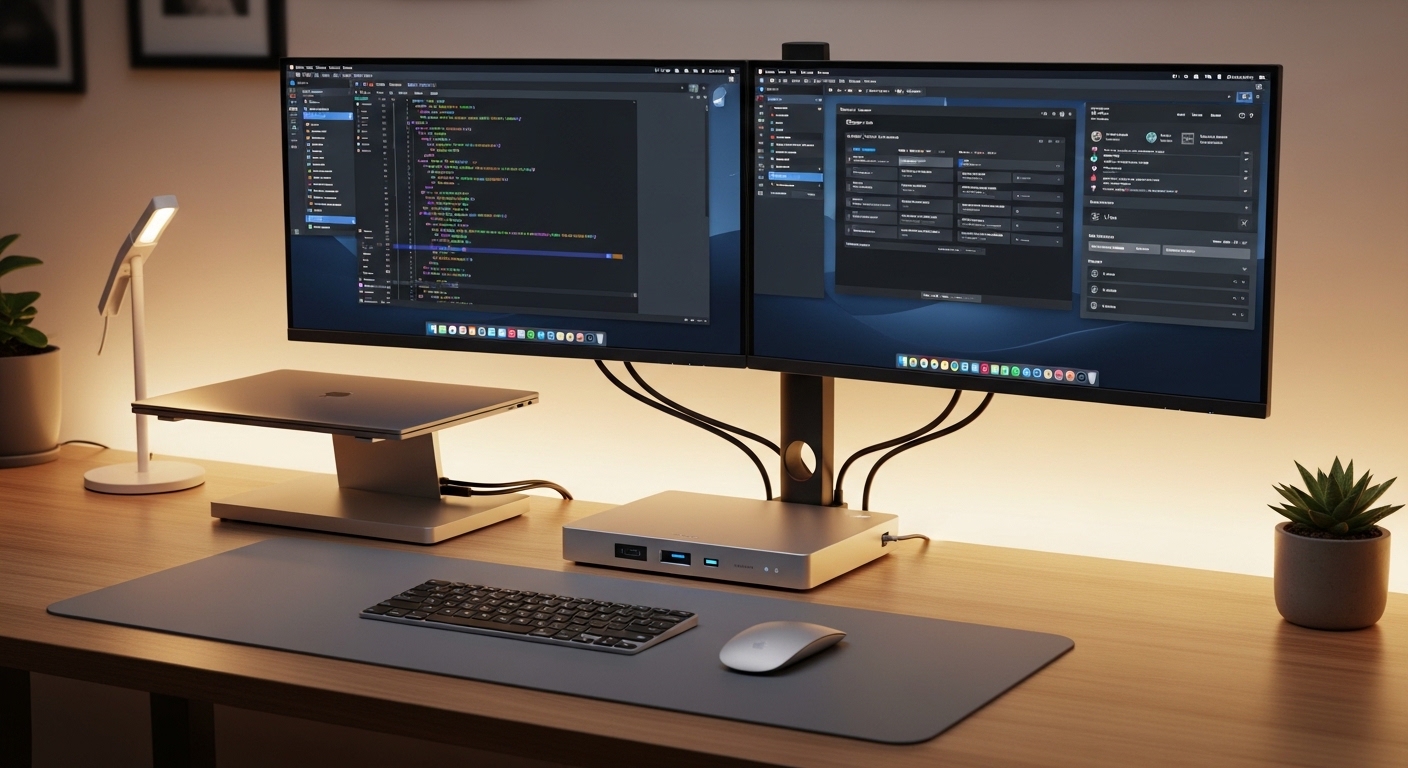
A docking station serves as the heart of a modern workstation. It transforms a single laptop port into a massive command center for enhanced digital productivity.
Many professionals struggle to find the right balance between port variety and screen resolution. Knowing how to choose a dual monitor docking station requires a deep understanding of hardware protocols.
Whether you are a software developer or a creative editor, your hardware must keep up with your workflow. A poor choice leads to flickering screens and slow data transfers.
This guide provides the technical foundation needed to make an informed decision. We will explore everything from bandwidth limits to power delivery requirements.
Understanding Connection Protocols and Bandwidth
The first step in your journey is identifying the connection protocol your laptop supports. Not all ports that look the same offer the same internal performance capabilities.
USB C is a common connector but it comes in many different versions. Some support video output while others are limited to data and power only.
Thunderbolt 4 is currently the gold standard for high performance docking. It offers a total bandwidth of forty gigabits per second for all connected devices.
This massive bandwidth allows you to run two high resolution displays without compromising on peripheral speed. It is the best choice for power users who demand reliability.
USB 4 is a newer standard that shares many similarities with Thunderbolt. It provides great speed and is becoming more common in the latest mobile computing devices.
Always verify if your laptop port supports Alt Mode for video. Without this feature, a standard USB C dock will not send a signal to your monitors.
Exploring DisplayLink Technology
DisplayLink is a unique technology that uses software and a dedicated chip to compress video data. It allows laptops with limited video output to drive multiple screens.
This is particularly useful for base model Apple silicon laptops that natively support only one external display. DisplayLink bypasses these hardware limitations effectively.
However, this technology requires specific drivers to be installed on your operating system. It may also use more laptop CPU resources during heavy graphical tasks.
If you choose a DisplayLink dock, ensure your laptop has enough processing power to handle the compression. It is a lifesaver for older or restricted hardware configurations.
Resolution and Refresh Rate Requirements
The quality of your visual experience depends on the supported resolution. Most modern users aim for at least dual 4K setups for crisp text.
Running two 4K monitors at sixty hertz requires significant bandwidth. Cheaper docking stations often drop the refresh rate to thirty hertz to compensate.
A refresh rate of thirty hertz causes noticeable lag in mouse movements. This can lead to significant eye strain during long work sessions.
Ensure the docking station supports DisplayPort 1.4 or HDMI 2.1 for the best results. These versions have the capacity to handle high data volumes without compression.
If you use ultrawide monitors, check the horizontal pixel count carefully. Some docks struggle with the unique aspect ratios of wider displays.
Gamers or video editors might prefer a docking station that supports 144hz at lower resolutions. Smooth motion is often more important than raw pixel density for these tasks.
The Importance of Power Delivery
A premium docking station should do more than just connect your screens. It must also provide enough power to charge your laptop simultaneously.
This feature is known as Power Delivery or PD. It allows you to use a single cable for both data and electricity.
Check the wattage output of the docking station before you buy. Many laptops require at least sixty five watts to charge at full speed.
If you have a powerful workstation laptop, you might need a dock that provides eighty five or one hundred watts. Using a low wattage dock can cause your battery to drain while plugged in.
Keep in mind that the dock itself consumes some power to operate. A dock advertised with one hundred watt charging often needs a larger external brick.
Verify that the power supply included in the box is sufficient for both the dock and the laptop. Some manufacturers sell the power supply separately to lower the initial price.
Operating System Compatibility Challenges
Operating systems handle video signals in very different ways. Windows users benefit from a technology called Multi Stream Transport or MST.
MST allows a single cable to carry independent signals for multiple monitors. This makes dual monitor setups very straightforward on PC hardware.
MacOS does not support MST for multiple external displays. If you plug a standard MST dock into a Mac, both screens will show identical images.
Mac users must look for Thunderbolt docking stations to get extended dual displays. Thunderbolt creates two separate pathways that macOS can recognize and utilize.
Alternatively, Mac users can use DisplayLink docks as mentioned previously. This bypasses the MST limitation by using software based video processing.
Linux compatibility is another factor to consider for developers. Look for vendors that provide official drivers or support open source communities for their hardware.
Port Selection for Peripherals
Think about all the devices you plan to connect daily. A good docking station acts as a hub for everything on your desk.
- USB A ports for legacy keyboards and mice
- USB C ports for fast external storage drives
- Gigabit Ethernet for stable internet connections
- SD card slots for photographers and videographers
- Audio jacks for speakers or headsets
The number of USB ports is often a deciding factor for many. If you have many accessories, look for a dock with at least four high speed ports.
Ethernet is vital for those who participate in frequent video calls. A wired connection is always more reliable than even the fastest Wifi 6 networks available.
Some high end docks include 2.5GbE ports for faster local network transfers. This is a great feature if you have a local server or NAS.
Consider the placement of the ports on the device. Having a few ports on the front for quick access items is very convenient.
Audio and Dedicated Connectivity
Integrated audio jacks should support both input and output. This allows you to connect a headset with a microphone using a single cable.
Some docks include a digital to analog converter for better sound quality. This can improve the clarity of your music and professional calls significantly.
Physical Design and Heat Management
Docking stations generate heat when driving multiple displays and charging a laptop. Metal enclosures are generally better at dissipating this heat than plastic ones.
An overheated dock can cause connection drops or reduced charging speeds. Look for designs with cooling vents or fins if you live in a warm climate.
The footprint of the dock matters for desk organization. Vertical stands save space but might be less stable when fully loaded with heavy cables.
Horizontal docks are easier to hide under a monitor stand or desk shelf. Choose a form factor that complements your existing home office layout and aesthetic.
Cable length for the host connection is another important detail. A cable that is too short will limit your placement options on the desk.
Some docks allow you to replace the host cable if it gets damaged. This modularity extends the life of your investment and provides better long term value.
Pros and Cons of Different Dock Types
Thunderbolt docks offer the highest performance but come at a premium price. They are the best for high resolution video and fast data transfer speeds.
USB C docks are more affordable and work with a wider range of devices. However, they may struggle with dual 4K setups due to limited total bandwidth.
Proprietary docks are designed for specific laptop models. They often offer a very secure connection but lack flexibility if you switch laptop brands later.
Travel docks are compact and portable but usually lack high power delivery. They are great for meetings but not ideal for a permanent desk based workstation.
Universal docks with DisplayLink are great for mixed environments. They work with both Mac and PC but require driver management and software updates.
Budget Considerations and Quality
It is tempting to choose the cheapest option available online. However, cheap docking stations often have poor shielding and unstable firmware.
A mid range dock usually provides a good balance of ports and power. Expect to pay a fair price for a device that includes a certified power supply.
High end professional docks are an investment in your productivity. They offer better warranties and more reliable performance for critical work tasks.
Consider the cost of cables when planning your budget. High quality 4K rated cables are necessary to get the most out of your new hardware.
Think about future proofing your setup for the next several years. Investing in a Thunderbolt 4 dock now will serve you well through 2026 and beyond.
Buying a reputable brand ensures you receive firmware updates. These updates can fix compatibility issues with new operating system releases or new laptop models.
Checking Reviews and Community Feedback
Always read user reviews regarding specific laptop models. Some docks have known issues with specific hardware combinations or sleep modes.
Check technical forums for reports on coil whine or fan noise. A silent workspace is important for maintaining focus during deep work sessions.
Final Checklist for Your Purchase
Before you hit the buy button, verify your laptop specifications one last time. Ensure the port supports DP Alt Mode or Thunderbolt specifically.
Count your peripherals and make sure there are enough ports. Check if you need an active or passive adapter for your specific monitor cables.
Confirm the power delivery wattage matches your laptop charger requirements. A dock that underpowers your machine will lead to frustrating performance issues.
Decide between a driverless solution or a DisplayLink based one. Each has its own benefits depending on your specific hardware ecosystem.
Finally, consider the warranty and support offered by the manufacturer. A docking station is a complex device that should last for years.
Conclusion
Choosing the right hub is about balancing technical specs with daily needs. Understanding how to choose a dual monitor docking station empowers you to build a better office.
Take the time to audit your current equipment and future goals. A solid docking station will turn your laptop into a powerful desktop replacement.
Your productivity deserves a setup that works without constant troubleshooting. Focus on bandwidth, power, and compatibility to find your ideal workstation hub.
With the right hardware, your dual monitor setup will become a seamless extension of your creativity. Enjoy the clarity and speed of a properly docked environment.