

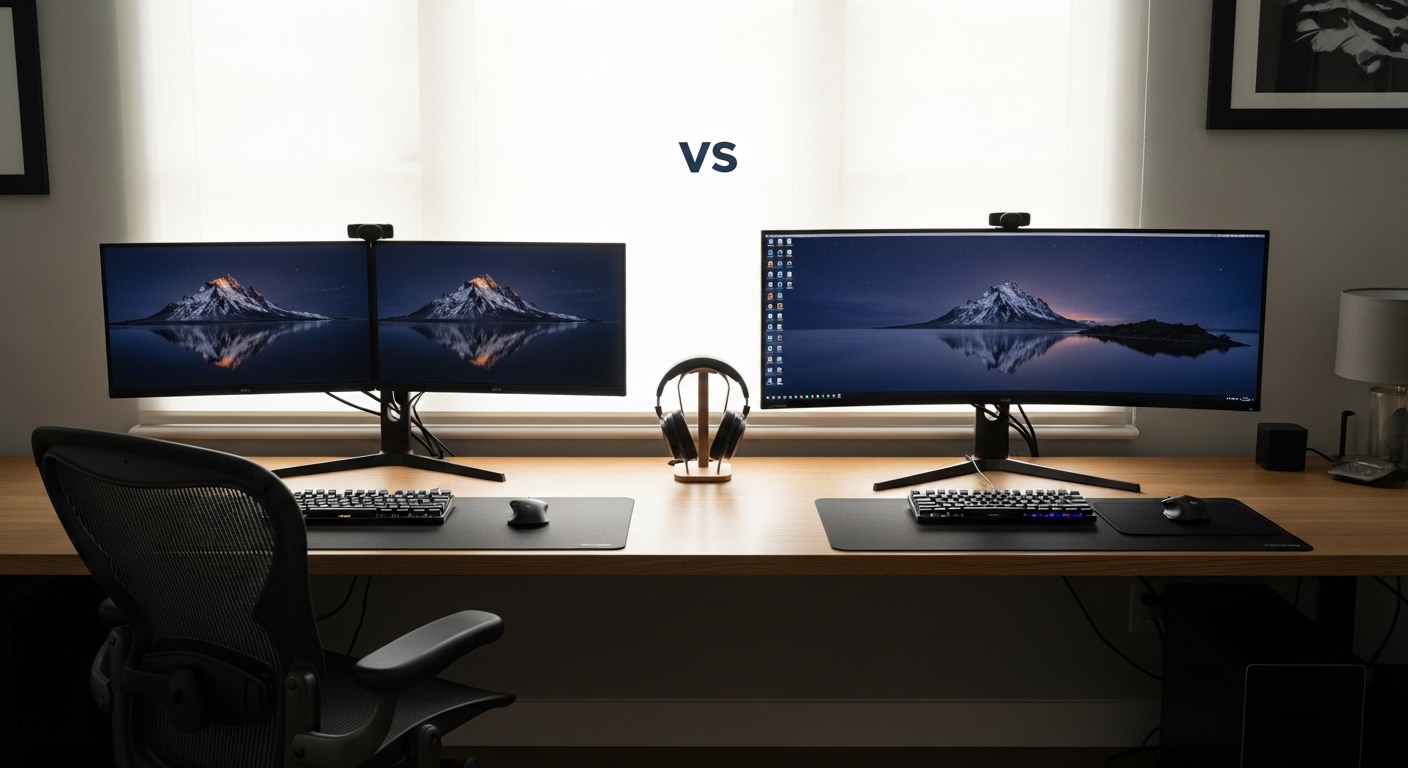
Understanding the Screen Space Evolution
The landscape of the modern workplace has shifted dramatically toward digital interfaces. Choosing between dual monitors vs ultrawide for home office productivity is now a fundamental decision for every professional.
Your display is the primary window into your work. It dictates how you interact with data, communicate with colleagues, and organize your daily tasks.
For many years, the standard upgrade for a laptop user was adding a second screen. This provided a simple way to expand the visible canvas without a massive investment.
However, recent advancements in panel technology have introduced massive single displays. These curved panels offer a seamless experience that challenges the traditional multi screen approach.
Deciding which path to take requires a deep look at your specific workflow. Not every task benefits from a single wide view, just as not every task requires distinct physical boundaries.
This guide will explore the technical and ergonomic nuances of both configurations. We want to help you build a workstation that minimizes fatigue and maximizes output.
Defining the Dual Monitor Paradigm
A dual monitor setup involves using two separate screens positioned next to each other. Most users prefer matching models to ensure consistent color reproduction across the entire view.
This setup creates a physical break between the two display surfaces. This gap, known as the bezel, acts as a natural divider for different types of applications.
You can dedicate one screen to your primary task while the other handles secondary information. This might include email, chat apps, or reference documents that you need to glance at occasionally.
The versatility of dual monitor mounts allows for diverse orientations. You can have one screen in landscape mode and the other in vertical mode to read long lines of code.
Flexibility is the strongest argument for this traditional arrangement. It allows for modular upgrades and specialized positioning that a single panel cannot match.
The Strategic Benefits of Multiple Screens
Efficiency often relies on the ability to compartmentalize different streams of information. Having two physical screens makes it very easy to lock focus on one specific area.
When you maximize a window on one screen, it does not interfere with the other. This prevents the accidental overlapping of windows that can occur on a single large canvas.
The mental model of two screens is very intuitive for most users. You know that the left side is for creation and the right side is for communication or research.
Furthermore, dual monitors are often more budget friendly for those starting their home office journey. You can purchase one monitor now and add another identical model later as your needs grow.
If one screen fails, you still have a functioning workstation to complete your tasks. This redundancy is a significant advantage for freelancers and remote employees who cannot afford downtime.
You can also mix and match different resolutions or panel types if your work requires it. For example, a color accurate screen for design paired with a standard screen for administrative work is a powerful combination.
Managing the Bezel Gap Challenge
The most obvious drawback of dual screens is the physical plastic frame between them. This central bezel can be a distraction when you are trying to view large spreadsheets or timelines.
Even with modern thin bezel designs, the gap remains a visual interruption. It forces your eyes to jump across a black bar when moving content between the two displays.
This gap also complicates the ergonomics of your neck and head. Most users end up looking at one screen more than the other, leading to asymmetrical neck strain over long hours.
To mitigate this, you must carefully angle the screens toward your seating position. Achieving the perfect curve with two flat panels requires precision and high quality mounting arms.
Cable management also becomes more complex with two separate power and data connections. Keeping a clean desk requires more effort when dealing with multiple thick cables behind the screens.
The Rise of the Ultrawide Experience
Ultrawide monitors typically feature a 21 to 9 aspect ratio, which is much wider than the standard 16 to 9 format. Some extreme models even reach a 32 to 9 ratio, effectively replacing two 27 inch screens with one unit.
The primary appeal is the complete lack of a center bezel. You get a continuous, panoramic view of your digital workspace without any physical obstructions.
This seamlessness is particularly beneficial for video editing and timeline based work. You can see a much longer portion of your project without needing to scroll horizontal bars constantly.
Immersive qualities are also a major factor for those who use their home office for entertainment. Movies and games look spectacular on a screen that fills your entire peripheral vision.
A single ultrawide monitor simplifies the aesthetic of your desk significantly. You only need one power cable and one signal cable to get everything running at once.
Modern ultrawide displays often feature a subtle curve. This curve keeps the edges of the screen at a more consistent distance from your eyes, reducing the need to refocus.
Screen Partitioning and Software Logic
Without a physical divider, you must rely on software to organize your windows. Most manufacturers provide custom screen splitting tools to create virtual partitions on the display.
These tools allow you to snap windows into specific zones with a single click. You can mimic a dual screen setup or create a three column layout for maximum information density.
Operating systems like Windows 11 have improved their snapping features significantly. This makes managing a large ultrawide canvas much more efficient than it was in previous years.
Some users find that the lack of physical borders actually helps their flow. They can resize windows dynamically based on the priority of the task at hand.
However, sharing your screen during video calls can be a hurdle. If you share your entire ultrawide screen, the aspect ratio might appear very small and distorted to people on standard monitors.
You must learn to share specific application windows instead of the full desktop. This is a small adjustment, but it is necessary for maintaining a professional presence in meetings.
Comparing Vertical Real Estate and Resolution
When discussing dual monitors vs ultrawide for home office productivity, resolution plays a critical role. A standard dual 4K setup provides a massive number of pixels for fine detail.
Most ultrawide monitors have a lower vertical resolution than two stacked or side by side 4K screens. For example, a 1440p ultrawide has fewer vertical pixels than a high density 4K display.
If your work involves high resolution photography or detailed architectural drawings, pixel density matters. You might miss the extra vertical space that a traditional setup provides.
However, the horizontal space on an ultrawide is often more useful for multitasking. Most websites and documents are designed with vertical scrolling in mind, but side by side windows require width.
You should consider the total number of pixels your graphics card can handle. Driving two 4K screens requires more processing power than driving a single ultrawide 1440p screen.
Ensure your computer supports the necessary bandwidth for these high resolution outputs. Using the correct version of DisplayPort or HDMI is essential for achieving smooth refresh rates.
Ergonomics and Long Term Comfort
Your physical health is the most important part of any home office setup. Constant head turning can lead to chronic neck pain and shoulder tension over time.
In a dual monitor setup, people often place the screens such that the bezel is directly in front of them. This forces them to look left or right constantly, which is not ideal for the spine.
An alternative is to have one primary monitor centered and a secondary monitor to the side. This setup is better for your neck but can lead to eye strain on the offset screen.
Ultrawide monitors solve this by centering the most important content directly in your line of sight. The curved nature of the panel brings the edges closer to your natural field of vision.
This reduces the amount of work your eye muscles must do to focus on different areas. Over an eight hour workday, these small ergonomic gains add up to significantly less fatigue.
As we look toward the typical home office of 2026, ergonomic health will likely be the primary driver of display innovation. Manufacturers are already focusing more on blue light reduction and curvature optimization.
Workflow Specific Recommendations
Different professions have different visual requirements that dictate the better choice. Software developers often prefer dual monitor setups because they can rotate one screen 90 degrees.
A vertical monitor is perfect for reading hundreds of lines of code or long documentation files. It minimizes the need for scrolling and keeps more of the logic visible at once.
Financial analysts who work with massive spreadsheets often lean toward ultrawide displays. Seeing columns A through Z without horizontal scrolling is a massive productivity boost for data entry.
Creative professionals like video editors benefit from the long timeline an ultrawide provides. They can see the entire story arc and audio tracks in one continuous horizontal view.
Writer and researchers might prefer dual screens to keep their source material strictly separate from their draft. The physical boundary helps prevent distractions from browser tabs or social media.
If your day involves constant video conferencing, consider how each setup handles your webcam. Mounting a camera on a large curved screen can sometimes result in an awkward eye level angle.
The Impact on Desk Real Estate
The physical footprint of your monitors will determine how much room you have for other tools. Two 27 inch monitors on their original stands take up a vast amount of space on a desk surface.
An ultrawide monitor usually has a large central stand that can be quite deep. You need a desk with enough depth to ensure the screen is not too close to your face.
Using a monitor arm is highly recommended for either setup to reclaim your desk space. A single heavy duty arm for an ultrawide is often cleaner than a dual arm mount.
However, dual monitor arms offer more independent movement for each screen. You can pull one closer or tilt it differently depending on your seating posture throughout the day.
Consider the weight limits of your desk if you are using a clamp mount. Large ultrawide displays are heavy and can put significant stress on the desk edge.
A sturdy desk made of solid wood or high grade laminate is best for these heavy configurations. Avoid thin particle board desks that might sag under the weight of multiple displays.
Technical Considerations for Connectivity
Connecting your displays to your laptop or desktop requires the right ports. A dual monitor setup typically requires two video outputs or a docking station with daisy chaining capabilities.
Many modern laptops have limited ports, making a single ultrawide more attractive. You can often connect an ultrawide via a single USB C cable that also charges your laptop.
This “one cable” solution is a hallmark of the minimalist home office. It reduces clutter and makes it very easy to dock and undock your laptop when you need to move.
If you choose dual monitors, you might need to invest in a Thunderbolt dock to handle the data load. This adds an extra cost to your total setup budget that you must account for.
Check the maximum resolution and refresh rate supported by your computer hardware. Some older integrated graphics chips may struggle to drive ultra high resolution panels smoothly.
Input lag and refresh rates are less critical for office work than for gaming. However, a high refresh rate of 100Hz or more makes window movement feel much smoother and more responsive.
The Future of Workplace Displays
Display technology continues to evolve with the introduction of OLED and Mini LED panels. These offer superior contrast ratios and vibrant colors that make text easier to read.
While these are currently expensive, they are becoming more common in both dual and ultrawide formats. Improved color accuracy is beneficial for everyone, not just professional designers.
The trend toward larger, single displays seems to be gaining momentum in the corporate world. The simplicity of a single panel aligns well with the modern aesthetic of clean workspaces.
Yet, the niche for dual screens remains strong due to the specialized needs of programmers and multi taskers. The ability to have a dedicated vertical screen is a feature an ultrawide cannot easily replicate.
Ultimately, the choice between dual monitors vs ultrawide for home office productivity comes down to personal workflow. There is no single correct answer that applies to every professional.
Think about your most common tasks and how you move your eyes across the screen. This self reflection will lead you to the perfect display configuration for your needs.
Practical Tips for Optimizing Your Setup
- Match the resolutions of your dual monitors to avoid scaling issues when moving windows.
- Use a monitor arm to position the top of the screens at eye level for better posture.
- Install window management software to create custom grids on a large ultrawide display.
- Calibrate the brightness and color temperature to reduce eye strain during late night work.
- Check your GPU specifications to ensure it can handle the total pixel count of your screens.
- Use high quality cables to prevent flickering or signal loss at high refresh rates.
Actionable Advice for Buyers
If you primarily work with long documents or code, prioritize a setup that allows for vertical orientation. This usually means dual monitors on a versatile mounting arm.
If you spend your day in creative suites or large datasets, the uninterrupted view of an ultrawide is superior. It allows for a more natural flow and better visualization of complex timelines.
Measure your desk before making a purchase to ensure the screen will fit. An ultrawide monitor requires a wide and deep surface to be used comfortably.
Consider the lighting in your room to avoid glare on a large curved surface. Position your desk away from direct window light that might cause reflections on the glass.
Budget for a high quality mounting solution regardless of which path you choose. A good arm is as important as the monitor itself for long term ergonomic health.
Frequently Asked Questions
Is an ultrawide monitor better than two screens for productivity? It depends on whether you prefer a seamless view or physical boundaries between your applications.
Can I use a laptop screen as a second monitor? Yes, this is a great way to start, but the difference in size can cause visual discomfort over time.
Do ultrawide monitors support split screen modes? Most high end models have built in software to partition the screen into several virtual displays.
Are dual monitors cheaper than one ultrawide? Often, two standard 27 inch monitors cost less than one premium 49 inch ultrawide display.
What is the best aspect ratio for office work? A 21 to 9 ratio is widely considered the sweet spot for general multitasking and productivity.
Conclusion
The debate between dual monitors vs ultrawide for home office productivity is a matter of workflow style. Both options offer significant advantages over a single small laptop screen.
If you value modularity and vertical space, the dual monitor path is likely your best bet. If you desire a clean desk and immersive horizontal views, the ultrawide is the winner.
Take the time to evaluate your desk space and your most frequent digital tasks. By choosing the right display, you invest in your efficiency and health for years to come.