
Efficiency and Minimalism in the Modern Workspace
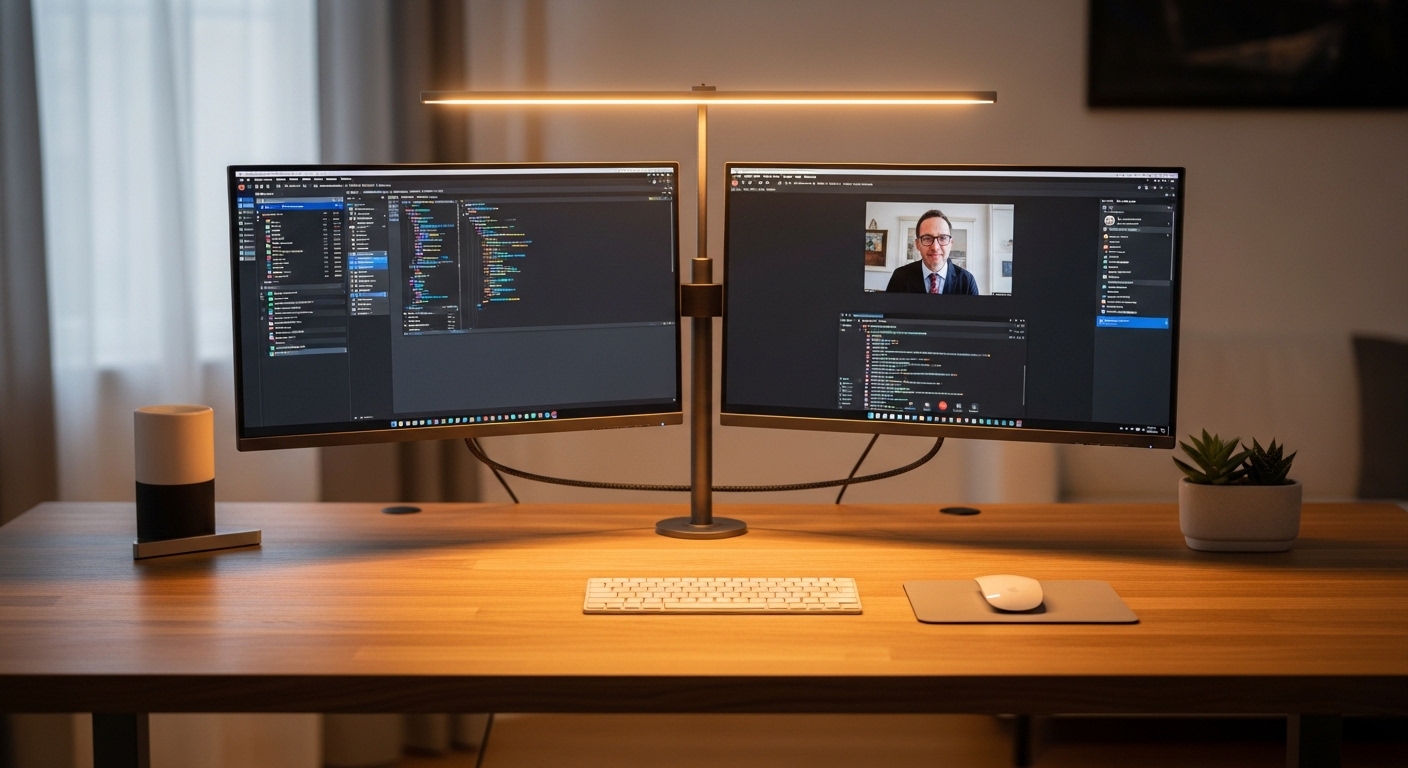
Creating a streamlined environment is the primary goal for many professionals working from home. A cluttered desk often leads to a cluttered mind, which can significantly reduce your daily output.
One of the most effective ways to clean up your desk is to learn how to daisy chain monitors for home office setups. This technical arrangement allows you to run multiple displays using a single connection from your computer.
Traditionally, every screen on your desk required its own dedicated cable running back to the laptop or desktop tower. This created a mess of tangled wires that collected dust and looked unprofessional.
By using a series connection, you can simplify your cable management significantly. This guide will walk you through every technical detail required to master this configuration.
We will explore the hardware requirements, the specific cables you need, and the software settings involved. Our goal is to help you achieve a cleaner workspace without sacrificing screen real estate.
Understanding the Concept of Daisy Chaining
Daisy chaining refers to the process of connecting digital devices together in a linear sequence. In the context of displays, it means your first monitor connects to the second one.
The computer only interacts directly with the first monitor in the chain. That first monitor then acts as a hub, passing the video signal along to the next unit.
This method utilizes a technology known as Multi Stream Transport, often abbreviated as MST. This protocol allows a single video output to carry multiple independent video signals simultaneously.
It is important to distinguish this from mirroring, where both screens show the same content. A proper daisy chain setup provides an extended desktop experience across all connected panels.
You can move windows freely between screens as if they were connected to separate ports. This level of flexibility is what makes it a favorite for power users.
The Role of Multi Stream Transport
MST was introduced with the DisplayPort 1.2 standard many years ago. It revolutionized how we handle high resolution video data across multiple devices.
Without MST, your graphics card would need a separate physical port for every single pixel. This technology packages the data into individual virtual channels within one physical wire.
Each monitor in the chain recognizes its specific data stream and ignores the rest. It then passes the remaining streams down the line to the subsequent displays.
This process happens with zero perceptible latency, ensuring that your mouse movements and video playback remain perfectly smooth. It is a highly efficient way to manage bandwidth.
Hardware Prerequisites for Success
Before you begin buying cables, you must ensure your current hardware supports this specific feature. Not every monitor or computer is capable of handling a series connection.
The most important requirement is the presence of a DisplayPort Out port on your primary monitor. Most screens only feature inputs, which receive data rather than sending it.
A monitor with a DisplayPort Out port acts as a bridge. If your monitor only has HDMI or standard DisplayPort inputs, it cannot be the first link in your chain.
Furthermore, your computer must have a graphics card that supports the MST protocol. Most modern integrated graphics from Intel or AMD and dedicated cards from NVIDIA support MST by default.
However, you should always check the manufacturer specifications for your specific laptop model. Some entry level devices may have limitations on the number of external screens supported.
Graphics Card Limitations and Clock Signals
Every graphics card has a maximum number of displays it can drive simultaneously. This is often limited by the number of internal clock signals available on the chip.
Even if you have the ports, the hardware might only support three or four screens total. This count often includes your primary laptop screen if it remains open.
Newer architectures found in devices coming in 2026 will likely push these boundaries even further. Always consult your GPU control panel to see the maximum supported display count.
Choosing the Right Connection Standard
There are two primary standards used for daisy chaining in a home office environment. These are DisplayPort and Thunderbolt, each with its own set of rules.
DisplayPort is the most common and cost effective way to achieve this setup. It requires the DisplayPort 1.2 standard or higher to function correctly with MST.
Thunderbolt is a more premium solution often found on high end laptops and creative workstations. It uses the USB C connector shape but offers significantly higher data throughput.
Thunderbolt daisy chaining is incredibly powerful because it can also carry power and USB data. This means a single cable can charge your laptop while driving two 4K displays.
If you use a Thunderbolt setup, ensure that all monitors in the chain are Thunderbolt certified. Mixing standard USB C monitors with Thunderbolt ones can sometimes cause stability issues.
DisplayPort vs HDMI for Daisy Chaining
It is a common misconception that HDMI can be used for daisy chaining monitors. While HDMI is excellent for single screen connections, it does not support MST protocols.
You cannot connect one monitor to another using a standard HDMI cable and expect an extended desktop. HDMI is strictly a point to point connection type.
If your computer only has an HDMI port, you may need a specialized adapter. However, native DisplayPort connections are always the most reliable choice for this specific task.
Cables and Signal Integrity
The quality of your cables plays a massive role in the stability of your dual screen setup. Since all the data for multiple screens travels through the first cable, it must be high quality.
Look for cables that are certified for DisplayPort 1.4 or higher. These cables have the necessary shielding to prevent electromagnetic interference from flickering your screens.
Cheaper cables often lack the bandwidth required for high refresh rates or high resolutions. This can result in the second monitor failing to wake up from sleep mode.
Keep the cable lengths as short as possible to maintain a strong signal. Long cables can lead to signal degradation, especially when pushing high amounts of data.
Using certified VESA cables ensures that the pin layout is correct and safe for your hardware. Some non certified cables can actually feed power back into your GPU, causing damage.
A Step by Step Setup Guide
Once you have confirmed your hardware is compatible, the physical setup is quite simple. Follow these steps to correctly learn how to daisy chain monitors for home office use.
Start by connecting your computer to the DisplayPort Input of the first monitor. Use the best quality cable you have for this initial link in the chain.
Next, find the DisplayPort Out port on that first monitor. Connect a second DisplayPort cable from that port to the DisplayPort Input of your second monitor.
You can repeat this process for a third monitor if your graphics card supports the bandwidth. Connect the second monitor Out to the third monitor Input.
Power on all the devices and navigate to your monitor on screen display settings. You must ensure that DisplayPort 1.2 or MST is enabled in the menu of the first monitor.
Some monitors ship with this feature disabled by default to ensure compatibility with older systems. Once enabled, your computer should immediately recognize the additional displays.
Configuring Windows Display Settings
After the physical connection is secure, you need to tell Windows how to arrange the screens. Right click on your desktop and select the Display Settings option.
You should see numbered boxes representing each of your connected monitors. Click the Identify button to see which number corresponds to which physical screen on your desk.
Drag and drop the boxes to match the actual physical orientation of your monitors. This ensures that your mouse cursor moves naturally from one screen to the next.
Make sure the Multiple Displays dropdown is set to Extend these displays. This gives you a continuous desktop surface for maximum productivity throughout your workday.
Bandwidth and Resolution Limitations
There is a finite amount of data that a single cable can carry. This is the biggest hurdle when trying to chain multiple high resolution displays together.
A single DisplayPort 1.2 connection can typically handle two 1080p displays at 60Hz without any issues. However, if you want to use two 4K displays, you will likely need DisplayPort 1.4.
DisplayPort 1.4 uses Display Stream Compression to fit more data into the same pipe. Without DSC, a single DP 1.4 cable might struggle with multiple 4K screens at high refresh rates.
If you notice that your second monitor is limited to a low resolution, bandwidth is likely the culprit. You may need to lower the refresh rate of the first monitor to free up data.
For example, dropping from 144Hz to 60Hz can free up massive amounts of bandwidth for the second screen. This is a common trade off in professional home office environments.
HBR2 vs HBR3 Standards
When researching monitors, you might see terms like HBR2 and HBR3. These refer to High Bit Rate versions that determine the total throughput of the connection.
HBR2 is the older standard and is limited in the resolutions it can support in a chain. HBR3 is much faster and is required for modern professional workflows involving high pixel counts.
Always check your monitor manual to see which HBR level the DisplayPort Out port supports. Sometimes the output port has lower specifications than the input port.
The macOS Daisy Chaining Challenge
Apple users often face frustration when attempting to use DisplayPort MST daisy chains. It is important to note that macOS does not support MST for extended desktops.
If you connect two monitors in a DisplayPort chain to a MacBook, both screens will show the exact same image. This is known as mirroring and is usually not what users want.
To achieve a true daisy chain on a Mac, you must use Thunderbolt monitors. Thunderbolt uses a different protocol that macOS natively supports for multiple displays.
Each monitor in the chain must have Thunderbolt ports, not just standard USB C. This makes the setup significantly more expensive for Apple enthusiasts.
Alternatively, Mac users can use a Thunderbolt dock to split the signal. However, this technically moves away from a pure daisy chain configuration into a hub and spoke model.
Troubleshooting Common Connection Issues
Even with the right hardware, things can sometimes go wrong during the installation process. The most common issue is the no signal message on the second screen.
First, double check that you are using the Out port on the first monitor. Many people accidentally plug the second monitor into a second Input port on the first monitor.
Next, verify that the MST setting is turned on in the internal menu of the first monitor. If this is off, the monitor will not pass the signal through to the next device.
If the screens are flickering, it usually points to a bandwidth or cable quality issue. Try swapping the cables or reducing the resolution to see if the flickering stops.
Sometimes, a simple restart of the computer while all monitors are powered on can solve detection problems. The graphics driver needs to reinitialize the handshake with the MST hub.
Updating Graphics Drivers
Outdated drivers can lead to poor MST performance or a complete lack of support. Ensure you have the latest software from the website of your GPU manufacturer.
Windows Update drivers are often generic and may not support advanced features like daisy chaining properly. Using the dedicated control software gives you better configuration options.
Ergonomic and Aesthetic Benefits
Beyond the technical convenience, daisy chaining offers significant ergonomic advantages. With fewer cables cluttering your desk, you have more physical space for your keyboard and mouse.
A cleaner desk also makes it easier to use monitor arms. Managing one cable running down a monitor arm is much easier than managing multiple wires.
This setup is particularly beneficial for those using standing desks. As the desk moves up and down, having fewer cables means less risk of something getting snagged or unplugged.
From an aesthetic perspective, a daisy chained setup looks incredibly modern and professional. It creates a minimalist aesthetic that is highly sought after in home office design.
Improving Focus with Minimalist Design
Visual noise in your workspace can be a subtle but persistent distraction. Hiding cables through a series connection helps maintain your focus on the task at hand.
When you look at your desk, you should see your tools, not a chaotic web of plastic wires. Daisy chaining is the most direct path to achieving this level of organization.
Frequently Asked Questions
Can I daisy chain monitors of different brands? Yes, you can mix brands as long as the first monitor has a DisplayPort Out port and both support MST.
Do I need a special graphics card? Most modern GPUs support this, but integrated laptop graphics might limit the total resolution across the chain.
Can I use an HDMI to DisplayPort adapter? These adapters are often directional and rarely support the MST protocols required for daisy chaining.
What is the maximum number of monitors I can chain? Usually, you can chain up to four 1080p displays, but this depends entirely on your GPU and bandwidth.
Does daisy chaining cause input lag? No, MST technology is designed to pass signals with negligible latency, making it suitable for professional work.
Conclusion: Mastering Your Home Office Connectivity
Learning how to daisy chain monitors for home office setups is a game changer for productivity. It blends technical sophistication with practical cable management solutions.
By understanding the requirements of DisplayPort MST and Thunderbolt, you can build a clean workspace. This allows you to focus on your professional goals without the distraction of clutter.
Take the time to check your hardware compatibility and invest in high quality cables. The result will be a seamless multi screen experience that enhances your daily workflow.
The Home Office Lab is dedicated to helping you optimize every aspect of your workspace. Implementing a daisy chain is one of the smartest upgrades you can make today.