

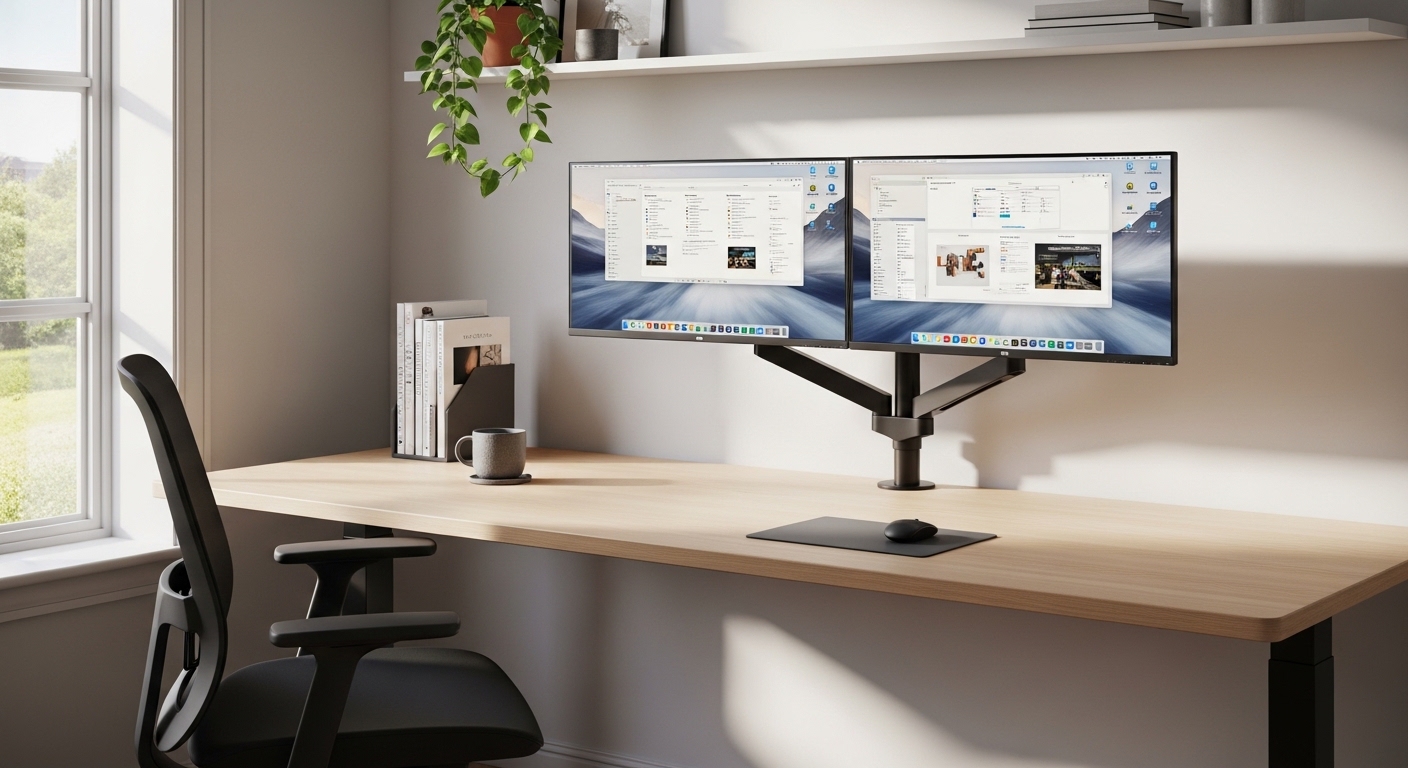
The Importance of Professional Screen Alignment
Creating a workspace that supports your physical health is a foundational requirement for any remote professional. Many users transition to multiple displays without considering the long term impact on their bodies.
Learning how to arrange dual monitors for optimal ergonomics is about more than just desk aesthetics. It involves understanding how your eyes and neck interact with digital information over several hours.
Poorly positioned screens lead to chronic issues such as cervical strain and tension headaches. A well organized setup can significantly boost focus by reducing physical distractions throughout the workday.
At The Home Office Lab, we view the workstation as a precise instrument for productivity. Every inch of movement in your display height or angle matters for sustained cognitive performance.
Defining Your Workflow Needs
Before moving any hardware, you must analyze how you actually interact with your software. Not every dual screen setup should look exactly the same for every user.
Some professionals require a primary focus area while others need a balanced spread of data. Identifying your dominant eye and task will dictate the physical geometry of your desk.
The Primary Versus Secondary Monitor Strategy
The most common arrangement involves designating one screen as your main workspace. This monitor sits directly in front of your torso to prevent constant neck rotation.
You should align the center of this screen with your nose. This ensures that your neck remains in a neutral forward position for the majority of the day.
The secondary monitor then acts as a peripheral display for auxiliary tasks. You might use it for email, chat applications, or static reference documents while you work.
Place this second screen immediately to the left or right of the primary one. Angle it slightly inward to create a subtle viewing arc that matches your natural head swivel.
Choosing Your Dominant Side
Most people have a dominant eye that processes information more efficiently. Placing your secondary screen on the side of your dominant eye can reduce fatigue.
If you find yourself constantly leaning toward one side, your monitors are likely unbalanced. Observe your sitting habits for a few hours to identify these subconscious physical shifts.
The Centered Symmetrical Dual Screen Layout
Some roles require users to split their time equally between two different applications. In this scenario, a symmetrical arrangement is often the superior choice for your health.
You should place both monitors so that their inner edges meet exactly in front of you. This creates a wide panoramic view of your digital environment.
This setup requires you to turn your head slightly to look at either screen. You must ensure the angle of rotation is equal for both the left and right sides.
Constant asymmetrical turning can lead to muscle imbalances in the neck. A balanced setup distributes the physical load across your cervical spine more evenly.
Managing the Bezel Gap
The physical border of your screens can create a visual interruption. Try to minimize the gap between the displays to reduce eye refocusing time.
Modern displays with thin bezels are ideal for this specific configuration. Seamless transitions allow your eyes to glide across data without unnecessary strain or jumps.
Calculating the Perfect Height for Your Displays
Height is perhaps the most critical factor in preventing slouching or hunching. Most people set their monitors far too low on their desks initially.
The top third of the screen should be level with your eyes. This allows you to look at the center of the display with a slight downward gaze.
Looking upward is stressful for the delicate muscles around the eyes. Keeping the visual horizon at or below eye level is a fundamental rule of ergonomics.
If your monitors sit too low, you will naturally tuck your chin. This creates a rounded upper back and leads to significant pain over time.
Using Adjustable Stands
Static stands provided by manufacturers rarely offer enough height for tall users. Utilizing a versatile monitor arm allows for the precision required in a professional lab.
Independent height adjustment is vital if you use two different monitor models. Aligning the top display edges creates a consistent horizontal plane for your eyes.
Determining the Ideal Viewing Distance
The distance between your face and your screens affects both clarity and comfort. Placing screens too close forces eye muscles to work harder to maintain focus.
Conversely, placing them too far away causes you to lean forward. This forward head posture is a primary cause of shoulder tension and headaches.
A general rule is to keep the screens about an arm length away. You should be able to barely touch the glass with your fingertips while sitting back.
Larger screens require slightly more distance to keep the edges in your field of view. Adjust the font scaling settings in your operating system if the text appears too small.
The Impact of Screen Resolution
High resolution displays often tempt users to sit closer to see fine details. This can lead to increased blue light exposure and digital eye strain.
Maintain your ergonomic distance and use software scaling to make icons legible. Prioritize your physical posture over the desire to see every individual pixel.
Optimizing Angles for a Natural Visual Arc
Your eyes move more easily in a horizontal arc than a vertical one. When using two screens, you must curve them inward toward your seating position.
This creates a concave shape that keeps the distance to each screen consistent. Without this curve, the outer edges of the screens are further away than the centers.
Constant refocusing between different distances causes the ciliary muscles to fatigue. A consistent focal length across the entire workspace preserves your vision for longer sessions.
The angle should be subtle rather than aggressive. Aim for a gentle wrap around effect that encompasses your peripheral vision without requiring deep head turns.
Reducing Glare and Reflections
Light sources behind you can create distracting reflections on the screen surface. You might subconsciously tilt your head to see around these bright spots.
Position your desk perpendicular to windows whenever possible. Using matte screen protectors or diffusers can also help manage difficult lighting environments.
The Vertical Stacking Alternative
In some compact home offices, horizontal space is at a premium. Some professionals choose to stack their monitors vertically instead of side by side.
This layout is popular among programmers and data analysts who view long lists. However, vertical stacking presents unique ergonomic challenges for the neck.
Tilting the head back to see the top screen is highly discouraged. This movement compresses the vertebrae in the neck and can cause nerve issues.
If you stack monitors, the lower one should be tilted upward like a drafting table. This allows the top monitor to remain at the standard eye level height.
When to Use Vertical Orientation
Rotating a secondary monitor into portrait mode is excellent for reading code. It allows you to see more lines without scrolling constantly.
Keep the vertical screen on your non dominant side for occasional reference. Ensure the top of the screen does not exceed your comfortable eye level.
Biological Factors in Dual Monitor Usage
Your body has specific limits on how often it can transition between focal points. Every time you switch screens, your brain reorients to the new spatial context.
Excessive head movement triggers the vestibular system in the inner ear. If the screens are poorly aligned, this can actually lead to mild motion sickness.
Professional setups minimize the effort required for these transitions. Smooth horizontal eye tracking is the goal for a high performance workspace.
Remember that your blink rate often drops when looking at multiple bright panels. Make a conscious effort to blink more frequently to prevent dry eyes.
The Role of Proper Lighting
The contrast between your bright screens and a dark room is harmful. Use bias lighting behind your monitors to reduce the strain on your pupils.
A soft glow on the wall behind the screens balances the luminance. This makes extended work sessions much more comfortable for your visual system.
Integrating Mobile Devices and Laptops
Many home lab enthusiasts use a laptop as one of their two screens. Placing a laptop on the desk beside a large desktop monitor is common but flawed.
The laptop screen is usually much lower, forcing you to look down. This creates a disjointed visual plane that causes neck strain and confusion.
Use a laptop riser to bring the portable screen up to the same height. Aligning the display centers creates a much more fluid transition for your eyes.
If the laptop screen is too small, consider using it only for static dashboard data. Your main work should always happen on the largest, most adjustable display.
Managing Peripheral Distractions
A dual screen setup increases the amount of visual information hitting your brain. You must curate your environment to prevent sensory overload from the second display.
Turn off unnecessary animations or flashing notifications on the side screen. A calm digital environment is essential for deep work and mental clarity.
The Software Side of Ergonomic Setup
Ergonomics extends into how your operating system handles the two displays. Ensure that the virtual arrangement matches the physical placement on your desk.
The mouse cursor should move in a straight line from one screen to the next. Any vertical offset in the software will cause frustrating navigation issues.
Match the brightness and color temperature of both monitors as closely as possible. Large differences in white balance can cause significant eye fatigue during the day.
Use blue light filters in the evening to protect your circadian rhythm. In 2026, most operating systems include advanced scheduling features for these visual adjustments.
Cursor Tracking and Sensitivity
Traveling across two large screens requires a lot of mouse movement. Increase your pointer precision to reduce the physical strain on your wrist.
A high DPI setting allows you to navigate the entire span with small movements. This protects your carpal tunnel from repetitive wide sweeping motions.
Daily Habits for Long Term Comfort
Even the most perfect setup cannot compensate for total physical stillness. You must change your position slightly throughout the day to stay healthy.
Follow the 20 20 20 rule to give your eyes a much needed break. Every 20 minutes, look at something 20 feet away for 20 seconds.
Stretch your neck and shoulders during every meeting or phone call. Maintaining tissue elasticity is just as important as your monitor hardware configuration.
Regularly check if you are leaning toward one of the two screens. Realignment of your sitting posture should happen at least once every hour.
The Importance of Hydration
Your eyes rely on proper hydration to stay lubricated and functional. Drinking plenty of water helps maintain the focus and clarity of your vision.
Dehydration can lead to blurred vision and increased sensitivity to screen light. Keep a water bottle on your desk as a reminder to drink constantly.
Frequently Asked Questions
Is it better to have monitors side by side or stacked?
Side by side is generally better for the neck because the cervical spine handles side rotation more safely. Stacking should only be used if you have a very specific workflow requirement.
Stacking often causes users to tilt their head back, which can lead to nerve compression. Always prioritize horizontal movement for primary work tasks.
What if my monitors are two different sizes?
Always align the centers of the screens rather than the bottom edges. This keeps the focal horizon consistent as your eyes move between the displays.
Use an adjustable arm to ensure the smaller screen is raised to the correct eye level. Consistency in height is more important than consistency in screen dimensions.
How do I know if my monitors are too close?
If you find yourself squinting or if you feel pressure behind your eyes, they might be too near. Try moving them back by two inches and observe the results.
Your eyes should feel relaxed when looking at the center of the screen. If you feel eye strain within the first hour, the distance is likely the culprit.
Conclusion: Refining Your Workspace for the Future
Arranging your digital tools with care is a sign of a disciplined professional. Your physical health is the most valuable asset in your home office lab.
By understanding how to arrange dual monitors for optimal ergonomics, you are investing in your longevity. Small adjustments today prevent major medical issues in the future.
Take the time to measure your heights and angles with precision this week. A balanced workstation creates a sense of calm and enables your best creative work.
Consistency in your ergonomic practice will lead to greater career satisfaction and comfort. Thank you for trusting The Home Office Lab with your workspace optimization.