
Transforming Your Corner Into a High Performance Hub
Working from home often requires us to maximize every square inch of available space. An L shaped workstation offers a unique opportunity to create a wrap around environment that boosts focus and efficiency.
However, learning how to arrange an ergonomic corner desk is not as simple as placing a chair in the middle. Improper placement can lead to chronic back pain, neck strain, and repetitive stress injuries over time.
At The Home Office Lab, we view the corner desk as a cockpit for productivity. Every element should be within reach while supporting your body in its most natural state.
This guide will walk you through the precise steps needed to align your furniture and equipment. We will focus on biomechanics and spatial awareness to ensure your setup is sustainable for long sessions.
The Importance of the Apex Position
The most common mistake people make with corner furniture is sitting against one of the flat sides. This effectively turns a large desk into a narrow one while wasting the deepest part of the surface.
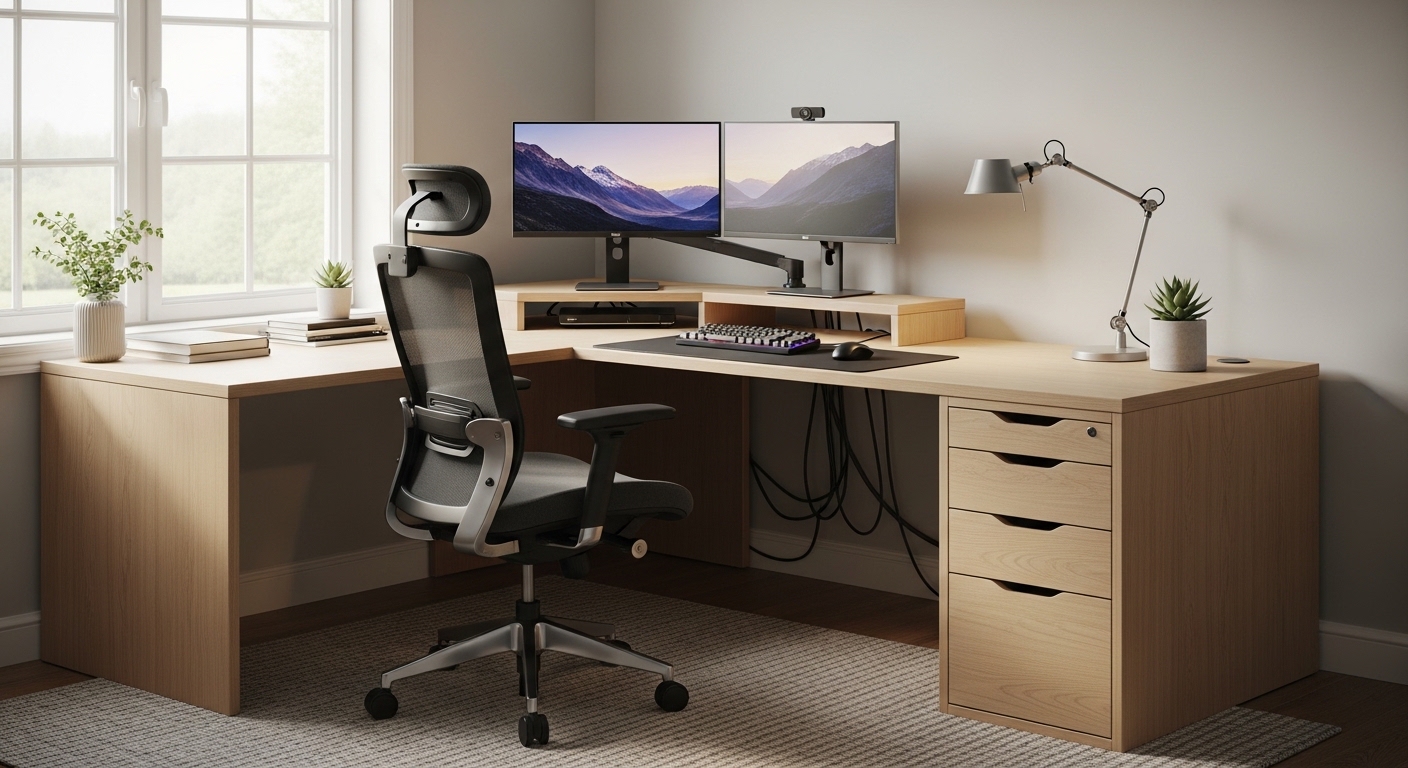
To start your setup, you must identify the apex or the central point where the two sections meet. Sitting at the curve or the joint allows you to utilize the depth of the corner for your primary equipment.
This position provides the most surface area for your forearms to rest comfortably. It also creates an equal distance to items on both the left and right wings of the desk.
When you sit at the apex, you eliminate the need to frequently twist your torso. Your spine stays aligned with the center of your primary tasks.
Maximizing Depth for Visual Comfort
The corner of an L shaped desk is usually the deepest point of the furniture. This depth is essential for achieving a healthy viewing distance from your screens.
Most experts suggest keeping your monitor at least twenty inches away from your eyes. Using the corner allows you to push the monitor back further than a standard rectangular desk would allow.
Optimal Monitor Placement for Corner Desks
Your eyes should naturally rest on the top third of your screen. If the monitor is too low, you will subconsciously tilt your head forward and strain your neck.
When you arrange your screens in a corner, you must prioritize your primary monitor directly in front of your face. Avoid placing it at an angle that forces you to look sideways for hours.
If you use a second screen, place it immediately adjacent to the first one. You should aim for a slight inward tilt to create a semi circular viewing field.
This configuration reduces the amount of neck rotation required to see your full digital workspace. Keeping the screens at the same height is also vital for preventing eye fatigue.
Choosing the Right Monitor Mount
Standard monitor stands often take up too much room in the precious corner area. Using a flexible monitor arm can free up significant desk real estate.
These arms allow you to pull the screen closer or push it back based on your current task. This versatility is particularly helpful when you switch between reading small text and watching video content.
Ensure that the arm is clamped securely to the back of the desk. Most corner desks have a cable grommet in the apex that serves as a perfect mounting point.
Keyboard and Mouse Alignment in the Corner
Your input devices are the primary touchpoints between your body and your work. Their placement determines whether your shoulders stay relaxed or remain hunched.
Place your keyboard directly in front of you while you are centered at the apex. Your wrists should remain neutral and straight rather than bending upward or downward.
The mouse should be placed on the same level as the keyboard. Avoid reaching too far to the side to operate your pointing device.
If your corner desk is too high, you might consider adding an adjustable tray. This helps maintain a ninety degree angle at your elbows during use.
The Benefits of Split Keyboards
In a corner setup, the angle of your arms often naturally widens. Using ergonomic split keyboards can complement this natural posture perfectly.
These devices allow your hands to rest at shoulder width. This reduces the inward rotation of the shoulders and helps prevent tension in the upper back.
Mastering the Neutral Reach Zone
Ergonomics is not just about how you sit, but also how you move. The neutral reach zone refers to the area you can access without leaning or stretching.
Your most frequently used items should be within this inner circle. This includes your keyboard, mouse, and perhaps a dedicated notepad.
Secondary items like your phone or a drink should be in the extended reach zone. You should only have to move your arms, not your whole body, to reach them.
In the year 2026, many professionals are prioritizing minimalist surfaces to stay within these zones. Clearing away clutter ensures that your reach remains unobstructed and safe.
Organizing the Tertiary Zone
The far ends of the L shaped desk are known as the tertiary zones. These areas are best suited for decorative items or equipment that you rarely touch during the day.
Printers, scanners, or reference books can live here. Placing them far away encourages you to stand up and move when you actually need them.
Selecting and Positioning Your Ergonomic Chair
The chair is the foundation of your entire workstation. Without proper support, even the best desk arrangement will fail to protect your health.
When sitting at a corner desk, your chair must have smooth rolling casters for easy movement. You will likely pivot between the two sides of the desk throughout the day.
Adjust the height so your feet rest flat on the floor. Your thighs should be parallel to the ground to ensure proper blood flow to your lower legs.
The lumbar support should nestle into the natural curve of your lower spine. This prevents the slouching that often occurs during long afternoon sessions.
The Importance of Armrests
Armrests should be adjusted so they just barely touch your elbows. They should support your forearm weight without pushing your shoulders toward your ears.
In a corner setup, you might find that the desk surface itself acts as an armrest. If you prefer this, ensure the desk edge is rounded or padded to avoid pressure points.
Managing Lighting and Reducing Glare
Corners can often be dark areas of a room. Poor lighting causes eye strain and can lead to tension headaches by the end of the day.
Position your desk near a window if possible, but avoid having the window directly behind you. This creates a reflection on your monitor that is difficult to ignore.
If the window is in front of you, the brightness can cause your pupils to contract, making the screen look too dark. A side window is usually the best compromise for natural light.
Use a high quality desk lamp with an adjustable neck to fill in the shadows. Direct the light toward your documents rather than your eyes or the screen.
Using Monitor Light Bars
A monitor light bar is an excellent tool for a corner workstation. It illuminates your task area without taking up any space on the desk surface.
These lights are designed to cast light downward rather than onto the screen. This effectively eliminates glare while providing clear visibility for your keyboard and notes.
Cable Management for a Safer Workspace
Corner desks tend to accumulate a lot of wires because they house more equipment. A tangled mess of cables under your desk is a safety hazard and a visual distraction.
Use cable trays or sleeves to group your cords together. Route them along the back edge of the desk to keep the leg area clear.
You need total freedom to move your legs and pivot your chair. If you are constantly hitting a power strip with your feet, your posture will suffer.
Secure the power strips to the underside of the desk surface. This keeps the floor clear and makes cleaning the area much easier.
Labeling Your Connections
Because the apex is often hard to reach, troubleshooting cables can be frustrating. Labeling each cable at both ends will save you significant time and effort.
Use simple tags or colored tape to identify which cord belongs to which device. This is a small step that prevents you from having to crawl under the desk repeatedly.
Under Desk Clearance and Leg Room
Many corner desks have a support leg located right in the middle of the curve. This can be a major ergonomic obstacle for your knees and feet.
Check that you have enough space to tuck your chair in completely. If your knees hit the desk frame, you will be forced to sit too far back.
Avoid storing large boxes or computer towers in the footwell. Your legs need room to stretch and change positions to maintain healthy circulation.
If the desk is height adjustable, ensure that the cables have enough slack to move upward. A sudden tug on a short cable can damage your expensive equipment.
The Role of a Footrest
If your desk is at a fixed height that is slightly too tall, a footrest is mandatory. It supports your lower body and prevents your legs from dangling.
Dangling legs put pressure on the back of your thighs. This can lead to numbness or even deep vein thrombosis over many years of work.
Look for a footrest with an adjustable angle. This allows you to flex your ankles and keep your calf muscles engaged during the day.
Some users even prefer an active footrest that allows for rocking. This small movement helps keep your blood flowing while you remain seated.
Psychological Benefits of an Organized Corner
An L shaped desk creates a sense of enclosure that many find comforting. It defines a clear boundary for work within a multi purpose room.
By arranging your desk ergonomically, you reduce the physical friction of starting your tasks. When your body feels good, your mind can stay in a flow state for longer periods.
Keeping one side of the L for digital work and the other for analog tasks is a great strategy. This mental separation helps you switch gears between deep thinking and administrative chores.
A clean and balanced corner desk also looks professional during video calls. It suggests that you are organized and take your remote work seriously.
Practical Tips for Daily Ergonomic Success
- Take a break every thirty minutes to stand and stretch your limbs.
- Follow the twenty twenty twenty rule to give your eyes a much needed rest.
- Check your posture whenever you take a sip of water or finish a phone call.
- Keep your shoulders down and relaxed to avoid building up unnecessary tension.
- Ensure your monitor is centered so your nose points directly at the screen middle.
- Use a document holder if you frequently refer to paper notes while typing.
Frequently Asked Questions
Should I put my monitor in the corner or on one side? Sitting in the corner is generally better for ergonomics because it provides more depth and surface area for your arms.
How deep should my corner desk be? A depth of at least twenty four inches on each wing is ideal, but the apex should ideally provide even more space for your monitor.
Can I use two monitors on a corner desk? Yes, corner desks are perfect for dual monitor setups as the L shape allows you to angle them inward for a natural viewing arc.
Is a corner desk better for back pain? It can be better if arranged correctly, as it allows for more arm support and prevents the need to twist your torso frequently.
Conclusion: Mastering Your Workspace
Knowing how to arrange an ergonomic corner desk is a vital skill for the modern professional. It transforms a simple piece of furniture into a tool that supports your health and productivity.
By focusing on the apex position, you unlock the full potential of the L shaped design. Remember to prioritize your line of sight and keep your most used tools within easy reach.
Ergonomics is an ongoing process of adjustment and refinement. Pay attention to what your body tells you throughout the day and make small changes as needed.
With a thoughtful layout, your corner desk will become your favorite place to work. You will find yourself finishing the day with more energy and fewer aches.