

Understanding the Role of Armrests in Typing Ergonomics
Many professionals spend hours at their desks without realizing the impact of their armrest position. Knowing how to adjust ergonomic chair armrests for typing is vital for long term health.
Proper support reduces the strain on your upper body and neck. It allows your muscles to remain relaxed while you navigate the keyboard and mouse.
The primary goal of armrests is to support the weight of your limbs. Without this support, your shoulders must work constantly to hold your arms up.
This constant activation leads to muscle fatigue and discomfort. Over time, poor support can contribute to chronic conditions like repetitive strain injuries.
The Physiology of Shoulder Tension
Your shoulders are the anchor point for your arm movements. When your arms hang without support, the trapezius muscles become overworked.
This tension often travels upward into the neck and downward into the middle back. Providing a solid base for your elbows breaks this cycle of pain.
A well adjusted chair acts as a foundation for your entire posture. It facilitates a neutral spine and keeps your joints in their natural alignment.
The Importance of Vertical Height Adjustment
Vertical height is the most common adjustment found on ergonomic chairs. It determines the distance between your elbows and the floor.
To begin, you should sit with your feet flat on the ground. Your thighs should be parallel to the floor for optimal pelvic alignment.
Relax your shoulders completely and let your arms hang naturally by your sides. Bend your elbows to a ninety degree angle as if you were typing.
Adjust the armrest height until the pad just touches the underside of your elbows. You should not feel your shoulders being pushed upward.
Finding the Sweet Spot for Elbow Support
If the armrests are too high, your shoulders will shrug toward your ears. This causes tension in the neck and restricts blood flow to the hands.
Conversely, armrests that are too low provide no support at all. You will likely lean to one side to reach the pad, which misaligns your spine.
The contact should be light but consistent. Your elbows should feel supported without being locked into place.
Check the height again after you have adjusted your desk or keyboard tray. The relationship between these surfaces is crucial for comfort.
Mastering Lateral Width for Shoulder Health
Width adjustment controls how far the armrests are from your torso. Many high quality chairs allow you to slide the pads inward or outward.
Your elbows should stay relatively close to your ribcage while you type. This prevents a common issue known as winging the elbows.
If the armrests are too wide, you will have to reach outward to use them. This reaching motion puts unnecessary stress on the rotator cuff muscles.
Position the armrests so that your forearms are directly under your shoulders. This creates a straight line of support from the chair to your hands.
Preventing Shoulder Abduction
Shoulder abduction occurs when your arms move too far away from the center of your body. It is a leading cause of shoulder joint fatigue in office workers.
By pulling the armrests inward, you keep your arms in a neutral zone. This makes it easier to keep your wrists straight while typing.
Test the width by typing a few sentences on your keyboard. Your arms should feel tucked in and effortlessly supported.
If you have a narrow frame, you may need a chair with a large range of width adjustment. Larger users might need to slide them outward for more breathing room.
Utilizing Depth and Pivot for Precision
Depth adjustment allows the armrest pads to move forward or backward. This feature is essential for getting close to the desk without obstruction.
If the armrests hit the edge of your desk, you will be forced to sit too far away. This leads to leaning forward and rounding your upper back.
Slide the armrests back so you can pull your chair underneath the work surface. This keeps your back firmly against the lumbar support.
The front of the armrest should not interfere with your wrist movement. It should end just before the wrist area begins.
The Benefits of Pivot and Rotation
Some chairs offer a pivot function that allows the pads to rotate inward. This is particularly helpful for users who type on split ergonomic keyboards.
Rotating the pads inward supports the forearms as they angle toward the center of the desk. It maintains full contact even when your hands are close together.
This adjustment reduces the pressure on the ulnar nerve at the elbow. It ensures that the fleshy part of your forearm takes the weight.
Avoid rotating the pads so far that your wrists are forced into an awkward angle. The goal is always to keep the wrist in a neutral position.
How to Adjust Ergonomic Chair Armrests for Typing Efficiency
Efficiency in typing comes from a lack of physical resistance. When you know how to adjust ergonomic chair armrests for typing, your speed may actually increase.
This happens because your small motor muscles are no longer compensating for lack of stability. A stable arm leads to precise finger movements.
Start your workday by checking your settings. Small changes in your sitting position can require minor tweaks to your armrests.
Use the armrests as a resting point during pauses in typing. Do not feel obligated to keep your arms glued to them every single second.
Creating a Seamless Surface
Ideally, your armrests should be at the same level as your keyboard. This creates a continuous plane for your forearms and hands to move across.
If your keyboard is higher than the armrests, your wrists will likely bend upward. This extension is a major risk factor for carpal tunnel syndrome.
Use a keyboard tray if your desk is too high to match your chair. This allows you to maintain the perfect ergonomic triangle.
Remember that ergonomic standards continue to evolve in 2026. Staying informed about new research helps you maintain a healthy workspace.
The Impact of Armrest Material and Texture
The physical properties of the armrest pad affect your comfort levels. Hard plastic pads can cause pressure point pain over long periods.
Look for pads with a slight cushion or a soft touch finish. These materials distribute the weight of your arm over a larger surface area.
A concave shape can help center your arm and prevent it from sliding off. However, some users prefer a flat surface for greater freedom of movement.
If your current pads are too hard, you can find aftermarket covers. These add a layer of memory foam or gel for extra comfort.
Managing Skin Irritation and Heat
Some materials can trap heat and cause your skin to feel sweaty. This is common with certain types of synthetic leather or thick vinyl.
Fabric or breathable foam covers can mitigate this issue effectively. Keeping the skin dry is essential for sustained focus during tasks.
Clean your armrest pads regularly to prevent the buildup of oils and dust. A clean surface is more comfortable and hygienic for daily use.
Common Mistakes to Avoid During Adjustment
One of the biggest mistakes is using only one armrest while typing. This causes a lateral spinal lean that can lead to hip and back pain.
Always ensure that both armrests are set to the same height and width. Symmetrical support is key to maintaining a balanced posture.
Another error is setting the armrests so high that they lift your arms off the desk. This creates a gap in support between the armrest and the keyboard.
Do not use the armrests to push yourself up when standing. Most armrests are not designed to support your full body weight.
The Danger of Leaning
Leaning heavily on one elbow can compress the nerves in your arm. This often leads to numbness or tingling in the fingers.
If you find yourself leaning, it may be a sign that your back support is inadequate. Check your chair depth and lumbar settings to correct this habit.
Your weight should be evenly distributed across your sit bones and your back. Armrests are for supplemental support, not for carrying your entire torso.
The Relationship Between Armrests and Mouse Usage
Most people move between typing and mousing hundreds of times an hour. Your armrests must support both activities equally well.
When using a mouse, your arm often moves in a wider arc than when typing. A wide armrest pad can provide support throughout this entire range.
If the armrest is too far back, your elbow will lose contact when you reach for the mouse. This causes flickering muscle tension in the forearm.
Position your mouse close to the keyboard to minimize the distance your arm travels. This keeps your elbow on the pad for continuous stability.
Adjusting for Vertical Mice
Vertical mice change the angle of your forearm significantly. You may need to slightly lower your armrest to accommodate the extra height of these devices.
The goal is to keep the wrist straight regardless of the input device. Monitor your wrist angle every time you switch tools.
Small adjustments make a huge difference in how your hand feels at the end of the day. Consistent monitoring is the hallmark of an expert.
Maintaining Posture Consistency Throughout the Day
It is easy to start the day with perfect posture and then slowly slump. Set a recurring reminder to check your armrest alignment every hour.
Check if your elbows are still touching the pads and if your shoulders are relaxed. Realigning yourself takes only a few seconds but saves hours of pain.
As you get tired, you may find that you need more support. Do not be afraid to tweak your settings as the day progresses.
Body measurements can actually change slightly throughout the day due to spinal compression. Flexibility in your setup is a major advantage.
Exercises to Complement Ergonomic Settings
Even with the best armrests, you should still take regular movement breaks. Stretching your chest and shoulders helps counteract the sitting position.
Try simple shoulder rolls and neck tilts to release any lingering tension. These movements improve circulation and keep your muscles supple.
Strengthening your core and back also makes it easier to sit correctly. A strong body supports the ergonomic work you have done with your chair.
Frequently Asked Questions
Should armrests be at the same height as the desk?
Yes, armrests should ideally be level with the top of your desk. This creates a flat surface that prevents wrist extension or flexion.
Can I remove my armrests if they do not fit me?
If the armrests prevent you from reaching the desk or cause pain, removing them might be necessary. However, you must then ensure your desk provides adequate forearm support.
What is a 4D armrest?
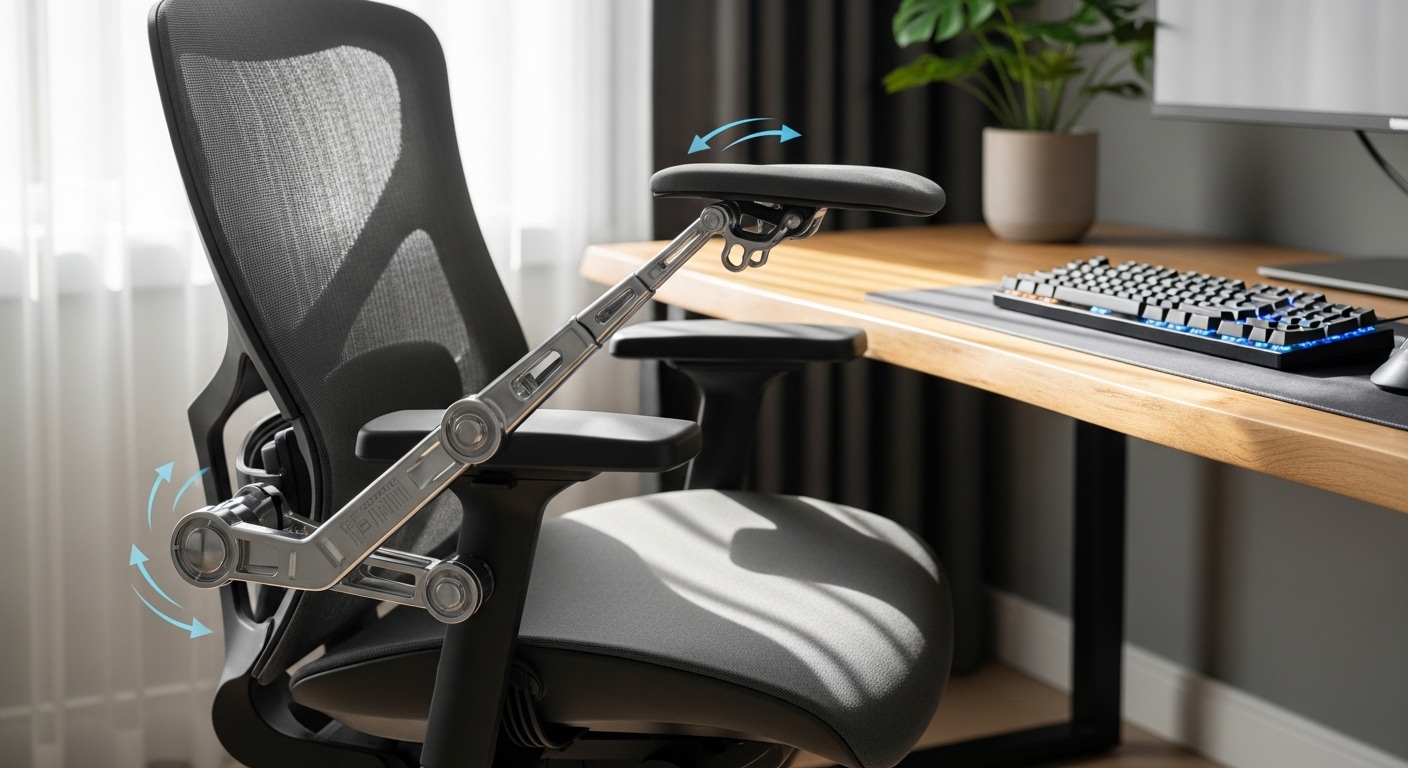
A 4D armrest can be adjusted in four directions: height, width, depth, and pivot. This provides the maximum level of ergonomic customization.
Is it okay to rest my wrists on the desk?
You should avoid resting your wrists on hard surfaces while typing. It is better to support the fleshy part of your forearm on the armrest instead.
How do I know if my armrests are too wide?
If your elbows are pointing outward like wings, the armrests are too wide. They should be close enough to allow your arms to hang vertically.
Conclusion
Investing time in your workspace setup is a commitment to your long term health. Learning how to adjust ergonomic chair armrests for typing is a fundamental skill for any office professional.
By focusing on height, width, and depth, you can eliminate the majority of shoulder and neck pain. Remember that neutral positioning is the golden rule of ergonomics.
Every body is different, so use these guidelines as a starting point for your own comfort. A perfectly adjusted chair will make your work feel effortless and productive.
Take the time today to evaluate your current setup and make the necessary changes. Your future self will thank you for the reduced physical strain.