

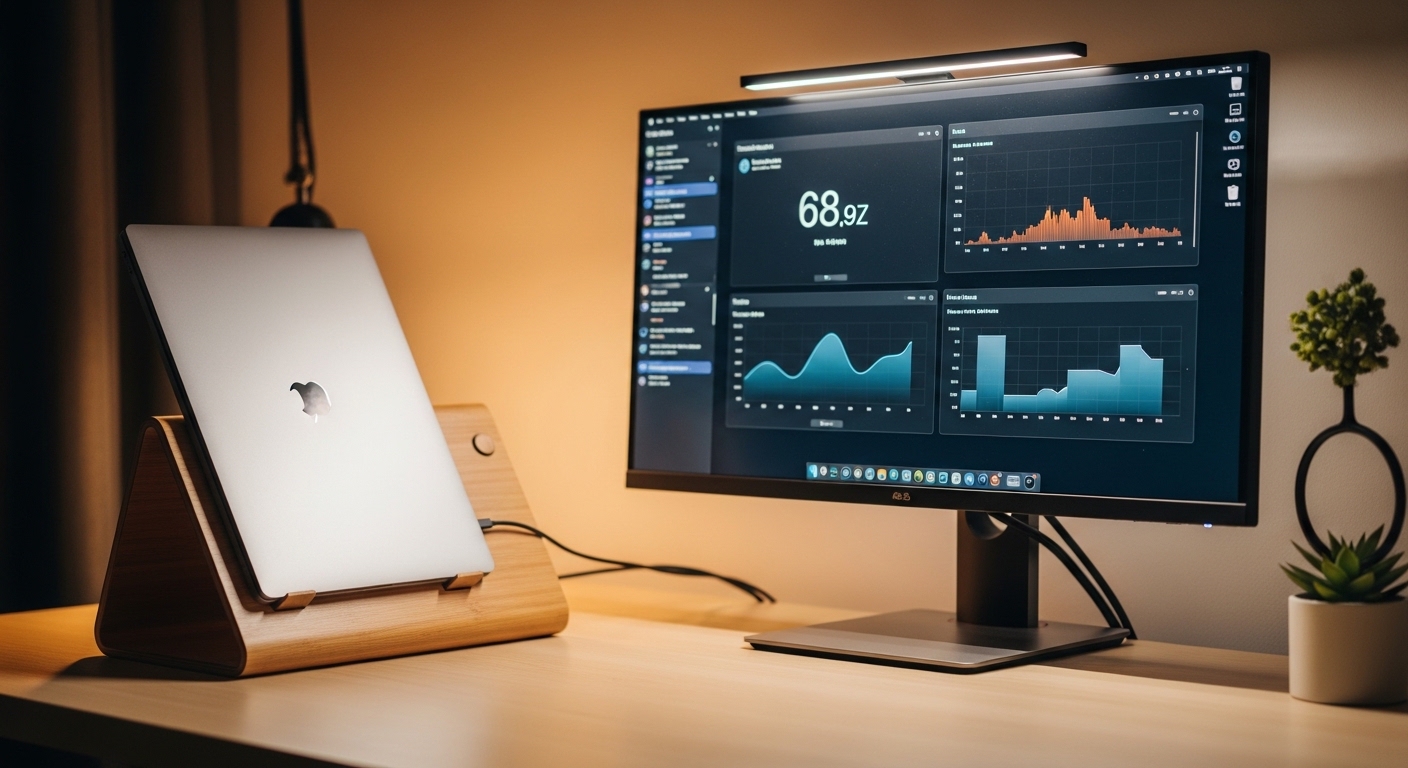
Many professionals prefer using their laptops in clamshell mode connected to external displays. This clean desktop configuration helps focus attention on a larger screen workspace.
However, using a closed laptop can trigger severe thermal management challenges. Without proper ventilation, the internal temperature can rise to dangerous levels quickly.
Learning how to stop laptop from overheating when closed is critical for protecting your hardware investment. This comprehensive guide will explain why this thermal issue occurs and provide actionable solutions.
We will cover hardware settings, physical desk arrangements, and maintenance routines. Applying these prevent overheating strategies will keep your system running quiet and fast.
Thermodynamic Limitations of Compact Hardware
Modern laptops are miracles of engineering that pack immense processing power into slim chassis. To achieve this compact form factor, manufacturers must design highly specialized cooling systems.
These systems typically rely on miniature heat pipes, copper fins, and tiny fans to pull heat away from critical processors. Every millimeter of space inside the machine is carefully utilized for thermal management.
However, these compact cooling designs assume the device is open during operation. Opening the lid exposes the keyboard surface which acts as a secondary heat radiator.
When the lid remains closed, this crucial pathway for heat dissipation is completely blocked. The heat becomes trapped in the narrow gap between the screen and the keyboard.
This lack of ventilation causes the internal temperature to spike during basic tasks. The cooling system must work significantly harder to keep the components from sustaining damage.
Without the keyboard deck helping to radiate heat, the chassis struggles to remain cool. This is why many laptops run noticeably louder when docked with a closed lid.
The Danger of Trapped Heat on Laptop Screens
Laptop screens contain delicate liquid crystals that are sensitive to extreme temperatures. When you run your machine closed, the hot keyboard deck rests directly against the display.
This close contact can cause permanent physical screen damage over time. You might notice yellow spots, color distortion, or image artifacts on your panel.
Furthermore, the heat can weaken the adhesives holding the screen bezel together. This degradation can lead to physical peeling or structural failure of the laptop lid.
To prevent this, you should understand the physical limits of your specific machine. Avoid running intense processing tasks when the screen is completely shut.
Keeping the system cool ensures the longevity of your display panel. Protecting the screen is just as important as protecting the internal motherboard components.
Sustained thermal exposure can also degrade the protective coatings on modern glossy screens. This results in permanent blemishes that ruin the viewing experience.
Materials and Heat Conductivity
The materials used to construct your laptop greatly influence how it handles heat. Premium laptops often use aluminum or magnesium alloy bodies.
These metals are highly conductive and help transfer heat away from internal components. The entire metal chassis essentially acts as a massive passive heat sink.
On the other hand, plastic chassis are poor heat conductors. Plastic acts as an insulator, trapping warmth inside the internal chamber.
Regardless of the material, a closed lid reduces the total surface area exposed to moving air. This reduction makes it much harder for the machine to cool itself.
Knowing your laptop construction materials helps you choose the best cooling strategy. Metal laptops benefit more from external airflow than plastic ones.
Plastic devices require more aggressive active cooling to compensate for their poor material conductivity. Understanding this difference helps you plan your desk setup accordingly.
Understanding Airflow Pathways
To cool a computer effectively, you must understand where air enters and exits. Most laptops draw cool air from the bottom vents and expel hot air through the hinge area.
Some designs also draw air down through the keys of the keyboard. If the lid is closed, this primary intake path is severely restricted.
When air intake is restricted, the internal fans must work twice as hard. This leads to louder fan noise and decreased cooling efficiency.
You must ensure that the remaining vents on the bottom and sides have complete clearance. Any obstruction will quickly lead to thermal throttling.
Regularly inspecting the exhaust vents helps you position the device correctly on your desk. Never block these pathways with cables or office accessories.
Even a minor blockage can disrupt the entire static pressure of the cooling system. This leads to rapid heat accumulation near the delicate processor.
Software Tweaks to Lower Temperatures
Before modifying your physical setup, you can make several adjustments within your operating system. Managing how your processor handles power can yield significant temperature reductions.
On Windows systems, you can modify the active power plan settings. Restricting the processor state slightly can prevent the CPU from entering high heat turbo modes.
To do this, navigate to the advanced power settings in your control panel. Lower the maximum state from one hundred percent to ninety nine percent.
This small change prevents the processor from boosting aggressively, which lowers heat generation. You will notice a cooler chassis with almost no perceptible performance loss.
This simple software adjustment is one of the most effective ways to manage temperatures. It works on almost all Windows portable computers without requiring extra hardware.
By limiting the peak wattage, you reduce the overall thermal load dramatically. This ensures the fans do not need to run at maximum speed.
Optimizing macOS Energy Settings
Mac users can also optimize their systems to reduce heat generation during docked use. Ensure that the low power mode is active when performing basic office tasks.
This setting manages processor speeds intelligently to keep the system running cool. It is an excellent way to maintain a quiet workspace without loud fan noise.
You can also use utilities to monitor active energy usage per application. Closing hungry background applications keeps the processor from working unnecessarily hard.
Managing Sleep States and Background Processes
Many users suffer from overheating when they put their closed laptop into a bag. This is often caused by modern standby systems failing to sleep properly.
The computer may remain active, downloading updates or running background tasks in a confined space. Without any airflow, the device can reach dangerous temperatures very quickly.
To prevent this, always verify that your laptop is completely powered down before storing it. Look for indicator lights or listen for fan noise to confirm the status.
You can also disable wake timers in your operating system power settings. This prevents scheduled tasks from waking your computer while the lid is closed.
Using modern standby features requires extra caution to avoid accidental heat traps. A quiet, cold laptop is a safe laptop during transport.
Never assume the computer is sleeping just because the lid is closed. Taking five seconds to verify can save you from a dead battery and a ruined processor.
Physical Positioning and Desk Ergonomics
The way you position your closed laptop on your desk is incredibly important. Leaving the device flat on a wooden or glass surface traps heat underneath.
Wooden desks tend to absorb and retain heat, raising the ambient temperature around the machine. Using a dedicated stand is the simplest way to improve passive cooling.
A good stand elevates the device, allowing air to circulate freely beneath the chassis. This exposure helps the bottom plate transfer heat to the surrounding room.
There are many types of stands available, including angled platforms and vertical holders. Let us explore the benefits of vertical stands for thermal management.
Using an elevated positioning strategy can lower your system temperature by several degrees instantly. It is a cost effective upgrade for any home office docking station.
Keeping the area around your computer clear also prevents heat recycling. Warm air should be allowed to drift away without warming other accessories.
The Thermal Advantages of Vertical Stands
Vertical stands hold your laptop upright, saving valuable desk space while improving airflow. This orientation exposes both the top and bottom covers to the air.
By standing upright, the device can utilize natural convection to dissipate heat. Hot air rises naturally, drawing cooler air up from the bottom of the stand.
Ensure that the stand does not block any of the active ventilation ports. Position the laptop so the exhaust vents point upward into the open room.
Many vertical stands feature open side designs that allow maximum airflow. This is the ideal setup for keeping your workspace organized and cool.
Keeping the Screen Slightly Open
If you regularly perform demanding tasks, consider keeping the lid slightly open. Opening the screen just a few inches creates a chimney effect.
This gap allows hot air to escape from the keyboard deck easily. It also prevents the hot surface from touching the delicate screen panel directly.
You can still use your external monitors as your primary displays. Simply configure your operating system to ignore the laptop screen or use it as a secondary reference.
This hybrid setup offers the best balance of productivity and hardware protection. It is highly recommended for video editing, 3D rendering, or gaming.
Creating a small chimney effect gap of one inch can significantly reduce thermal pressure. Your laptop fans will run slower and quieter as a result.
This is the safest physical configuration for users who push their hardware to the limit. It completely eliminates the risk of display panel degradation.
External Cooling Accessories
For users who must keep their laptop completely closed, external cooling pads are a popular choice. These pads contain built in fans that blow cool air against the laptop base.
The constant airflow helps lower the temperature of the bottom plate. This can reduce internal component temperatures by several degrees under load.
Alternatively, you can place a small personal fan on your desk. Pointing the fan directly at the closed laptop helps disperse the warm air envelope.
Make sure the external fans align with the intake vents of your machine. Blowing air against the exhaust vents will disrupt the internal cooling system.
Using active cooling pads is highly beneficial for prolonged docking sessions. They provide consistent external assistance to the internal fans.
Always choose a cooling pad that is powered by an external source if possible. This prevents the laptop USB port from drawing extra power and generating more heat.
Maintaining Clean Fans and Vents
No cooling solution will work effectively if your internal vents are clogged with dust. Dust acts as an insulating blanket, trapping heat inside the computer.
You should perform a physical cleaning of your machine twice a year. Use a can of compressed air to blow dust out of the vents and fan blades.
When cleaning, make sure the laptop is completely powered off and unplugged. Hold the fan blades steady with a plastic tool to prevent them from spinning.
Excessive spinning from compressed air can damage the delicate fan motors. Keeping the fans clean ensures they can move the maximum volume of air.
A clean cooling system runs quieter and more efficiently. Regular maintenance prevents emergency shutdowns caused by critical thermal events.
You will be amazed at how much dust can accumulate inside a slim chassis. Removing this barrier is the most important maintenance step you can take.
Replacing Thermal Paste for Better Conductivity
If your laptop is several years old, the internal thermal paste may have degraded. This paste fills the microscopic gaps between the processor and the heat sink.
When it dries out, heat cannot transfer efficiently to the cooling system. Replacing this thermal paste can result in a massive drop in operating temperatures.
This process requires opening the chassis and carefully removing the cooling assembly. It is an advanced task but highly rewarding for older hardware performance.
Designing a Thermal Friendly Workspace
Your home office environment has a direct impact on how your computer handles heat. A hot, stuffy room makes it difficult for any cooling system to function.
Try to position your desk in a well ventilated area with good air circulation. Keep the room temperature comfortable, preferably below twenty three degrees Celsius.
In 2026, creating an energy efficient and cool office space is easier with smart climate controls. Maintaining a stable environment protects all your valuable electronic equipment.
Avoid placing your docked laptop near window glass that receives direct sunlight. Solar heat can raise the chassis temperature to dangerous levels in minutes.
Keep other heat generating devices, like external power bricks or secondary monitors, away from your laptop. Creating a spacious layout helps maintain a cool microclimate.
A cool ambient temperature is the baseline for all other thermal management strategies. Without it, your laptop fans will struggle regardless of your desk setup.
Understanding Thermal Throttling
Sustained high temperatures will eventually trigger a protective feature called thermal throttling. When this happens, the system automatically slows down its processors.
This performance reduction is designed to lower heat output and prevent physical damage. You will notice sudden stuttering or lag during intensive tasks.
While thermal throttling saves your hardware, it severely disrupts your productivity. Implementing proper cooling strategies will prevent this performance drop from occurring.
Use temperature monitoring applications to track your hardware performance. This data will help you evaluate if your thermal improvements are working.
Recognizing the signs of throttling allows you to take immediate action. Do not ignore sudden performance drops when working with a closed screen.
If your system frequently throttles, it is a clear warning sign of inadequate cooling. Address this promptly to protect the life of your motherboard.
Choosing the Right Docking Accessories
The accessories you choose for your workstation can assist in thermal management. Select docking stations that do not cover the intake or exhaust vents of your machine.
Many high quality docks feature minimalist designs that leave the laptop body exposed. Avoid enclosed docking drawers or under desk mounts that restrict air circulation.
Ensure all cables connected to your laptop are routed neatly. Messy cables can block air pathways and trap warm air around the exhaust ports.
Using quality cables also ensures stable data transmission without causing the ports to run hot. Good cable organization supports both aesthetics and thermal efficiency.
Invest in accessories that prioritize ventilation and device safety. A well planned docking station protects your laptop from unnecessary heat stress.
By keeping the dock open and elevated, you allow the surrounding air to absorb heat. This is a passive but highly effective design choice for your home office.
Advanced Software Controls and Fan Curves
For advanced users, manual fan control applications offer precise thermal management. These programs allow you to override the default factory fan curves.
You can configure the internal fans to spin faster at lower temperatures. This proactive cooling approach prevents heat from building up in the first place.
However, running fans at high speeds constantly can increase wear on the bearings. Use this strategy selectively during periods of heavy processing workloads.
Always monitor the noise level to ensure your workspace remains comfortable. Finding the right balance between cooling and quietness is key.
Make sure to use trusted software from verified sources to adjust hardware settings. Incorrect configurations can potentially cause system instability.
Adjusting your fan curves gives you total control over the thermal profile of your device. It is a powerful tool for tech experts seeking optimal performance.
The Impact of Battery Charging on Heat Generation
Charging a lithium ion battery generates a significant amount of heat. When your laptop is docked, it is often constantly charging and running at the same time.
This dual action causes a double thermal load on the internal chassis. The battery and the processor heat up simultaneously, creating extreme thermal conditions.
Many modern laptops include smart battery management features in their software. These features limit the charge level to eighty percent when docked permanently.
Limiting the charge level reduces heat production and extends the overall battery lifespan. Enable these features in your system utility software to protect your device.
Using smart management features for your battery is a powerful and passive way to reduce idle temperatures. It is highly recommended for computers that remain plugged in all day.
Reducing battery stress also prevents dangerous battery swelling. This is a common issue for laptops that run hot while plugged in constantly.
Monitoring Hardware Health Over Time
Consistent exposure to moderate heat can slowly degrade components without immediate failure. Solder joints can weaken, and capacitors can dry out over months of hot operation.
Regularly checking your hardware health reports will help you spot early signs of trouble. Many diagnostic tools can report the health status of your storage and battery.
If you notice a sudden drop in battery capacity, heat might be the primary cause. Take immediate steps to improve your laptop ventilation before further damage occurs.
An ounce of prevention is worth a pound of cure when managing expensive electronics. Keep your system running cool to ensure years of trouble free service.
Using reliable system monitoring utilities allows you to catch thermal trends before they become hardware failures. It is a vital practice for anyone running a closed laptop setup.
Establish a baseline temperature for normal office work. This helps you quickly notice when things are running warmer than usual.
Actionable Checklist for Closed Laptop Cooling
To help you implement these strategies, we have created a simple checklist. You can follow these steps to optimize your closed docking setup.
These simple habits will keep your system running optimally and extend the life of your hardware.
- Elevate your laptop using a vertical stand or angled platform to maximize surface exposure.
- Adjust your operating system power settings to limit maximum processor performance to ninety nine percent.
- Verify that the computer is completely asleep or shut down before placing it in a bag.
- Clean the internal vents and fans with compressed air every six months to remove dust.
- Keep your workspace ambient temperature cool and avoid direct sunlight on your devices.
- Consider keeping the screen slightly open during highly demanding computing tasks.
- Enable smart battery management settings to limit maximum charge levels to eighty percent.
- Monitor internal temperatures regularly using free system utility applications.
Frequently Asked Questions
Here are some of the most common questions about laptop thermal management.
Is it bad to run a laptop with the lid closed?
It can be problematic if the system is running demanding tasks without adequate ventilation. The trapped heat can damage both the screen and internal components over time.
Do cooling pads actually work for closed laptops?
Yes, cooling pads help by lowering the temperature of the bottom chassis plate. This improvement assists the internal cooling system in dissipating heat more effectively.
How do I know if my laptop is thermal throttling?
You will experience sudden performance drops, lag, or stuttering during tasks. You can also use system monitoring software to check processor clock speeds and temperatures.
Why does my fan run so loud when the lid is closed?
The fan runs louder because closing the lid restricts airflow, causing temperatures to rise. The system automatically increases fan speed to compensate for the higher heat.
Should I shut down my computer instead of putting it to sleep?
Yes, shutting down is the safest option if you plan to transport the machine in a closed bag. This ensures no background processes can run and cause overheating.
Conclusion
Safely operating a laptop in clamshell mode requires a thoughtful combination of software tweaks and physical adjustments. By elevating your device, managing power states, and maintaining clean fans, you can enjoy a clean desk without sacrificing hardware health.
Keep your workspace cool and monitor your system temperatures to ensure optimal performance. Taking care of your laptop today will guarantee a fast, reliable, and quiet workstation for the future.
With proper planning, clamshell setups can be both beautiful and highly efficient. Protect your hardware investment by applying these simple thermal management practices today.