
Understanding the Power of Reach Zones
Welcome to the Home Office Lab. We believe that your workspace should adapt to your body rather than forcing your body to adapt to the furniture.
One of the most critical yet overlooked aspects of a healthy desk is the layout of your equipment. Knowing how to set up neutral reach zone ergonomics can transform your daily comfort levels.
This concept focuses on the natural range of motion of your arms. It aims to minimize repetitive stretching and unnecessary strain on your joints.
When you reach too far for a mouse or a notebook, you invite tension into your neck and shoulders. Over time, these small movements lead to chronic pain and reduced productivity.
By organizing your desk into specific zones, you create a workflow that respects your physical limits. This guide will teach you the science behind these zones and how to implement them perfectly.
The Three Zones of Ergonomic Efficiency
The human arm has a natural sweep that defines where items should be placed. Experts generally divide the desk surface into three distinct areas.
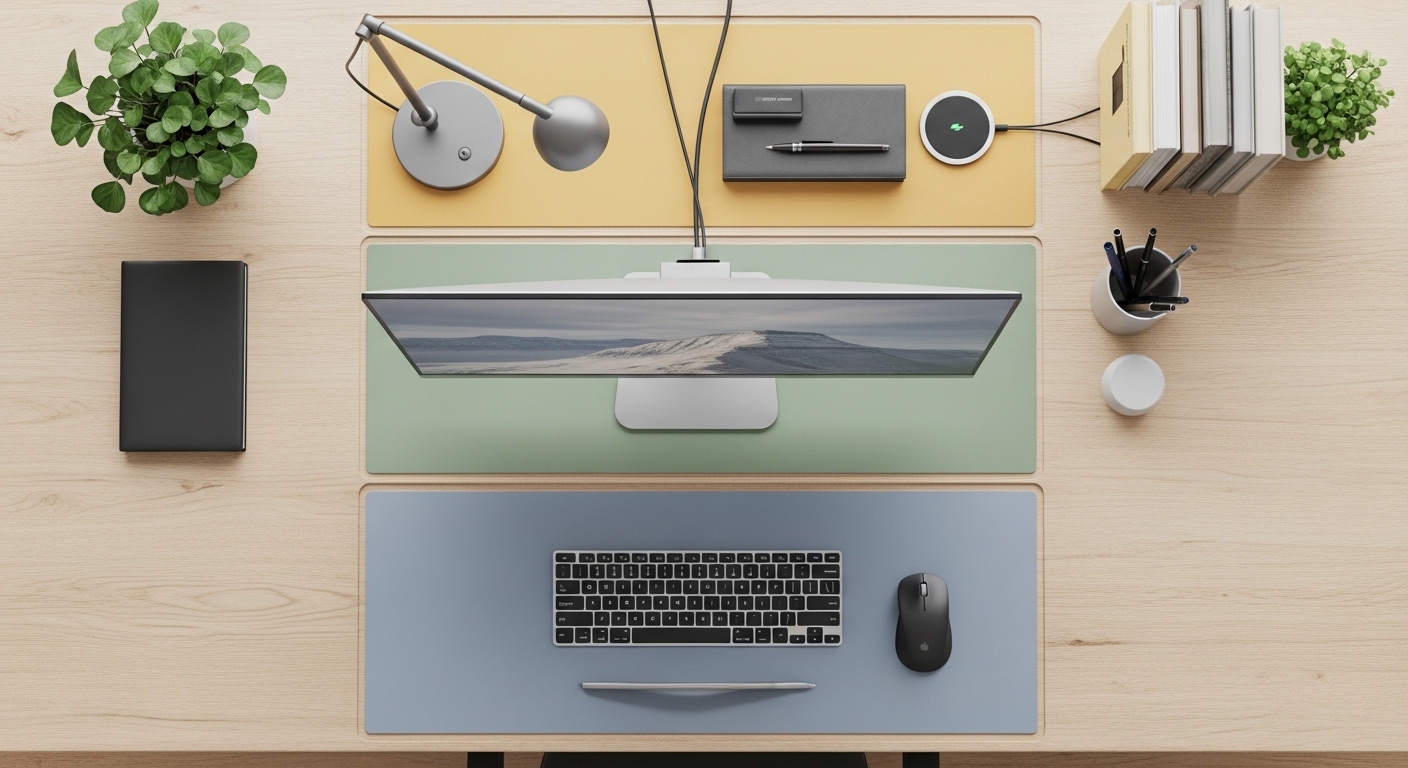
The primary reach zone is the area you can access with your elbows at your sides. It is the most valuable real estate on your desk surface.
The secondary reach zone requires you to extend your arms but not your torso. It is suitable for items used occasionally throughout the workday.
The tertiary reach zone is the furthest area that requires you to lean or stand. Keeping frequently used items here is a primary cause of work injuries.
To master your setup, you must evaluate every object on your desk. You need to categorize them based on how often you touch them during the day.
The Science of the Neutral Posture
A neutral posture is the position where your body is under the least amount of stress. For your arms, this means keeping your elbows close to your ribs.
When your elbows are tucked, your shoulder muscles remain relaxed and neutral. This position prevents the activation of the trapezius muscles which often cause tension headaches.
Setting up your reach zones ensures that your body stays in this neutral state for as long as possible. It reduces the mechanical load on your tendons and ligaments during repetitive tasks.
In the year 2026, ergonomics will be even more focused on preventing microtrauma in home environments. Start your journey today to protect your long term health and career longevity.
Mapping the Primary Reach Zone
The primary zone is often called the neutral reach zone or the easy reach area. This space should contain the tools you use for more than fifty percent of your time.
Typically, this include your keyboard and your primary pointing device. You should be able to touch these items without moving your upper arms away from your torso.
To find this zone, sit in your chair with your shoulders relaxed. Bend your elbows at a ninety degree angle and sweep your forearms across the desk surface.
The semicircle formed by this movement is your primary zone. Ensure that your keyboard is centered directly in front of your monitor within this arc.
Your mouse should be placed immediately next to the keyboard. Avoid placing the mouse so far away that you have to reach outward to click.
If you use a trackpad or a tablet for design, it also belongs in this immediate space. Proper placement here prevents the development of carpal tunnel symptoms over time.
Optimizing Keyboard and Mouse Placement
Many users make the mistake of pushing their keyboard too far back to make room for papers. This forces the arms to extend and the back to hunch forward.
Keep the keyboard close enough so that your elbows stay under your shoulders. This alignment supports the weight of your arms naturally without straining the rotator cuff muscles.
Use a wrist rest only for support during breaks, not while typing. Your hands should float slightly above the keys to maintain a neutral wrist angle.
If your mouse is outside this zone, you may experience pain in the shoulder blade area. Moving the mouse closer reduces the demand on the deltoid muscles during navigation.
- Keep your keyboard centered to your body.
- Place your mouse close to the keyboard edge.
- Ensure your elbows remain at your sides.
- Avoid reaching forward to type.
Defining the Secondary Reach Zone
The secondary reach zone is the area you can reach by extending your arms fully. However, you should be able to do this without leaning your torso forward or sideways.
This zone is ideal for items you use frequently but not constantly. Examples include your telephone, your notepad, or your favorite beverage bottle.
You might reach into this zone once every thirty minutes or so. Because the arm is extended, the muscles work harder to stabilize the weight of the limb.
If you use a secondary monitor, parts of it will likely fall into this zone. Ensure that the most critical information is still visible without excessive neck rotation.
Items like your smartphone should be placed here to prevent constant distractions. Reaching for the phone occasionally is fine, but keeping it in the primary zone can clutter your space.
Balancing Item Frequency and Distance
You must be honest about which tools are truly essential for your workflow. If you use a calculator ten times an hour, it belongs in the secondary zone at minimum.
If you only use it once a day, it should be moved further away. Keeping too many items in the secondary zone can lead to a cluttered and stressful environment.
Try to keep this area organized so you do not have to hunt for tools. Use small trays or dividers to keep these items in their designated spots throughout the day.
Effective organization in the secondary zone reduces cognitive load during complex tasks. You will spend less time searching and more time focusing on your actual work.
The Role of the Tertiary Reach Zone
The tertiary reach zone is the area that requires you to lean forward or stand up. This zone should be reserved for items that are rarely used during work hours.
Reference books, filing folders, or decorative items should live in this outer perimeter. You should never be reaching into this zone while you are actively typing or mousing.
Leaning forward to grab a heavy object can put immense pressure on your lumbar spine. It is often better to stand up fully than to reach awkwardly across a large desk.
If you find yourself reaching into the tertiary zone many times an hour, your setup is inefficient. You are wasting energy and increasing the risk of injury with every stretch.
Lamps and speakers often sit in this zone because they do not require physical interaction. Once they are set, they can stay in the background without affecting your posture.
Managing the Desk Perimeter
Keep the very back of your desk clear of cables and unnecessary clutter. A clean tertiary zone makes the whole office feel more spacious and improves your mental focus.
If your desk is against a wall, use wall mounted shelves for tertiary items. This frees up the desk surface for more important ergonomic tools and movement.
Consider using a monitor arm to lift your screen off the desk surface. This clears the area underneath the monitor which can then serve as a secondary zone.
By maximizing the vertical space, you can keep the physical reach distance shorter for your most important tools. This is a key secret to advanced ergonomic design.
- Store reference manuals on distant shelves.
- Keep printers and scanners on a separate cabinet.
- Place decorative plants in the far corners.
- Move stationery kits out of the primary area.
Step by Step Guide to Setting Your Zones
Start by clearing everything off your desk to create a blank canvas. This allows you to think about how to set up neutral reach zone ergonomics without bias.
Sit in your ergonomic chair and adjust it to the correct height. Your feet should be flat on the floor and your thighs should be parallel to the ground.
Now, place your keyboard and mouse in the primary zone we discussed earlier. Move them around until your wrists are straight and your elbows feel heavy and relaxed.
Next, bring in your most used accessories like a notebook or a phone. Place these within the sweep of your arms without leaning your back away from the chair.
Finally, arrange the remaining items at the edges of the desk. Take a moment to visualize the three semicircles you have created on your workspace.
Testing Your New Workspace Layout
Perform a mock work session for ten minutes to test the flow of your zones. Pay attention to any moments where you feel your shoulders rising toward ears.
If you have to stretch to reach your coffee mug, move it closer. If your notepad is getting in the way of your mouse, move it further out.
Ergonomics is an iterative process that requires constant fine tuning. Your needs might change depending on the specific project you are working on today.
Observe your body at the end of a long workday to see where you feel tension. Use this feedback to reposition your equipment for a better experience tomorrow morning.
The Importance of Arm Support
While reach zones handle the horizontal layout, arm support handles the vertical load. Your chair armrests should be level with your desk surface to maintain neutral alignment.
If your arms are dangling, your shoulder muscles must work constantly to hold them up. This leads to fatigue and makes it harder to stay within your primary reach zone.
Ensure that the armrests do not prevent you from pulling your chair close to the desk. You want to be close enough that the primary zone is easily accessible.
Some people prefer to remove armrests and use the desk surface for support. If you do this, ensure you are not resting your wrists on hard edges.
Hard edges can compress the nerves in your forearms and cause numbness. Use a large desk mat to provide a soft surface for your entire reach area.
Shoulder Health and Reach Distance
The health of your glenohumeral joint depends on keeping movements within a safe range. Overreaching causes the humerus to pull at the shoulder socket repeatedly throughout the day.
This repetitive motion can lead to tendonitis or bursitis if left uncorrected. Neutral reach zones act as a protective barrier for your shoulder health.
By keeping the elbows close, you engage the larger muscles of the back for stability. This is much more efficient than using the small muscles of the shoulder for long distance reaching.
Protecting your joints now will prevent mobility issues later in life. A small change in desk layout can have a massive impact on your physical well being.
Ergonomic Considerations for Different Devices
Different tools require different reach strategies to remain safe. For example, using a laptop requires a different approach than a full desktop workstation setup.
If you use a laptop, you should use an external keyboard and mouse. This allows you to keep the screen at eye level while keeping inputs in the primary zone.
Using the built in laptop keyboard often forces you to reach too far or hunch your back. This breaks the rules of neutral reach and causes immediate physical strain.
For those using multiple monitors, the primary zone becomes even more important. You should center the main screen and keep secondary screens at an angle.
Tablets and Stylus Usage
Artists using a stylus must be very careful with their reach zones. The drawing tablet should be placed where the elbow can remain supported.
Many artists reach too far forward to draw, which causes upper back pain. Place the tablet directly in front of you or at a slight ergonomic tilt.
If you use a keyboard alongside a tablet, consider a compact keyboard layout. This allows both devices to fit within the primary reach zone without crowding each other.
Switching between a pen and a mouse requires fluid movement. Keep both devices within the same arc to avoid sudden shifts in your shoulder position.
- Elevate laptop screens to eye level.
- Use compact keyboards to save primary space.
- Tilt drawing tablets for better wrist angles.
- Align multiple monitors in a continuous arc.
Addressing the Vertical Reach Zone
Most people only think about the horizontal surface of the desk. However, how to set up neutral reach zone ergonomics also involves vertical space.
The items you use most should be at eye level or slightly below. This prevents you from having to tilt your head up or down constantly.
Your monitor is the most important vertical element in your workspace. It should be positioned about an arm length away from your face for optimal visual comfort.
If you have shelves above your desk, only use them for tertiary items. Reaching upward and forward at the same time is very taxing on the spine.
Keep your most needed physical files in a drawer that is at waist height. This allows you to reach them with a natural downward arm movement.
The Impact of Lighting on Reach
Poor lighting can actually change how you reach for items. If your desk is too dark, you might lean forward to see your keyboard clearly.
Leaning forward pulls you out of your neutral posture and disrupts your zones. Ensure your primary zone is well lit with a flicker free desk lamp.
Position the light so it does not create glare on your monitor. Glare causes you to shift your body in ways that ruin your ergonomic alignment.
Good visibility allows you to sit back and utilize the support of your chair. This keeps your body in the ideal position to reach your primary tools easily.
Common Mistakes to Avoid
The most common mistake is the cluttered primary zone. People often allow non essential items to creep into the space reserved for the keyboard.
This forces the mouse further to the side, causing a reaching motion. Keep your primary zone strictly for the tools you use every single minute.
Another mistake is using a desk that is too deep. A deep desk encourages you to push items further away than necessary.
If your desk is large, you must be disciplined about keeping your tools close. Do not use the extra space as an excuse to stretch your arms further.
Finally, many people forget to adjust their zones when they switch tasks. A setup for writing might be different from a setup for video editing.
The Danger of Asymmetric Reaching
Reaching with only one arm for long periods causes muscle imbalances. This often happens with improper mouse placement on the far right.
Try to bring your mouse closer to the center of your body. A keyboard without a numeric keypad can help achieve this better alignment.
If your body is always twisted to one side, your spine will suffer. Keep your torso square to the desk and let your arms move within their natural arcs.
Symmetry is a core component of long term ergonomic health. Check your alignment regularly to ensure you are not leaning to one side or the other.
Maintaining Your Ergonomic Habits
Setting up your zones is only the first step of the process. You must build the habit of returning items to their proper zones after use.
At the end of every day, tidy your desk. Ensure your keyboard and mouse are back in their perfect neutral positions for the next morning.
Listen to your body throughout the day for signs of discomfort. Tingling or numbness in the fingers is a sign that something is wrong with your reach.
Small adjustments can make a world of difference. Do not be afraid to move a piece of equipment one inch at a time until it feels right.
Consistency is what leads to a pain free work life. Your home office should be a place where you feel physically supported and energized.
Frequently Asked Questions
What is the most important item in the primary zone?
The keyboard is the most important item because it dictates your overall posture. It must be centered to your body to prevent shoulder rotation issues.
Can I have two items in the primary zone?
Yes, your mouse and keyboard should both reside there. Some people also keep a small input device or notepad if they use it constantly.
How do I know if I am reaching too far?
If your elbow leaves the side of your body, you are reaching. You should aim to keep elbows tucked for all primary tasks.
Does desk height affect reach zones?
Absolutely, because a desk that is too high forces your shoulders to shrug. This makes the sweep of your arms more restricted and uncomfortable.
Conclusion
Mastering your workspace is a journey of self awareness and intentional design. By learning how to set up neutral reach zone ergonomics, you are investing in your future health.
Remember that the primary zone is for constant use and the secondary zone is for occasional use. Keep everything else in the tertiary zone to protect your back and neck.
A well organized desk leads to a focused mind. When your body is comfortable, your brain is free to tackle the most challenging tasks of your day.
Take the time today to map out your reach zones. Your shoulders, wrists, and back will thank you for the extra care and attention to detail.
Thank you for visiting the Home Office Lab. We are dedicated to helping you build a healthier and more productive working environment every day.