
The Evolution of Home Lab Storage
Building a home server environment requires a deep understanding of hardware components. Storage performance often dictates the overall responsiveness of your virtualized services.
In the past, many enthusiasts relied on mechanical hard drives for their capacity. Today, solid state technology has become the primary choice for system boot drives and application hosting.
Learning how to choose an ssd for home lab environments involves more than just looking at the price tag. You must consider how different workloads affect the longevity and speed of your storage media.
Modern home labs often run multiple virtual machines or containers simultaneously. This creates a high demand for random input output operations that only flash storage can handle effectively.
Defining Your Storage Performance Needs
Every home lab project has unique requirements for throughput and latency. A media server might prioritize sequential read speeds for large 4K video files.
Conversely, a database server or a development environment requires low latency access to small blocks of data. Identifying your primary use case is the first step in the selection process.
Storage bottlenecks can lead to sluggish performance across your entire network. This is especially true when multiple users access the same server at once.
You should assess the total capacity needed for your current projects. Always leave at least twenty percent of the drive empty to maintain peak performance over time.
Physical Form Factors and Compatibility
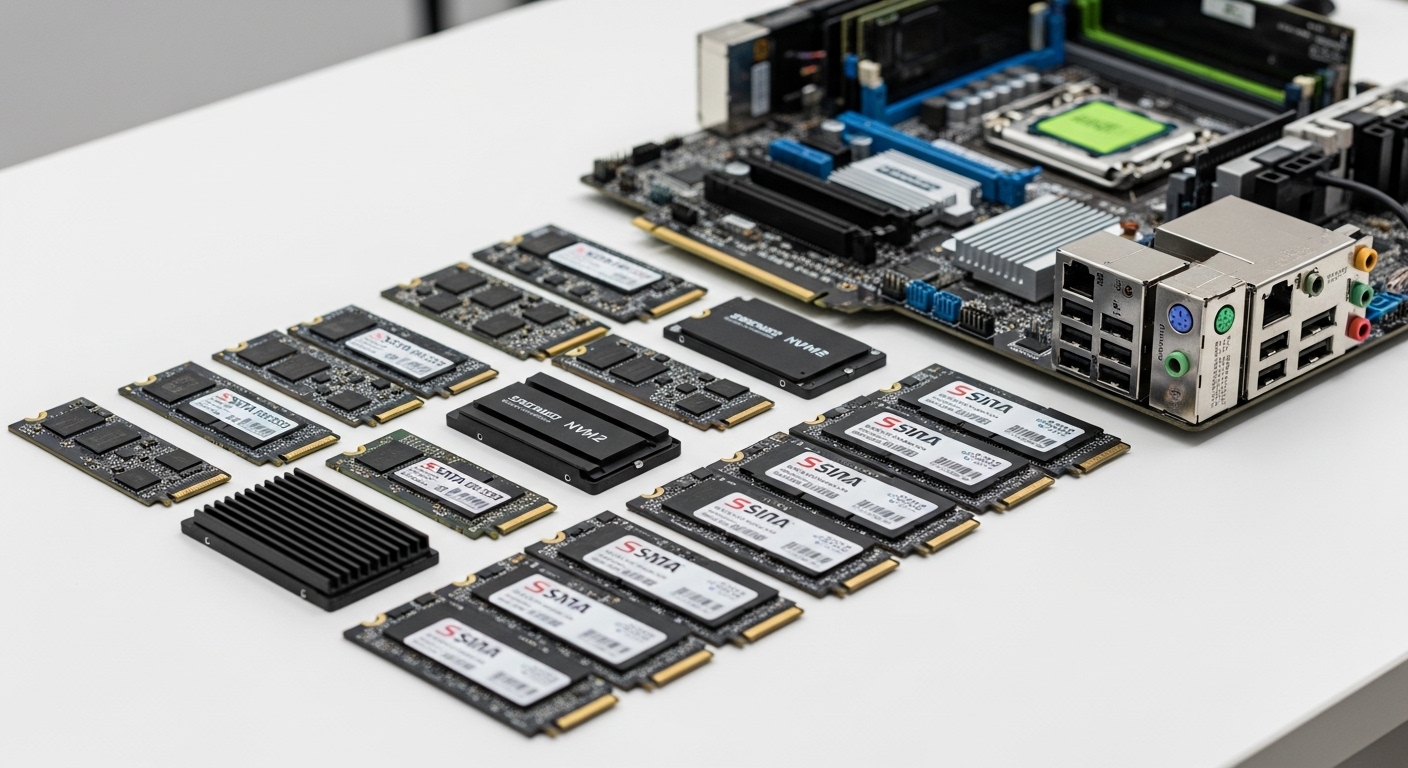
The physical shape of a drive determines how it connects to your motherboard. The two most common options for home labs are SATA and M.2 drives.
SATA drives use a larger casing and connect via cables or backplanes. They are excellent for bulk storage where absolute maximum speed is not the main priority.
M.2 drives are much smaller and plug directly into a slot on the motherboard. This compact design is ideal for small form factor mini PCs and modern server boards.
Ensure your hardware supports the specific length and keying of the M.2 drive. Most servers utilize the common 2280 size for standard compatibility.
The Crucial Role of NVMe Technology
NVMe is a protocol designed specifically for high speed flash storage. It allows the drive to communicate directly with the processor via the PCIe bus.
This bypasses the older bottlenecks associated with the legacy SATA interface. Using NVMe drives will significantly reduce boot times for your host operating system.
If you plan to run a hypervisor like Proxmox or ESXi, NVMe is highly recommended. It provides the necessary bandwidth for heavy virtualization tasks without causing delays.
Keep in mind that PCIe lanes are a finite resource on your CPU. Plan your expansion card usage carefully to avoid limiting your storage speeds.
SATA SSDs in the Modern Lab
While NVMe is faster, SATA drives still have a place in professional lab setups. They are typically more affordable per gigabyte than their NVMe counterparts.
Many older servers only have SATA ports available for storage expansion. You can use these drives for booting lightweight Linux distributions or storing static assets.
SATA technology is limited to roughly six hundred megabytes per second. This is still ten times faster than most traditional mechanical hard drives.
Consider SATA if you need to build a large array of drives for a NAS. The lower heat output makes them easier to manage in dense server chassis.
The Truth About SSD Endurance and TBW
Flash memory has a limited number of write cycles before it begins to fail. Manufacturers measure this using a metric called Terabytes Written.
A higher rating means the drive can handle more data being written over its lifespan. This is a critical specification for home lab users running logging services.
Consumer drives often have lower ratings to keep costs down for average users. In a server environment, these drives might wear out quickly due to constant background tasks.
Check the data sheet for any drive you consider buying. Look for a high endurance rating if you plan to host busy databases or swap files.
Understanding Drive Writes Per Day
Drive Writes Per Day is another way to express the endurance of an SSD. It tells you how many times the full capacity can be written daily over the warranty period.
An enterprise drive might offer a rating of three or even ten. Most consumer drives stay well below one full write per day.
If you are learning how to choose an ssd for home lab, calculate your expected write volume. Heavy write workloads require dedicated enterprise hardware to ensure long term reliability.
For simple lab tasks, a lower rating might be perfectly acceptable. Balancing endurance with your specific budget is key to a successful build.
Choosing the Right Capacity for Virtualization
- Operating systems usually require 32 to 64 gigabytes of space
- Virtual machine images can grow rapidly if thin provisioning is used
- Snapshots and backups consume extra storage very quickly
- Leave room for future growth to avoid expensive drive replacements
Running out of space can cause virtual machines to crash or corrupt data. It is always better to overestimate your needs during the initial planning phase.
NAND Flash Types Explained
The type of flash memory used inside the drive affects both speed and cost. Single Level Cell is the most durable but also the most expensive option.
Most modern drives use Triple Level Cell or Quad Level Cell technology. TLC offers a good balance of performance and reliability for most lab owners.
QLC drives are cheaper and offer higher capacities but have lower endurance. These are best used for read heavy workloads like library storage or backups.
Avoid using QLC drives as a cache for ZFS or other write intensive systems. The performance will drop significantly once the internal cache is full.
Why DRAM Buffers Matter for Servers
Some affordable SSDs are designed without a dedicated DRAM chip. These DRAM less drives use a portion of the system memory or slow flash for mapping data.
While fine for basic office work, they struggle under server loads. A drive with a dedicated DRAM cache provides much more consistent performance during heavy usage.
The DRAM chip stores the map of where data is physically located on the NAND. This allows for faster data retrieval and reduces the wear on the flash cells.
Investing in a drive with DRAM is one of the best ways to improve system snappiness. It ensures that your lab remains responsive even when multiple containers are starting up.
Enterprise Versus Consumer Grade Drives
Consumer drives are optimized for short bursts of activity followed by idle time. Enterprise drives are built to handle sustained workloads twenty four hours a day.
Enterprise hardware also includes more robust error correction and internal testing. This leads to a much lower failure rate in professional server environments.
You can often find used enterprise drives for a very reasonable price online. This is a popular strategy for lab builders who want high quality at a lower cost.
New enterprise drives are expensive but offer peace of mind for critical data. Decide if your lab data is worth the extra investment in high grade hardware.
Power Loss Protection for Data Safety
Sudden power outages can be devastating for data stored in a volatile cache. Enterprise SSDs often include capacitors to flush data to permanent storage during a failure.
This feature is known as Power Loss Protection or PLP. It is rarely found on standard consumer drives designed for gaming or office tasks.
If you are running a lab without a battery backup, PLP is essential. It prevents the corruption of your file system during an unexpected shutdown.
Many ZFS users insist on drives with PLP for their log devices. This ensures that acknowledged writes are safely committed to the physical disk cells.
Benefits of Using Enterprise Surplus
- High endurance ratings for much lower prices
- Built in power loss protection for data integrity
- Consistent performance under heavy multi user loads
- Longer expected lifespan in server conditions
Purchasing refurbished enterprise gear is a great way to save money. Just ensure you check the remaining life percentage using SMART monitoring tools.
Thermal Management and Throttling
High performance NVMe drives generate a significant amount of heat during operation. If the drive gets too hot, it will automatically reduce its speed to prevent damage.
This thermal throttling can cause frustrating drops in performance during large file transfers. Proper airflow in your server case is vital for maintaining high speeds.
Many M.2 drives now come with pre installed heat sinks. If your drive is bare, consider adding a small aftermarket cooler to keep temperatures stable.
Monitor your drive temperatures using your operating system dashboard. Keeping drives below fifty degrees Celsius is a good target for long term health.
Budget Considerations for Lab Scaling
Building a home lab is an iterative process that takes time and money. You do not need the most expensive drives to start learning about networking or virtualization.
Allocate your budget toward high endurance drives for your main operating system. For secondary storage, you can utilize cheaper drives or even mechanical disks.
Prices for flash storage fluctuate based on global supply and demand. Waiting for sales or holiday promotions can save you hundreds of dollars on large arrays.
Consider the cost of the interface as well. Moving to U.2 or high speed PCIe 5 technology requires more expensive motherboards and cables.
Future Proofing Your Storage Array
The technology in the storage world moves incredibly fast. In 2026, we expect to see even higher densities in NAND flash and faster controller chips.
Buying the largest capacity you can afford today will prevent early upgrades. It is easier to manage a few large drives than many small ones.
Look for drives that support the latest PCIe standards your CPU allows. This ensures you get the maximum possible speed from your hardware investment.
Keep an eye on emerging technologies like CXL which may change how we use storage. For now, sticking to proven NVMe and SATA standards is the safest bet.
The Importance of Firmware Updates
SSD manufacturers frequently release updates to fix bugs or improve performance. These updates can resolve compatibility issues with certain server motherboards.
Always check for the latest firmware before installing a new drive in your lab. This simple step can prevent data loss caused by known software glitches.
Some enterprise drives require specific tools to update their internal software. Familiarize yourself with the vendor utility to keep your hardware running smoothly.
Maintaining current firmware is part of responsible home lab management. It helps ensure optimal drive performance and security across your entire storage stack.
Conclusion
Selecting the right storage is a foundational skill for any home lab enthusiast. By understanding how to choose an ssd for home lab, you ensure your services run reliably.
Prioritize endurance and performance based on your specific software requirements. Remember to balance your budget between high end speed and bulk storage capacity.
A well planned storage strategy will serve you for many years. Start with quality hardware choices and your lab will be a much more productive environment.