

Introduction to Professional Webcam Placement
Establishing a strong presence in digital meetings starts with how you present yourself on screen. Many professionals invest in high quality cameras but fail to consider the importance of physical positioning.
Your camera angle communicates subtle cues about your confidence, authority, and engagement. Learning how to position webcam for professional video calls is a fundamental skill for the modern workforce.
A poorly placed camera can lead to unflattering angles or a lack of eye contact. This often creates a psychological barrier between you and your audience during important discussions.
By following specific ergonomic and cinematic principles, you can transform a standard meeting into a professional broadcast. This guide explores every detail of webcam alignment and framing.
The Psychology of Eye Level Eye Contact
The most critical rule of webcam placement is maintaining eye level. When your camera is too low, you appear to be looking down at your colleagues.
This perspective can inadvertently seem condescending or aggressive. Conversely, a camera placed too high makes you look small and potentially less influential.
Achieving a level gaze mimics the experience of sitting across a table from someone in real life. It fosters a sense of equality and trust that is vital for building professional relationships.
Most laptops naturally place the camera at chest or chin height. You must actively correct this by elevating your device or using an external mount.
Achieving the Perfect Height
If you use a laptop, consider using a dedicated stand to raise the screen. Your eyes should align perfectly with the camera lens itself.
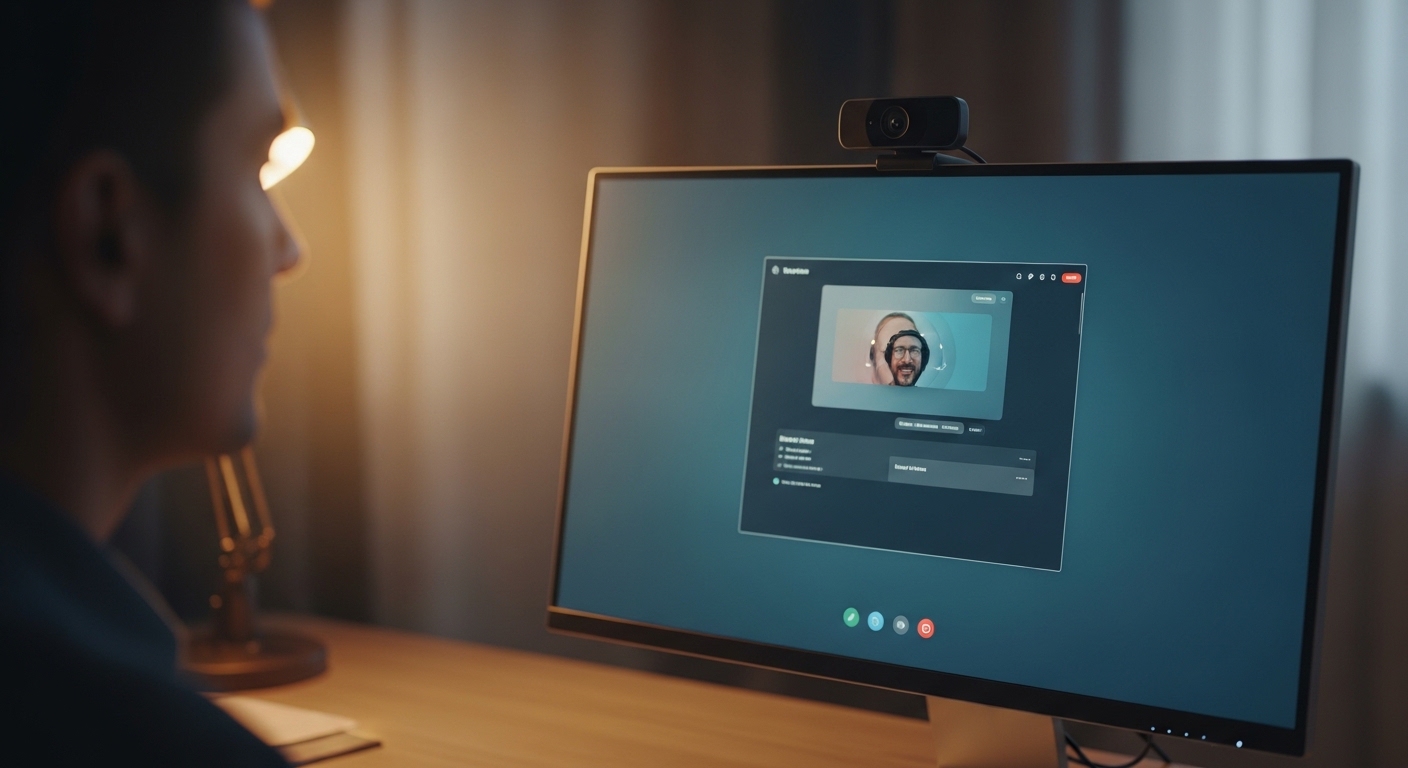
For those using external monitors, the webcam should sit directly on the top center of the frame. This position is the standard for professional communication across all industries.
- Use a stack of sturdy books if a stand is unavailable
- Ensure the mount is stable to prevent shaking during calls
- Adjust your chair height to complement the camera position
- Check the level frequently throughout the work day
Mastering Distance and Focal Length
Distance from the camera lens significantly affects how your facial features appear to others. Being too close can cause lens distortion that makes your nose or forehead look larger.
Most webcams use wide angle lenses designed to capture a broad area. These lenses require you to maintain a comfortable buffer between your face and the glass.
A good rule of thumb is to stay about an arm’s length away from the sensor. This distance allows for a natural field of view without appearing distant or cold.
If you sit too far back, you might lose the ability to project a strong presence. The goal is to fill the frame while retaining personal space.
Finding the Sweet Spot
Extend your arm toward the screen during your setup process. Your fingertips should barely touch the monitor surface or the camera lens.
This spacing ensures that your gestures are visible within the frame. Visible hands help convey trust and transparency during complex negotiations.
- Avoid leaning in too far during intense conversations
- Keep your shoulders relaxed and visible in the shot
- Ensure you have space to move without exiting the frame
- Test your distance by recording a short video clip
Understanding the Rule of Thirds in Video
Framing is a concept borrowed from photography that applies perfectly to video calls. The rule of thirds involves dividing your screen into a grid of nine squares.
Your eyes should be positioned along the top horizontal line of this imaginary grid. This placement leaves a small amount of headroom above your hair.
Too much headroom makes you look like you are sinking out of the frame. Too little headroom can make the viewer feel cramped or uncomfortable.
Centering yourself horizontally is also essential for a balanced look. Avoid sitting too far to one side unless you are sharing a screen.
Managing Headroom Effectively
Leave about two inches of space between the top of your head and the frame edge. This creates a clean composition that looks intentional and polished.
If you wear a headset, ensure the top of the band does not touch the frame boundary. Consistency in framing builds a recognizable professional brand over time.
- Use your software preview window to check your grid alignment
- Adjust the tilt of your camera to fix vertical spacing
- Stay centered even if you use a wide monitor setup
- Realign your body if you shift positions during long meetings
How to Position Webcam for Professional Video Calls with Dual Monitors
Dual monitor setups present a unique challenge for camera placement. Many people place their camera on one monitor while looking at the other screen.
This creates a profile view that makes you look distracted or uninterested. It is vital to place the camera on the monitor you primary use for the call.
Ideally, you should position the meeting window directly below the camera lens. This minimizes the vertical distance between the lens and the eyes of your colleagues.
In the evolving landscape of 2026, eye tracking technology is improving, but physical placement remains king. You must prioritize the lens over the screen when speaking.
Strategic Window Placement
Shrink your video call window and move it to the top center of your display. This trick forces your eyes to stay near the camera sensor naturally.
If you must use two screens, place the camera on a separate tripod between them. This allows you to glance at either screen with minimal neck rotation.
- Avoid placing the camera on a side monitor permanently
- Keep your main work tools centered under the lens
- Use a small sticky note next to the lens as a reminder
- Check that your chair is centered with the camera lens
Integrating Lighting with Camera Position
The way your camera sees you depends entirely on the available light in the room. Even a perfect camera angle fails if your face is obscured by shadows.
Never place your back to a window or a bright lamp. This creates a silhouette effect that makes your facial expressions impossible to see.
Position your primary light source behind the camera or slightly to the side. This illuminates your face evenly and reduces glare on your glasses or skin.
Soft, diffused light is the best choice for professional environments. It hides skin imperfections and creates a more approachable visual style.
Dealing with Reflections
If you wear glasses, tilt the camera slightly downward to avoid screen glare. This subtle adjustment ensures your eyes remain visible to everyone in the room.
You can also lower the brightness of your monitor to reduce facial reflections. Proper lighting enhances the clarity of even a basic webcam sensor.
- Use natural light from the front whenever possible
- Avoid overhead lights that create deep shadows under the eyes
- Add a secondary light to fill in shadows on one side
- Close curtains if the sun creates harsh lines on your face
The Importance of Background Depth
Positioning your webcam also involves choosing what appears behind you. A flat wall can make the image look one dimensional and dull.
Try to create depth by sitting a few feet away from your background. This allows the camera to focus on you while softening the background elements.
Ensure that no objects appear to be growing out of your head in the frame. Move plants or hanging decorations to the side of the composition.
A clean and organized background reflects a professional mindset and attention to detail. This is a core part of visual storytelling in business.
Choosing a Professional Backdrop
Bookshelves or simple art pieces work well as a professional background. Avoid high traffic areas where family members or pets might walk past.
If your room is cluttered, use a high quality virtual background or a blur effect. However, a natural setting is always preferred for building authentic connections.
- Check for distracting clutter before every meeting
- Keep the background colors neutral to avoid clashing
- Ensure the background is well lit but not too bright
- Remove personal items that might be too revealing
Camera Stability and Mounting Options
A shaky camera is a major distraction that screams amateurism. Ensure your mounting solution is secure and free from desk vibrations.
If you type heavily during calls, your monitor might wobble slightly. Consider using a dedicated tripod that sits behind your desk for total isolation.
Many webcams come with a universal clip that fits most monitors. Ensure the clip is tightly fastened to prevent the camera from tilting over time.
For standing desk users, stability is even more important as the desk moves. Use a flexible arm mount to keep the camera steady during transitions.
Benefits of External Mounts
External mounts allow you to place the camera exactly where you need it. You are no longer limited by the height of your monitor or laptop screen.
Gooseneck mounts or desk clamps offer the greatest range of movement. This flexibility helps you find the optimal perspective for your specific height.
- Check the tightness of your tripod legs once a week
- Use a clamp mount if you have limited desk surface area
- Keep the camera cable managed to avoid accidental tugs
- Position the mount so it does not block your screen view
Posture and Body Language Alignment
Webcam positioning is also about how your body interacts with the lens. Sitting up straight improves your vocal projection and visual authority.
When you slouch, the camera angle might suddenly change to show too much ceiling. Maintaining good posture keeps your framing consistent throughout the call.
Align your chair so your shoulders are square to the camera lens. This frontal engagement style is more inviting than sitting at an angle.
Remember that the camera captures your non verbal cues clearly. A well positioned camera captures small smiles or nods that build rapport.
The Impact of Movement
If you tend to fidget, a wider frame might be more forgiving. A tight close up will magnify every small movement you make.
Stay mindful of your hands when you are not speaking. Resting them on the desk surface ensures they are visible but not distracting.
- Adjust your lower back support for better seated height
- Avoid crossing your arms while on camera
- Leaning slightly forward shows active listening and interest
- Ensure your head is not tilted to one side constantly
Positioning for Mobile Devices and Tablets
Sometimes you may need to take a professional call from a mobile device. Holding the phone in your hand is unacceptable for professional settings.
The constant movement and low angle are highly distracting for other participants. Always use a stable phone stand or prop the device at eye level.
Treat the mobile camera just like a desktop webcam. Ensure the lighting is hitting your face from the front rather than the back.
Landscape orientation is usually better for business calls as it matches the screens of desktop users. This provides a wider view that looks more natural.
Creating a Mobile Setup
Use a small tripod or a stack of books to elevate the mobile device. Make sure the front facing camera is cleaned before the call starts.
Smartphones often have very wide lenses that can distort your face. Stay a bit further back than you would with a standard computer webcam.
- Turn off notifications to prevent the device from vibrating
- Use a wired headset for better audio stability
- Check the battery level before starting the call
- Lock the screen orientation to prevent accidental rotations
Common Webcam Positioning Mistakes to Avoid
One frequent error is placing the camera to the side of the screen. This makes it look like you are constantly distracted by something off camera.
Another mistake is having a window directly behind you during the day. This creates a blown out background that is painful for viewers to watch.
Avoid tilting the camera too far down to show your keyboard or desk. The focus should always be on your face and eyes during a professional meeting.
Lastly, do not forget to clean your lens regularly with a cloth. A smudged lens creates a soft glow that reduces the perceived quality of your video.
Frequently Asked Questions
Should I look at the screen or the camera?
You should look directly into the camera lens when you are speaking. This creates the illusion of eye contact for the people on the other side.
When you are listening, it is acceptable to look at the screen to read facial expressions. Try to frequently glance back at the lens to maintain a connection.
Is it okay to use a virtual background?
Virtual backgrounds are useful if your physical space is cluttered or unprofessional. However, they can sometimes flicker or look artificial around your hair.
A tidy, real life background is usually preferred for high level executive meetings. It demonstrates a real environment and builds more authenticity.
How high should my monitor be for the camera?
The top of your monitor should be at or slightly below eye level. This ensures the webcam sits perfectly level with your gaze.
If the monitor is too high, it might cause neck strain over time. Balance ergonomic comfort with the needs of the video call.
Conclusion
Mastering how to position webcam for professional video calls is a simple way to elevate your digital presence. Small adjustments to height and distance make a massive difference in how you are perceived.
By prioritizing eye level alignment and proper framing, you project authority and engagement. This attention to detail reflects your professionalism in all aspects of your work.
Take a few minutes before your next meeting to audit your setup. A polished video feed is the best way to ensure your message is heard clearly.