

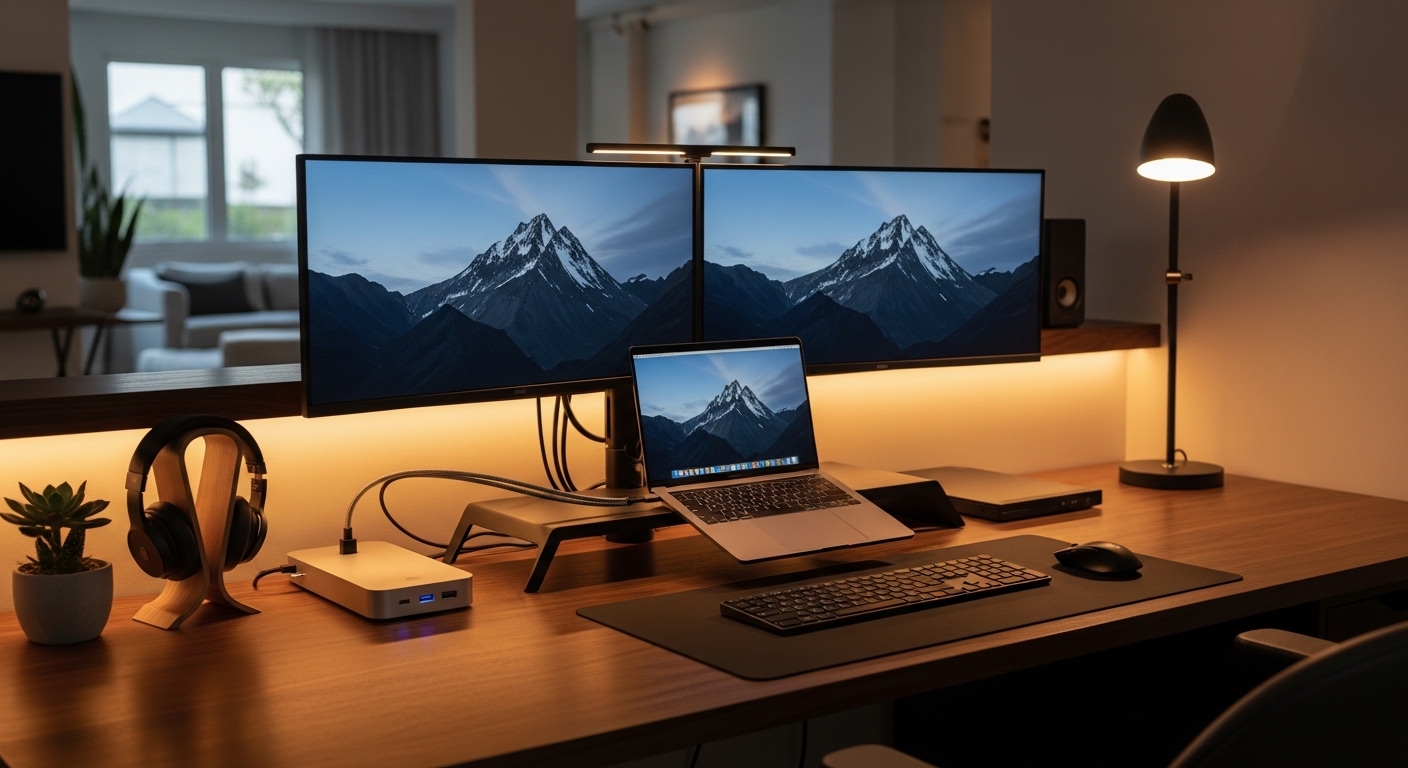
The Importance of a Centralized Workspace
Transforming a standard laptop into a professional workstation requires more than just a large screen. Many professionals find that managing multiple cables every morning becomes a tedious task that drains daily productivity.
When you are choosing the right docking station for dual monitors, you are investing in a seamless transition between mobile and stationary work. A high quality dock serves as the bridge between your portable device and a powerful desktop environment.
Modern workflows often demand more screen real estate than a single panel can provide. Research shows that using two displays can significantly increase efficiency for multitasking professionals.
However, the technical requirements for driving two high resolution screens can be complex. You must consider bandwidth, port types, and power requirements to ensure optimal hardware performance.
This guide will walk you through every critical detail needed to make an informed purchase. We will explore how different technologies impact your visual experience and long term comfort.
Identifying Your Primary Host Connection
The first step in your journey involves looking at the ports available on your laptop. Not all circular or rectangular ports offer identical capabilities or speeds.
Most modern laptops utilize USB Type C or Thunderbolt technology for data and video. You must verify if your USB C port supports DisplayPort Alt Mode specifically.
Without this support, the port may only handle data transfer or simple charging. Thunderbolt ports, marked with a lightning bolt, offer the highest available bandwidth for video.
A Thunderbolt 4 connection can easily drive two 4K displays at high refresh rates. Older USB C ports might struggle with high resolution demands without visual compression.
Before buying a dock, check your manufacturer specifications for the exact port version. Knowing your hardware limits prevents you from buying incompatible equipment for your setup.
Understanding Bandwidth Limitations
Bandwidth acts like a highway for your digital data and video signals. If the highway is too narrow, your monitors may experience flickering or reduced resolution.
Standard USB 3.2 ports have much less capacity than Thunderbolt 4 alternatives. While setting up your monitors, you might also consider upgrading your input devices.
Finding a quiet mechanical keyboard will ensure your focus remains sharp during long work sessions. Pairing great input devices with smooth visual output creates a premium experience.
If you plan to use two 4K monitors, you need a dock that supports at least 40 Gbps. Using a low bandwidth hub will often limit your refresh rate to thirty hertz.
A lower refresh rate makes mouse movements look choppy and causes eye strain. Always prioritize high speed connectivity if your budget allows for it.
Decoding Video Output Standards
Docking stations typically offer HDMI or DisplayPort connections for your external screens. Choosing between these depends on your specific monitor inputs and requirements.
DisplayPort is often preferred in professional settings for its superior daisy chaining abilities. HDMI is more common for consumer grade displays and home entertainment setups.
You should ensure the dock versions match your monitor capabilities for the best results. An HDMI 2.1 port is necessary for driving 4K at 120Hz smoothly.
If your monitors only have HDMI but the dock has DisplayPort, you will need adapters. Using high quality active adapters is essential to maintain signal integrity across connections.
Some docks offer a mix of both port types for maximum flexibility. This variety allows you to connect different monitor models without needing extra hardware converters.
Choosing the Right Monitor Resolution
The resolution of your screens directly impacts how much data the docking station must process. Driving two 1080p monitors is much easier than supporting dual 4K panels.
Before buying a dock, spend time choosing the right monitor size for office productivity to match your hardware capabilities. Larger screens with higher resolutions require more robust docking solutions.
If you opt for ultra wide displays, the bandwidth requirements increase even further. Ensure your chosen dock can handle the total pixel count of your setup.
Many entry level docks advertise dual monitor support but only at lower resolutions. Reading the fine print on specs is mandatory for a successful configuration.
High resolution workflows benefit from docks that support Display Stream Compression. This technology allows for crisp image quality even on limited bandwidth connections.
Power Delivery Essentials
A premium docking station should do more than just expand your display options. It should also charge your laptop through the same single cable connection.
This feature is known as Power Delivery or PD in technical specifications. You must check the wattage output provided by the docking station.
Laptops with dedicated graphics cards often require 85 watts or more to stay charged. If the dock only provides 60 watts, your battery might drain during heavy use.
Using a dock with insufficient power can also lead to performance throttling. The laptop may reduce its processor speed to save remaining battery energy.
Verify that the dock includes its own external power brick for reliability. Bus powered hubs draw energy from your laptop and cannot charge it effectively.
Total Power Budgeting
Consider the power needs of your connected peripherals as well. Hard drives and webcams draw significant current from the docking station ports.
A dock with a 180 watt power supply offers plenty of overhead for devices. This ensures your laptop charges quickly while all accessories function at peak performance.
Some mobile docks allow you to plug your laptop charger into the hub itself. While portable, this setup is often less stable for permanent desk installations.
For a reliable home office in 2026, a dedicated powered dock is the superior choice. It provides consistent energy flow without risking data corruption on external drives.
Always look for docks that provide at least 15 watts to their USB ports. This allows you to charge your smartphone or tablet directly from the workstation.
Compatibility and Operating Systems
Compatibility remains the biggest hurdle when choosing the right docking station for dual monitors today. Windows and macOS handle multi monitor signals in very different ways.
Windows supports a technology called Multi Stream Transport for driving multiple screens. This allows a single cable to send different images to each monitor easily.
Apple computers do not support this technology over standard USB C connections. Mac users often find their external monitors only show mirrored images without Thunderbolt.
To overcome this, Mac owners should look for docks using DisplayLink technology. DisplayLink uses software drivers to enable multiple extended displays on any system.
However, DisplayLink can sometimes cause slight lag in fast moving video. Professionals doing video editing should prioritize Thunderbolt docks for native hardware support.
Driver Installation and Setup
Some docking stations are truly plug and play while others require software. DisplayLink docks always require the installation of specific drivers to function.
Ensure your company IT policy allows you to install this software before purchasing. Thunderbolt docks usually work instantly with most modern operating systems.
Check for firmware updates from the dock manufacturer regularly. These updates can fix common stability issues and improve monitor compatibility over time.
Linux users should be especially careful when selecting a docking solution. Researching community forums ensures the chipset is supported by your specific distribution.
A compatible dock should show up in your display settings immediately upon connection. If your system fails to detect the second screen, check your cable quality.
Peripheral Connectivity and Data Speeds
Beyond video, a dock must accommodate all your essential office accessories. This includes your mouse, webcam, and storage devices.
Look for a mix of USB Type A and USB Type C ports for versatility. Newer accessories often use the smaller Type C connector for faster data transfer.
Ensure the dock offers at least 10 Gbps speeds for external solid state drives. Slower ports will bottleneck your file transfers and frustrate your workflow.
An integrated Ethernet port is vital for a stable internet connection. Wi Fi can be unreliable during video calls or large file downloads in busy households.
Gigabit Ethernet is the standard, but some premium docks offer 2.5Gbps support. This is excellent for future proofing your home network setup as speeds increase.
Audio and Card Readers
Many users appreciate having a dedicated 3.5mm audio jack on their desk. It allows you to connect speakers or headphones without reaching for your laptop.
Photographers and videographers should look for integrated SD card slots. Having an UHS II card reader built into the dock saves valuable desk space.
Some docks also feature a Kensington lock slot for added physical security. This is useful if you work in a shared office space or coworking environment.
Consider the placement of these ports on the dock chassis. Frequently used ports should be located on the front for easy access throughout the day.
Rear ports are better for permanent cables like those for your monitors. Proper port organization helps in maintaining a clean workspace with minimal clutter.
Pros and Cons of Different Dock Types
Choosing between Thunderbolt and USB C involves weighing performance against total cost. Thunderbolt docks offer the fastest data speeds and best video support available.
The primary downside is their higher price point compared to standard hubs. Standard USB C docks are more affordable but have stricter bandwidth limitations.
- Thunderbolt docks provide native support for high refresh rates.
- USB C hubs are often more portable and compact for travel.
- DisplayLink docks work across both Windows and Mac platforms.
- Proprietary docks offer guaranteed compatibility with specific laptop brands.
Proprietary docks often feature a power button that can wake your laptop. This is a major convenience if you prefer to keep your laptop lid closed.
Universal docks are more flexible if you switch between different laptop brands frequently. They represent a better long term investment for most home office users.
Check the warranty period provided by the manufacturer before making a decision. A longer warranty often indicates better build quality and internal components.
Avoid extremely cheap docks from unknown brands to protect your expensive laptop. Poorly made electronics can cause electrical damage to your primary computer motherboard.
Read customer reviews to identify common issues like overheating or port failure. A reliable dock should operate silently and remain cool during a full workday.
Budget Considerations for Professionals
Setting a budget for a docking station depends on your specific hardware needs. Entry level options for dual 1080p monitors usually start at affordable price points.
These basic hubs are sufficient for office tasks like spreadsheets and emails. However, they lack advanced power delivery and high speed data ports.
Mid range docking stations offer a balance of port variety and reliability. You can expect solid 4K support and decent charging speeds in this category.
Professional grade Thunderbolt 4 docks sit at the top of the price spectrum. They are essential for creatives and power users who demand the absolute best.
Consider the cost of cables when calculating your total setup budget. High quality video cables are necessary for stability and should not be overlooked.
Value Over Time
It is often better to spend more upfront on a high quality dock. A cheap hub that fails after six months is a poor use of your resources.
Look for aluminum enclosures that help dissipate heat more effectively than plastic. Metal docks are more durable and provide a more premium aesthetic on your desk.
Think about your future needs when selecting a docking station today. If you plan to upgrade your monitors soon, buy a dock that supports higher resolutions.
Spending an extra fifty dollars now can save you from buying a new dock later. Future proofing is a smart financial strategy for any tech professional.
Check if the dock includes the necessary host cable in the box. Some manufacturers sell the required connection cable separately, increasing the total cost unexpectedly.
Conclusion and Final Checklist
Choosing the right docking station for dual monitors is a vital step in building a productive home office. By focusing on bandwidth and compatibility, you ensure a frustration free experience.
Remember to verify your laptop port capabilities and power requirements before purchasing. A well chosen dock will last for many years and support multiple laptop upgrades.
Prioritize reputable brands with strong customer support and regular firmware updates. This ensures your investment remains protected against changing software standards.
Take the time to organize your cables once the docking station is installed. A clean desk promotes mental clarity and helps you stay focused on your work.
With the right hardware, your dual monitor setup will become a powerful tool. Enjoy the increased screen real estate and the simplicity of a single cable connection.