

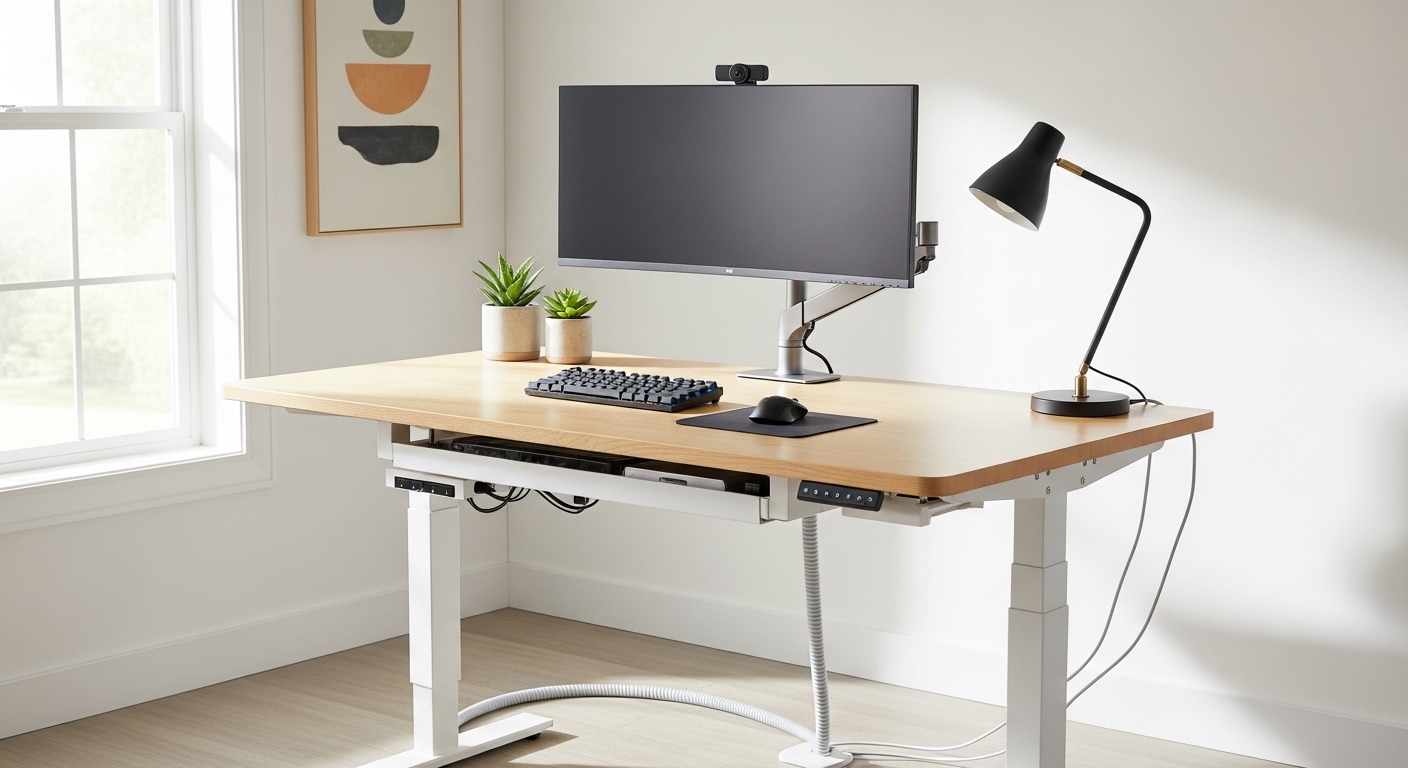
The Challenge of Managing Wires on an Active Workspace
Transitioning to an adjustable workstation brings incredible health benefits but introduces a significant aesthetic challenge. You must figure out how to manage cables on a standing desk without restricting the movement of the frame.
Traditional desks allow you to hide wires behind fixed legs or drawers. A standing desk requires a more dynamic approach because every wire must accommodate the changing height of the desktop surface.
If you fail to account for this range of motion, you risk damaging your equipment or even pulling monitors off the desk. This guide will provide a comprehensive roadmap to achieving a clean and functional setup.
We will explore the logic of cable physics and the best tools for the job. By the end, your workspace will look like a professional workstation instead of a chaotic web of plastic and copper.
Understanding the Physics of Moving Cables
The primary concern when dealing with motorized furniture is the concept of cable slack. You need enough length to reach the highest point of the desk but must manage the excess when the desk is low.
Many users make the mistake of measuring their cables while the desk is at sitting height. This often leads to catastrophic tension when the motor lifts the surface to a standing position.
You must ensure that every single cord has a safety buffer to prevent it from being unplugged or snapped. This requires a shift in how you think about power delivery and device placement.
Think of your cables as a living system that needs to flex and breathe during the day. A rigid system will eventually fail under the mechanical stress of daily height adjustments.
The Importance of a Single Power Source
The most effective strategy for a moving desk is to use a single power strip mounted directly to the underside of the desk. This ensures that most of your equipment moves in unison with the desktop.
Instead of having ten wires stretching from the desk to the wall, you only have one main cord connecting to the outlet. This drastically simplifies the range of motion requirements for your setup.
Mounting the power strip requires sturdy adhesive or screws depending on the material of your desktop. Always choose a power strip with a long cord, preferably fifteen feet or more, to give you maximum flexibility.
This central hub acts as the brain of your setup where all peripheral power originates. It reduces the number of points where a snag can occur during desk transitions.
Utilizing Under Desk Cable Trays
An under desk tray is perhaps the most vital tool in your organization arsenal. These metal or mesh baskets provide a discreet staging area for power bricks and excess wire lengths.
Without a tray, heavy power adapters will dangle and pull on your device ports. This weight can eventually cause internal damage to your laptop or monitor inputs.
A large tray allows you to tuck away clutter that would otherwise sit on the floor or the desktop. It creates a clean silhouette that makes your home office feel much more professional.
When installing a tray, ensure it is positioned toward the back of the desk to keep it out of the way of your knees. You should also ensure it does not interfere with the crossbar of the desk frame.
Choosing the Right Material for Your Tray
Metal wire trays offer excellent airflow which prevents your power bricks from overheating during long work sessions. This is especially important for high performance laptops that draw significant wattage.
Solid plastic trays provide a more hidden appearance but can trap heat if they are fully enclosed. Mesh designs offer a middle ground that balances aesthetics with thermal management.
Whatever material you choose, ensure the mounting hardware can support the weight of multiple power bricks. A falling cable tray can cause a significant mess and potential damage to your floor.
Consider using industrial strength velcro if you are hesitant to drill holes into a high quality wood desktop. This provides a secure hold while remaining somewhat reversible if you decide to change your layout.
The Role of Cable Sleeves and Wraps
Once your power is centralized, you will still have a cluster of wires running between your devices. Cable sleeves are perfect for bundling these individual strands into a single, cohesive tube.
Bundling cables prevents them from tangling with each other or getting caught in the mechanical parts of the desk. It also provides a layer of protection against pets who might be tempted to chew on exposed wires.
Neoprene sleeves are popular because they are flexible and soft, allowing them to bend easily as the desk moves. They often feature zippers or velcro for easy access when you need to add or remove a cable.
Braided expandable sleeving is another great option that offers a premium technical look for your workspace. It requires a bit more effort to install but provides a very sleek finish.
Managing the Vertical Transition with Spines
The gap between the moving desk and the static floor is where most problems occur. A cable spine, also known as a cable vertebrae, is designed specifically for this vertical transition.
These modular links move like a robotic tail, expanding and contracting as the desk changes height. This keeps the main power cord from swinging wildly or becoming a tripping hazard.
A spine ensures that the cable always follows a predictable path during movement. This prevents the cord from getting pinched between the desk frame and the wall.
While a spine is an additional investment, it is the gold standard for high end standing desk setups. It provides a level of organization that simple ties and clips cannot match.
Alternative Vertical Solutions
If a cable spine feels too bulky, you can use adhesive cord clips along the leg of the desk. This allows you to route the main power cable directly down the metal frame.
You must leave a generous loop of cable at the bottom to allow for full extension. If the cable is too tight, it will pull away from the leg when the desk is raised.
Magnetic cable channels are also available for desks with steel frames. these allow for a very clean look without the need for sticky adhesives or permanent fasteners.
Always test the movement several times at slow speeds to ensure nothing catches on the desk motor or legs. Monitoring the transition is the best way to prevent long term wear on your cables.
Optimizing Monitor Arm Cable Routing
Monitors are usually the most prominent items on a desk, and their cables are often the hardest to hide. Using a monitor arm with integrated channels is a game changer for cable management.
Most modern arms allow you to thread the wires through the plastic casing of the arm itself. This hides the video and power cables until they reach the base of the mount.
From the base of the monitor arm, cables can drop straight into the tray you installed earlier. This creates a floating effect where no wires are visible from the front of the workstation.
If your monitor arm lacks built in channels, you can use small zip ties to secure the wires to the underside of the arm. Be sure to leave enough slack near the monitor to allow for tilting and rotating.
Dealing with Peripherals and Small Wires
Keyboards, mice, and webcams contribute to desktop clutter if their wires are not properly managed. Even in a wireless world, many pro users prefer wired connections for reliability and latency.
Small adhesive cable clips can be placed on the back edge of the desk to keep these wires in place. This prevents them from sliding off the back when you unplug a device.
For a truly clean look, consider drilling a small grommet hole in the desktop. This allows you to route keyboard and mouse wires directly through the surface and into the under desk tray.
Using a weighted cable holder on the desktop can also keep charging cables for phones and tablets within reach. This prevents you from having to fish for dropped cords on the floor.
The Benefits of Wireless Peripherals
The easiest way to manage a cable is to eliminate it entirely by choosing wireless alternatives. Modern Bluetooth and 2.4GHz technology offer performance that is virtually indistinguishable from wired options.
Wireless peripherals reduce the visual noise on your desk and make the surface easier to clean. You only need to worry about a single charging cable that can be tucked away when not in use.
However, keep in mind that high performance devices like 4k webcams still require a wired connection for data bandwidth. Plan your cable management strategy around these essential wired devices first.
Managing a few essential wires is much easier than wrestling with a dozen unnecessary ones. Always prioritize the devices that require the most stability and speed.
Step by Step Setup Workflow
To master how to manage cables on a standing desk, you must follow a logical order of operations. Start by clearing everything off the desk to give yourself a blank canvas.
First, install your power strip and tray to the underside of the desk. This creates the infrastructure that will hold all subsequent wires and adapters.
Next, place your largest items like monitors and computers in their final positions. Route their cables through any monitor arms or grommets before connecting them to the power hub.
Once the main devices are connected, use velcro ties to group the wires together. Avoid using plastic zip ties if possible, as they make it difficult to change your setup later.
Finally, perform a full range test by raising the desk to its maximum height. Watch closely for any tension or snagging points that might require more slack.
Safety and Maintenance Considerations
Cable management is not just about looks; it is a safety requirement for any motorized furniture. Overloaded power strips or pinched wires can create significant electrical hazards.
Check your cable setup every few months to ensure adhesives are holding and nothing has shifted. The vibrations from the desk motor can sometimes loosen clips or ties over time.
Ensure that your ventilation is clear for all power adapters and docking stations. Excessive heat is the enemy of electronics and can lead to premature hardware failure.
In the year 2026, we expect even more advanced cable solutions to emerge, but the fundamentals of physics will remain the same. Tension and organization will always be the two pillars of a successful standing desk setup.
The Importance of Labeling Your Cables
When you have a dozen identical black cables plugged into a power strip, troubleshooting becomes a nightmare. Small labels or colored tags can save you hours of frustration in the future.
Label both ends of the cable so you know which device it belongs to and where it is plugged into the strip. This is especially helpful if you frequently swap out laptops or peripherals.
You can use simple masking tape or dedicated cable labels for a more professional look. This small step makes your workstation much easier to maintain as your gear evolves.
A well labeled system is the hallmark of an organized professional who values their time. It ensures that any technical issues can be resolved quickly without dismantling the entire desk.
Managing Heavy Power Bricks
Large power bricks for gaming laptops or monitors are notoriously difficult to manage. If they are left to hang, they will eventually damage the power strip or the device cable.
Use extra strength velcro to mount these bricks directly to the underside of the desk or inside the cable tray. This removes the weight from the connections and keeps the floor clear.
If your tray is large enough, simply laying them flat inside is often sufficient for stability. Just be sure they are not stacked on top of each other to allow for proper heat dissipation.
Managing the weight of your components is just as important as hiding the wires. A balanced system is a reliable system that will last for years to come.
Frequently Asked Questions
- How much slack do I really need? You should have enough slack to allow the desk to reach its maximum height plus an extra three to five inches of safety buffer.
- Can I use zip ties? While zip ties work, velcro straps are preferred because they are reusable and do not risk cutting into the cable insulation.
- Should I hide cables behind the desk legs? Yes, using the legs as a guide is a great way to keep the main power cord discreet and protected.
- Is it okay to use a power strip on a standing desk? Yes, it is actually recommended to mount the power strip to the desk to minimize the number of moving wires.
- How do I prevent my cables from being pinched? Use a cable spine or route cables away from the mechanical joints and the wall to ensure a clear path of travel.
Conclusion
Mastering how to manage cables on a standing desk is a blend of planning, the right tools, and a bit of patience. By centralizing your power and accounting for the vertical movement, you create a workspace that is both beautiful and safe.
Remember that the goal is to create a frictionless environment where your equipment can move freely. A clean desk leads to a clear mind, allowing you to focus on the work that truly matters.
Take the time to do it right the first time, and you will enjoy the ergonomic benefits of your standing desk without the frustration of a messy workspace. Your home office should be a place of inspiration, not a source of clutter related stress.
Invest in quality management tools and follow the principles of slack to ensure your technology remains protected. With these strategies, your standing desk setup will be the envy of any professional remote worker.