
The Foundation of Your Home Lab Storage
Building a home server is an exciting journey into the world of self hosting and data management. One of the most critical decisions you will face is how to choose hard drives for home lab environments.
Storage is the bedrock of your services, housing everything from family photos to virtual machines and complex databases. Selecting the wrong drive can lead to performance bottlenecks or even data loss.
This guide provides a comprehensive look at the technical specifications and practical considerations for modern storage. We will explore the nuances of disk technology to help you build a robust storage array.
By the end of this article, you will have the knowledge required to navigate the complex market of data storage. You will understand which drives suit your specific workload and budget requirements.
Understanding Mechanical Hard Drive Technology
Traditional hard disk drives, or HDDs, remain the king of capacity in the home lab world. They use spinning platters and magnetic heads to read and write data.
When looking at HDDs, the most vital distinction is between Recording Technologies used by manufacturers. This technical detail significantly impacts how your drive performs during heavy write operations.
Conventional Magnetic Recording, known as CMR, is the gold standard for home lab servers. These drives store data in non overlapping tracks, which ensures consistent performance during parity rebuilds.
Shingled Magnetic Recording, or SMR, overlaps tracks like shingles on a roof to increase density. While cheaper, SMR drives suffer from extremely slow write speeds when the drive fills up.
For any system involving RAID or ZFS, you must prioritize CMR drives exclusively. Using SMR drives in a redundant array often leads to array failure during a rebuild process.
Helium vs Air Filled Drives
Modern high capacity drives often utilize helium instead of air inside the sealed enclosure. Helium is much less dense than air, which reduces internal friction and turbulence.
This allows manufacturers to fit more platters into the same physical space. Helium filled drives generally run cooler and consume less power than their air filled counterparts.
You will typically find helium technology in drives with capacities of 10TB or higher. For a home lab located in a living space, the lower heat output is a significant advantage.
Air filled drives are still common in lower capacities and are often noisier. They are perfectly fine for basic storage, but they lack the efficiency of helium models.
The Role of Solid State Storage
Solid State Drives, or SSDs, have transitioned from luxury items to essential components for any modern home lab. They offer near instant access times and massive input output operations per second.
You should use SSDs for your operating system and application data. This ensures that your containers and virtual machines boot quickly and remain responsive.
While HDDs excel at sequential tasks like streaming video, SSDs dominate in random access scenarios. High random access speed is vital for hosting databases or web services.
SSDs also lack moving parts, making them completely silent and resistant to physical shock. This makes them ideal for small form factor nodes or desk mounted servers.
NVMe versus SATA SSDs
When selecting flash storage, you will choose between SATA and NVMe interfaces. SATA SSDs are limited by an older protocol designed for mechanical disks.
NVMe drives use the PCIe bus to communicate directly with the processor. This allows for massive bandwidth increases that can reach several gigabytes per second.
For most home lab tasks, the difference between a SATA and NVMe SSD might feel negligible. However, for heavy virtualization, the lower latency of NVMe is a game changer.
Prices for NVMe storage have dropped significantly in recent years. In the current market, there is rarely a reason to choose SATA SSDs for primary boot drives.
Determining Your Capacity Requirements
Calculating how much storage you need is a delicate balance between current data and future growth. It is helpful to audit your current data footprint before making a purchase.
Always plan for at least 30 percent more storage than you think you need today. Data hoarding is a common home lab hobby that consumes space faster than expected.
Consider the impact of redundancy on your usable capacity. If you use a mirror, you only get 50 percent of the total raw storage you purchased.
Higher level RAID configurations like RAIDZ2 require at least two drives for parity. This means you lose the capacity of two disks to ensure your data stays safe.
The Cost of Redundancy
Redundancy is not a backup, but it is essential for uptime and availability. You must factor in the cost per usable terabyte rather than the raw cost per drive.
Buying fewer, larger drives is often more efficient than buying many small drives. Larger drives use fewer SATA ports and consume less total power for the same capacity.
However, larger drives take much longer to rebuild if one fails. A 20TB drive might take days to silver in a ZFS pool, increasing the risk during the process.
Balance is key when deciding on the individual disk size for your array. Most enthusiasts find that 12TB to 18TB drives offer the best middle ground for home use.
Interface Options for the Home Lab
The physical connection between your drive and the motherboard defines your system architecture. The most common interface for home users is the Serial ATA or SATA connection.
SATA is universally compatible with almost every motherboard and consumer NAS device. It provides enough speed for mechanical drives and basic SSD workloads.
SAS, or Serial Attached SCSI, is the enterprise alternative to SATA. SAS drives are designed for high availability and can be connected to professional Host Bus Adapters.
SAS offers features like dual porting for paths to two different controllers. While SAS drives are often found cheaply on the used market, they require specific hardware to function.
The Benefits of SAS
SAS controllers can typically handle SATA drives, but SATA controllers cannot handle SAS drives. If you plan to use an enterprise server, SAS connectivity is a major benefit.
SAS drives often have higher signal voltages, which allows for longer cables and better reliability. They also support advanced error reporting that is not available on standard consumer hardware.
For a beginner, sticking with SATA is usually the easiest path. It avoids the need for specialized cables and power adapters that enterprise hardware often requires.
If you find a great deal on used enterprise gear, do not be afraid of SAS. Just ensure you have the correct HBA card to bridge the gap to your motherboard.
Reliability and Endurance Ratings
Drive endurance is a measure of how much data you can write before the drive fails. This is especially important for SSDs, which have a limited number of write cycles.
Manufacturers express this as Terabytes Written or Drive Writes Per Day. For a home lab hosting a few services, consumer endurance is usually sufficient.
If you are running a heavy logging environment or a high traffic database, look for enterprise SSDs. These drives use higher quality flash memory and advanced controllers to handle constant writes.
For HDDs, reliability is often measured by the Mean Time Between Failures. This is a statistical estimate of the average operating hours before a hardware fault occurs.
Workload Ratings
Hard drives are also rated for their annual workload in terabytes per year. Desktop drives are only designed for eight hour operation and low data transfers.
NAS and Enterprise drives are rated for 24/7 operation and much higher workloads. They also feature rotational vibration sensors that prevent the drives from damaging each other in close proximity.
Always choose drives specifically labeled for NAS or Server use if you have more than two disks. The vibrations from multiple spinning platters can quickly kill a standard desktop drive.
These specialized drives also feature Error Recovery Control, which prevents the drive from dropping out of a RAID array. This feature is crucial for maintaining pool stability during minor read errors.
Environmental Considerations
The physical location of your home lab should influence your drive choice. Servers located in a bedroom or office need to be as quiet as possible.
High capacity 7200 RPM drives can be surprisingly loud during seek operations. They produce a distinct clicking sound that can be very distracting in a quiet room.
If silence is a priority, consider using lower speed 5400 RPM drives. While they are slightly slower, they run much quieter and generate less heat over time.
Temperature management is another vital factor for drive longevity. Ensure your server case has adequate airflow to keep drives below 45 degrees Celsius.
Power Consumption Costs
Electricity prices are a major factor for labs that run continuously. Mechanical drives consume between 5 and 10 watts each while spinning.
An array of eight drives can easily add 80 watts to your idle power draw. Over the course of a year, this energy consumption adds up to a significant cost.
If you are building for the year 2026, efficiency will likely be even more important. Newer drive models focus heavily on reducing idle power draw to meet environmental standards.
SSD only labs are becoming more common for users who prioritize low power and zero noise. While the initial cost is higher, the power savings can offset the price over several years.
Budgeting and Sourcing Strategies
Storage is often the most expensive part of a home lab build. Finding ways to save money without sacrificing data integrity is a common challenge for enthusiasts.
One popular method is external drive shucking, which involves removing a drive from its plastic enclosure. These external drives are often much cheaper than their internal retail equivalents.
Inside the plastic shell, you will often find high quality white label drives. These disks are usually similar to enterprise or NAS models but have shorter warranties.
Be aware that shucking usually voids the manufacturer warranty. You should weigh the cost savings against the risk of a drive failing without a free replacement.
New versus Recertified Drives
The used market is a goldmine for home labbers looking for high capacity SAS storage. Many data centers retire drives after only three years of use, leaving plenty of life remaining.
Buying recertified drives from reputable sellers can save you more than 50 percent off the retail price. These sellers often provide their own one or two year warranties for peace of mind.
Never buy used drives from unknown individual sellers without seeing the SMART data first. SMART data reveals the total power on hours and any previous error history.
For critical data, always buy at least one or two new drives to mix with your used stock. This reduces the chance of multiple drives failing at the same time due to shared age.
Form Factors and Physical Constraints
Most home labs use the standard 3.5 inch form factor for mechanical storage. These drives provide the best capacity for the price and fit into most server chassis.
Small form factor builds often rely on 2.5 inch drives. While 2.5 inch SSDs are excellent, mechanical 2.5 inch drives are increasingly difficult to find in high capacities.
M.2 drives have become the standard for high speed flash storage. They plug directly into the motherboard, eliminating the need for data and power cables.
Check your motherboard specifications for the number of available M.2 slots. You can also use PCIe adapter cards to add more M.2 storage to an older system.
The Rise of U.2 and U.3
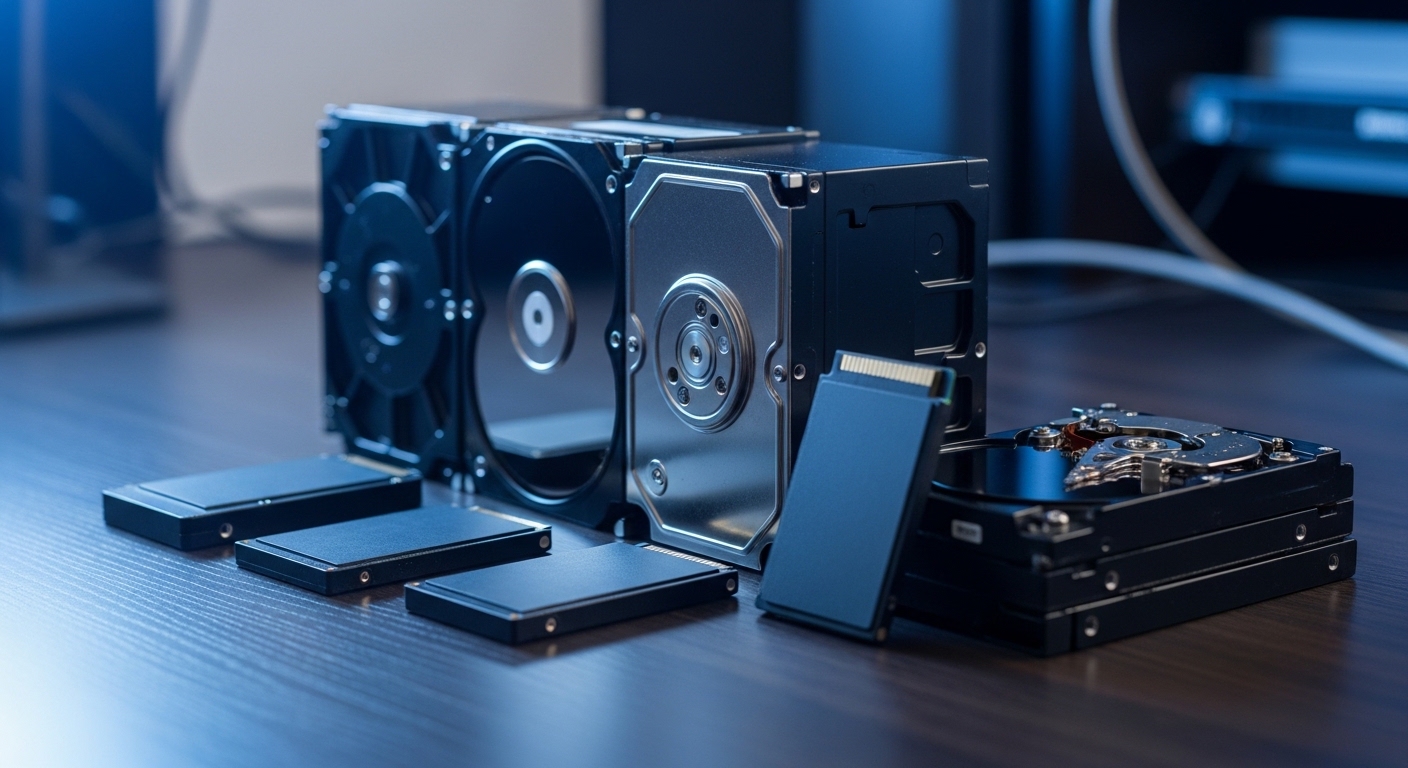
Enterprise hardware is moving toward U.2 and U.3 connectors for high capacity NVMe storage. These drives look like thick 2.5 inch SATA disks but use the PCIe interface.
U.2 drives offer much better thermal management than M.2 sticks. They are designed to be hot swappable from the front of a server chassis, which is very convenient.
While rare in consumer boards, you can find U.2 to M.2 adapters to use these enterprise drives. They often offer much higher endurance than consumer NVMe options.
If you find a deal on a high capacity enterprise SSD, it will likely be a U.2 drive. Just make sure your power supply and cables can accommodate the specialized connector.
Conclusion and Final Recommendations
Learning how to choose hard drives for home lab usage is a foundational skill for any tech enthusiast. It requires balancing performance, capacity, and long term reliability.
Start by identifying your primary use case, whether it is media streaming, virtualization, or deep backups. Use high speed SSDs for your active data and CMR HDDs for bulk storage.
Avoid SMR technology at all costs if you value your data integrity in a RAID array. Always monitor your drive health using tools like SMART and automated scrub tasks.
Remember that every drive will eventually fail, regardless of the brand or price. A solid backup strategy is the only way to truly protect your hard work and digital memories.
Invest in quality storage today to ensure your home lab remains a reliable tool for years to come. Your future self will thank you when your server stays online through every challenge.